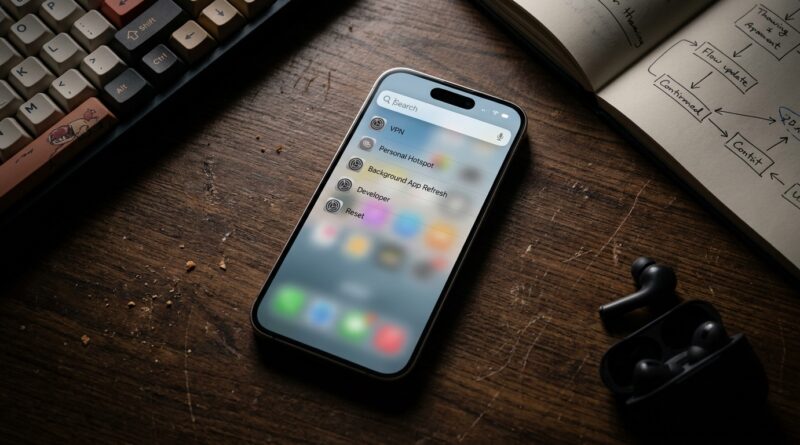
Stop Manually Chasing Settings: The Hidden iOS 18 ‘Spotlight Shortcuts’ Power Users Turn Into Instant Toggles
You know the setting is on your iPhone somewhere. You just do not know why getting to it feels like a scavenger hunt every single time. One day it is Personal Hotspot. The next day it is VPN, Camera formats, Focus settings, or that one data option you only touch when traveling. iOS 18 did not exactly make this better. Settings now feels deeper, more spread out, and packed with switches that are easy to forget until the exact moment you need them fast. The good news is you do not have to keep digging. One of the most useful iOS 18 spotlight settings shortcuts tricks is using Spotlight like a direct doorway into buried controls, and pairing it with a few simple shortcut names so your iPhone behaves more like a command center than a maze. Once you set this up, you spend less time hunting and more time actually using your phone.
⚡ In a Hurry? Key Takeaways
- Spotlight in iOS 18 can jump you straight to many buried settings pages, and the Shortcuts app can turn common actions into near-instant toggles.
- Create simple shortcuts for things like Low Power Mode, Dark Mode, VPN, and hotspot-related actions, then name them with plain words you will actually remember.
- You do not need any extra app, and you can keep sensitive apps private too with Stop Letting People Snooping Through Your Apps: The Hidden iOS 18 ‘Lock & Hide’ Combo Power Users Turn On Before Handing Over Their iPhone.
Why this matters more in iOS 18
There are two separate problems colliding here.
First, iOS 18 has made Settings feel more fragmented. Apple keeps adding features, but those features do not always land in places that feel obvious. You can know a setting exists and still blank on where Apple tucked it away.
Second, Apple Intelligence features, app permissions, privacy controls, camera options, and Focus tools all bring more little switches. None of them are hard on their own. Together, they create menu fatigue.
That is why power users increasingly skip the Settings app as much as possible. They use Spotlight as a launcher and Shortcuts as a control panel.
What “Spotlight shortcuts” really means
This is not one hidden master switch called Spotlight Shortcuts. It is really two iPhone features working together.
1. Spotlight search as a settings launcher
Swipe down from the Home Screen, type something like “VPN,” “Hotspot,” “Auto-Lock,” “Background App Refresh,” or “Camera,” and iOS will often show the exact settings page or a close match. Tap it, and you skip the menu maze.
2. The Shortcuts app as a one-tap action tool
For settings that can be changed directly, Shortcuts lets you make simple actions like “Turn Low Power Mode On,” “Set Appearance to Dark,” or “Set Focus to Do Not Disturb.” Those shortcuts then show up in search too.
The result is simple. Instead of remembering where Apple hid the control, you remember the word you would naturally type.
Start with Spotlight before you touch anything else
If you do only one thing today, do this.
From your Home Screen, swipe down to open Spotlight. Then start searching for the settings you hate hunting for. Try these:
- Hotspot
- VPN
- Cellular Data
- Auto Lock
- Battery Health
- Background App Refresh
- Camera Formats
- Focus
- Location Services
- Display Zoom
You will quickly notice a pattern. Many of these jump straight into the right section, or at least very close to it. That alone saves time.
If Spotlight is not finding what you expect, be specific. “Camera formats” often works better than just “camera.” “Cellular data options” may work better than “data.”
The real upgrade is adding your own fast actions
Spotlight is great for jumping into pages. Shortcuts is what turns repeated tasks into instant commands.
How to create a basic settings shortcut
Open the Shortcuts app, tap the plus button, then search for an action. Apple already includes a lot of useful ones. Common examples include:
- Set Low Power Mode
- Set Appearance
- Set Focus
- Set Bluetooth
- Set Wi-Fi
- Set Airplane Mode
- Set Personal Hotspot, depending on device support and iOS behavior
- Open URL or open a specific settings section when direct toggles are not allowed
After adding the action, give the shortcut a dead simple name. Think like your future tired self. Good names are:
- Dark Mode
- Battery Saver
- Work Focus
- Travel Data
- Open VPN
Now that shortcut can appear in Spotlight search. Swipe down, type the phrase, tap once, done.
Best settings to turn into shortcut phrases
Not every setting can be fully toggled by Shortcuts, because Apple keeps some controls locked down. But even then, you can usually create a shortcut that opens the exact app or page you need.
Dark Mode
This is the classic one. Create a shortcut that sets Appearance to Dark, and another that sets it to Light if you switch often.
Low Power Mode
Perfect for anyone who notices their battery dropping right as they leave the house.
Focus modes
Set one-tap shortcuts for Work, Sleep, Personal, or Do Not Disturb. This is much faster than opening Control Center and poking around.
VPN
Some VPN apps expose good shortcut actions. If yours does, great. If not, make a shortcut that opens the VPN app directly, then name it “VPN.” Spotlight will still get you there faster.
Camera formats and camera tools
If you often switch between efficiency and quality, use Spotlight to jump to Camera settings fast. Even when you cannot fully automate the change, reaching the page in one step is still a win.
Cellular and travel settings
Data roaming, Low Data Mode, and SIM-related options are easy to forget until you need them urgently. Build a shortcut that opens the relevant carrier app or settings page, and give it a clear travel-friendly name.
How to make Spotlight better at finding your stuff
If search feels inconsistent, a few small habits help a lot.
Use plain-English names
Do not name your shortcut something cute like “Moonlight Engine” if it turns on Dark Mode. You will never remember that when you are in a rush.
Keep one job per shortcut
A shortcut called “Travel” that toggles five things sounds clever, but it is harder to trust. Separate actions are easier to search and easier to fix.
Pin your most-used shortcuts to the Home Screen too
If you repeat something daily, add it to the Home Screen as a backup. Spotlight is quick, but one tap is quicker.
Test your wording
After creating a shortcut, close the app and use Spotlight to search for it. If it does not feel obvious, rename it until it does.
What Spotlight can do better than Control Center
Control Center is great for broad, common actions. But it is limited by space and by what Apple chooses to put there.
Spotlight has a different strength. It is word-based. You can think, type, tap. That makes it better for buried settings you do not need every hour, but do need often enough to be annoyed.
If you are always handing your phone to someone else for a photo or a quick call, this is also a good time to tighten up privacy. Pair faster access with better app protection using Stop Letting People Snooping Through Your Apps: The Hidden iOS 18 ‘Lock & Hide’ Combo Power Users Turn On Before Handing Over Their iPhone. Convenience is nice. Convenience with boundaries is better.
Limitations to know before you get too ambitious
Apple does not let Shortcuts control every setting directly. That is normal.
Some settings can only be opened, not changed. Others depend on your carrier, your VPN app, or your iPhone model. And Apple sometimes changes what is allowed between iOS updates.
So the goal is not to automate the entire Settings app. The goal is to kill the repeated friction. Even cutting a five-step hunt down to a one-search jump is a real improvement.
A simple setup anyone can copy today
If you want an easy starter pack, make these five first:
- Battery Saver for Low Power Mode
- Dark Mode for Appearance
- Work Focus for your main Focus mode
- VPN to open or control your VPN app
- Hotspot to jump straight to the hotspot area or related settings
Then spend one week noticing which settings make you mutter, “Why is this buried?” Those are your next shortcut candidates.
At a Glance: Comparison
| Feature/Aspect | Details | Verdict |
|---|---|---|
| Spotlight search for settings | Lets you type a setting name and jump straight to many buried menu pages. | Best quick win. No setup needed. |
| Shortcuts app actions | Can directly toggle some features like Focus, Appearance, and Low Power Mode, or open apps/pages for the rest. | Best for repeated tasks. |
| Control Center | Still useful for common controls, but not ideal for deeper settings or less common tweaks. | Good backup, not the fastest route for everything. |
Conclusion
iOS 18 spotlight settings shortcuts are not really about fancy automation. They are about cutting out pointless menu hunting. Right now, two things are happening at once. iOS 18 has made Settings deeper and more fragmented, and Apple Intelligence plus newer app features keep adding more toggles. That means casual users lose little chunks of time every day searching for controls they know exist, while power users barely open Settings because they have trained Spotlight and a few shortcut phrases to do the heavy lifting. You can do the same in a few minutes, with tools already on your iPhone and no extra app required. Start small, name things clearly, and build around the settings that annoy you most. Your phone will feel faster almost immediately.