Stop Manually Copy‑Pasting Screenshots: The Hidden iOS 18 ‘Live Text Actions’ Power Users Turn Into One‑Tap Workflows
You know the drill. Someone texts a tracking number. Your office Wi-Fi password gets flashed on a projector for five seconds. A meeting invite lives inside a screenshot instead of a proper calendar event. So you do the little dance: open the image, zoom in, long-press, copy text, switch apps, paste, then fix whatever your phone grabbed wrong. On an iPhone this expensive, that feels silly.
The good news is that iOS 18 makes Live Text feel less like a gimmick and more like a real shortcut. Apple’s text detection is faster, better with messy photos, and smart enough to spot dates, phone numbers, addresses, tracking numbers, and translations right from screenshots, photos, and even paused video. The hidden part is not that Live Text exists. It’s that you can treat it like a one-tap workflow. Once you know where to tap and what kinds of text iPhone recognizes, a screenshot stops being a dead image and starts acting more like a mini control panel.
⚡ In a Hurry? Key Takeaways
- Live Text in iOS 18 can pull useful info from screenshots and photos, then turn it into actions like calling, adding contacts, creating events, opening links, or translating text.
- The fastest habit is simple: after taking a screenshot, tap the Live Text icon or press on recognized text instead of copying everything manually.
- It is a big time-saver, but always double-check passwords, dates, and tracking numbers before you send or save them.
What Live Text actually does in iOS 18
Live Text is Apple’s built-in text recognition tool. It reads text inside images and gives you actions based on what it finds.
That last part matters most. This is not just OCR, which is the dry term for turning a picture into selectable text. Live Text goes further. If it sees a phone number, you can call it. If it sees a date, you can add it to Calendar. If it sees an address, you can open Maps. If it sees another language, you can translate it.
That is why the best iOS 18 Live Text hidden features are really about cutting out all the app-hopping.
Where to find it
You can use Live Text in a few places:
- In screenshots right after you take them
- In the Photos app
- In Camera when pointing at text
- In paused video frames in supported apps
Look for the small Live Text icon, which usually appears as text lines inside a frame. In many cases, you can also just touch and hold on the text itself.
The screenshot trick most people miss
This is the one that saves the most time.
After taking a screenshot
Take the screenshot. Tap its thumbnail before it disappears. If the image contains text, iPhone will often show the Live Text icon. Tap it, and now the text is selectable right inside the screenshot editor.
From there, you can do much more than copy and paste. Depending on what is in the image, you may see options to:
- Call a number
- Send a message or email
- Open a website
- Add an event
- Get directions
- Translate text
- Track a shipment or open a related app
If you have been saving screenshots “for later,” this is the habit to break. Try to act on the text right away, while the screenshot is still open.
Turn common annoyances into one-tap jobs
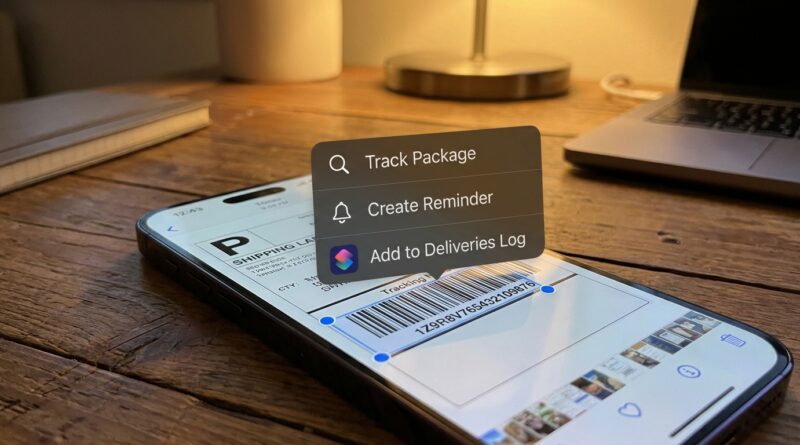
1. Tracking numbers from shipping labels
This one is perfect for Live Text. Screenshot the label, email, or text message. Select the tracking number. iPhone may offer a direct action, or at least let you copy only the number without grabbing extra junk around it.
A nice system is to paste that number into a note titled “Waiting On” and keep all current deliveries in one place. That sounds simple, but it beats hunting through old texts and screenshots every time you wonder where a package is.
2. Wi-Fi passwords from slides, stickers, and printouts
Hotels, offices, and conference rooms love putting passwords somewhere awkward. Live Text lets you grab the password from a photo or screenshot instead of squinting and retyping.
Just be careful with similar-looking characters like O and 0, or l and 1. Live Text is good. Human typography is often the real problem.
3. Meeting details from screenshots
If someone sends a screenshot with a meeting date, time, address, or Zoom link, Live Text can pull out the key parts. Tap the date to create a calendar event. Tap the address to preview it in Maps. Tap the link to join or save it.
This is especially helpful if your phone is already noisy with alerts. Pairing this with better notification control makes a big difference. If your iPhone keeps interrupting you while you are trying to organize all this stuff, it is worth reading Stop Letting Notifications Rule Your Day: The Hidden iOS 18 Focus Filters Power Users Use To Automate Their Life.
4. Business cards into instant contacts
Take a photo of a business card in decent light. Open it in Photos and use Live Text to select the person’s name, phone number, email, and company. You can usually tap the phone number or email directly, or copy the details into a new contact much faster than typing everything.
If you are at an event and collecting several cards, this turns a pile of cardboard into actual useful contact info in minutes.
5. Missed-call screenshots into “call back later” reminders
This is one of those small power-user moves that feels great once you start doing it.
If you screenshot a call log, voicemail screen, or text with a phone number and a date, Live Text can help you grab the number and time details. Then create a calendar event or reminder like “Call Jamie back at 4 PM.”
It is not fully automatic in the science-fiction sense. But it is much faster than retyping the number, and much more likely to happen if it only takes a few taps.
6. Handwritten notes from whiteboards
iOS 18 is better than older versions at reading imperfect text, including some handwriting. That means a photo of a whiteboard or scribbled meeting note may now be usable instead of decorative.
Open the image in Photos, select what Live Text detects, and paste it into Notes, Reminders, or Mail. It will not read every scribble perfectly, but it is often good enough to save you from typing the whole thing again.
7. Quick translate overlays while traveling
Point your camera at a menu, sign, train notice, or printed instructions. Live Text can identify the text and offer translation. You can also use it on saved photos and screenshots if you took the picture earlier.
This is one of the easiest ways to make your iPhone feel smarter without installing anything extra.
How to make Live Text feel like a workflow, not a trick
The difference is repetition. Pick a few situations where you always do the same boring steps, then replace them with a Live Text habit.
Start with these simple rules
- If a screenshot contains a date, tap it and see if Calendar appears.
- If it contains a phone number, try pressing it before copying anything.
- If it contains an address, open it in Maps right from the image.
- If it contains a password or code, select only that text instead of the whole block.
- If it contains a foreign language, use Translate before searching manually.
Do this a few times and your muscle memory changes. You stop treating screenshots like a photo album and start treating them like a temporary workspace.
Tips to get better results
Use clear images
Sharp screenshots are easiest. For camera photos, good lighting helps a lot. Avoid glare, tiny text, and crooked angles when you can.
Zoom in if needed
If Live Text misses something, zooming into the image in Photos can help. Sometimes the text is there, just too small for easy selection at first.
Watch for smart categories
Dates, phone numbers, addresses, links, and tracking-style codes often trigger extra actions. Those are the real time-savers.
Double-check before you trust it
This matters with passwords, serial numbers, and travel details. Live Text is very good, but not magical. One wrong character can ruin your day.
What is actually new and better in iOS 18
The biggest improvement is not a flashy new button. It is speed and reliability. Text recognition feels quicker, and Apple is better at spotting useful chunks of information inside messy real-world images.
That means fewer moments where you have to fight your phone just to select one line correctly. For most people, that is the upgrade that counts.
When Live Text will not help much
It can struggle with:
- Very blurry photos
- Stylized fonts
- Low-contrast text
- Messy handwriting
- Screens packed with overlapping graphics
If it fails, take a cleaner photo or crop the image so the text area fills more of the screen.
Privacy note
Live Text is convenient, but screenshots can contain private information. Think twice before storing images that include login details, account numbers, or personal addresses. If you only needed the text for ten seconds, delete the screenshot after using it.
At a Glance: Comparison
| Feature/Aspect | Details | Verdict |
|---|---|---|
| Screenshot actions | Recognizes text inside screenshots and often offers direct actions for dates, links, numbers, and addresses. | Best everyday use. Fast and easy. |
| Photos and handwritten notes | Works well on printed text and can handle some handwriting better than older iOS versions. | Very useful, but accuracy depends on image quality. |
| Translation and smart recognition | Can translate signs, menus, and screenshots, while also spotting contact info and meeting details. | Great travel and productivity bonus. |
Conclusion
The best part of Live Text in iOS 18 is not that it looks clever. It is that it cuts out dumb busywork. We are all swimming in visual information now: Zoom links in screenshots, package labels, whiteboard photos, passwords on slides, business cards you mean to save later. Most people still treat those images like digital sticky notes and do the copy-paste dance afterward. You do not have to. Once you start using Live Text as a repeatable system, screenshots become action buttons. A phone number becomes a call. A date becomes an event. A label becomes a trackable package. A foreign sign becomes readable. That is the real hidden feature. It gives you a little time back, every single day, and iOS 18 is finally good enough that you will actually want to use it.