Stop Letting Apps Boss You Around: The Hidden ‘Per‑App Control Center’ Trick Power Users Use To Tame Notifications In One Session
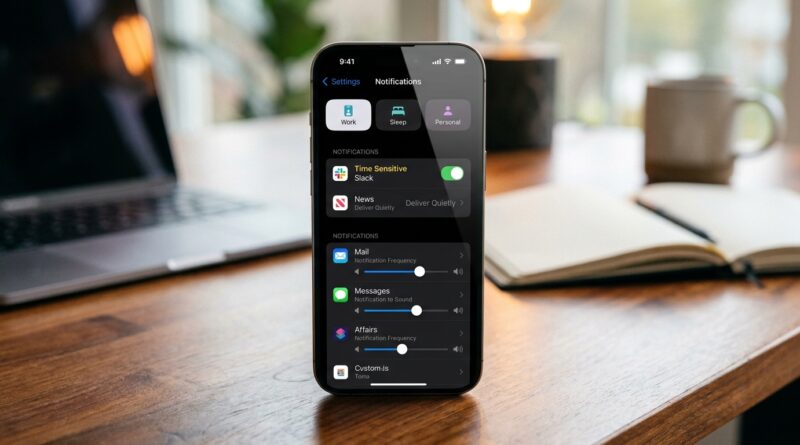
Your iPhone is probably not “too busy.” It is just too chatty. That is frustrating, because notification overload rarely happens all at once. It creeps in. One new shopping app. One food delivery app. A few social apps. Then suddenly your Lock Screen looks like a to-do list written by strangers, and those red badges start feeling weirdly bossy. The good news is you do not need a full weekend cleanup. There is a simple power-user trick here. Treat the Notifications section in Settings like a per-app control center and do one fast pass through your most annoying apps in a single session. In about 15 to 20 minutes, you can decide which apps get banners, which apps go straight to Notification Center, which get badges, and which get silenced completely. The result is immediate. Fewer random pings. Less visual clutter. More of the alerts you actually care about.
⚡ In a Hurry? Key Takeaways
- Use iPhone per app notification settings and Focus control together. Turn off alerts for low-value apps, then let important ones break through.
- Start with your 10 noisiest apps. Adjust badges, sounds, Lock Screen alerts, and Time Sensitive access in one sitting.
- You are not deleting anything or risking your data. You are simply deciding how each app is allowed to interrupt you.
The trick power users use
The trick is not some hidden menu. It is a better way to use a menu you already have.
Most people fix notifications only when an app becomes unbearable. Power users do the opposite. They open Settings, go to Notifications, and review apps in batches. Think of it like doing a quick house reset instead of stepping over clutter for six months.
On iPhone, every app has its own mini control panel. You can decide:
- Whether it can notify you at all
- Whether alerts appear on the Lock Screen
- Whether banners pop up while you are using the phone
- Whether it can make sounds
- Whether it gets a red badge on the Home Screen
- Whether it can send Time Sensitive alerts
- Whether previews show content or stay private
That is why this works so well. You do not need one giant on or off switch. You need better categories.
How to do a one-session notification cleanup
Step 1: Open the per-app list
Go to Settings > Notifications. You will see a list of apps below the global notification settings.
This is your working area. Your “per-app control center” is basically this list plus a simple set of decisions you make for each app.
Step 2: Start with the worst offenders
Do not try to perfect every app on the phone. Start with the ones that buzz, badge, and interrupt the most.
A good first pass usually includes:
- Social media
- Shopping apps
- Food delivery
- Travel apps
- News apps
- Games
If an app regularly says things like “Don’t miss out,” “Breaking,” or “Someone posted,” it probably does not deserve top billing on your Lock Screen.
Step 3: Use this simple rule for every app
Open one app in the Notifications list and ask three questions.
- Do I need this immediately?
- Do I need to see it today, but not right away?
- Do I barely need this at all?
Then assign it to one of these levels:
Level 1: Immediate
Phone, Messages, calendar reminders, security alerts, banking fraud alerts, family location alerts, delivery updates you truly care about.
What to allow: Lock Screen, banners, sounds, badges if useful.
Level 2: Useful, but not urgent
Email, messaging groups, package tracking, smart home apps, work tools, some health apps.
What to allow: Notification Center, maybe badges, maybe sounds off, Lock Screen optional.
Level 3: Low value noise
Retail promos, random social nudges, game updates, “engagement” alerts, many news apps.
What to allow: Usually notifications off, or badges off and alerts off.
Step 4: Make the high-impact changes first
If you want quick results, these four toggles do most of the work.
Lock Screen
If an app does not need to greet you the second you pick up your phone, turn this off.
Sounds
A surprising amount of stress comes from audio, not just notifications themselves. Leave sounds for calls, messages, and genuinely important alerts.
Badges
Those little red circles are attention magnets. For many apps, turning off badges is the single biggest quality-of-life improvement.
Banners
If banners constantly interrupt what you are doing, switch an app to Notification Center only, or turn off notifications entirely.
A smart default setup most people like
If you want a practical starting point, this setup works well for a lot of people.
Keep fully on
- Phone
- Messages
- Calendar
- Wallet and banking fraud alerts
- Security system and smart home alerts
- Rideshare or delivery apps only when actively using them
Keep on, but quieter
- Slack or Teams
- Package tracking
- Health and medication reminders
For these, try removing sounds and Lock Screen alerts while keeping Notification Center access.
Turn off or heavily trim
- Shopping
- Streaming apps
- Games
- Social media “activity” alerts
- Most news breaking alerts unless you truly need them
How Focus makes per-app notification settings even better
This is where the search term really matters. The best setup is not just iPhone per app notification settings. It is iPhone per app notification settings with Focus control.
Per-app settings decide how noisy an app is all the time. Focus decides when even your good apps should quiet down.
Set up one or two Focus modes you will actually use
Go to Settings > Focus. Start simple:
- Work for office hours
- Personal or Evening for after work
- Sleep for bedtime
Inside each Focus, allow only the people and apps that matter in that situation.
For example, during Work Focus you might allow:
- Messages from family
- Calendar
- Work chat
- Authentication apps
Everything else can wait.
Use Time Sensitive alerts carefully
Some apps ask to send Time Sensitive notifications that can break through Focus. This can be useful. It can also become a loophole.
Be picky. Medication reminders or doorbell alerts, sure. A retailer telling you a sale is ending in four hours, absolutely not.
One easy way to decide what stays
If you are stuck, use the “24-hour regret test.”
Ask yourself: if I miss this app’s notification for a full day, what happens?
- If the answer is “nothing,” turn it off.
- If the answer is “I should still see it later,” send it to Notification Center only.
- If the answer is “this could actually matter,” keep banners or sounds.
This keeps you from overthinking every single app.
Do not forget these often-missed settings
Notification grouping
Inside an app’s notification settings, look for grouping options. Grouped notifications can make a noisy app far less chaotic.
Show Previews
Go to Settings > Notifications > Show Previews. If privacy matters, choose When Unlocked. That way your Lock Screen stays cleaner and less revealing.
Scheduled Summary
If you like the idea of seeing non-urgent alerts in batches, Scheduled Summary can help. It is not perfect for everyone, but it works nicely for lower-priority apps like shopping, entertainment, and promos.
Live Activities
These can be useful for sports scores, deliveries, timers, and rides. They can also add visual clutter. If your Lock Screen feels crowded, review which apps are allowed to keep a live card hanging around.
A few mistakes to avoid
Do not turn everything off in frustration
If you go nuclear, you may miss something important and then slowly turn everything back on. Better to sort apps into levels and keep the good stuff.
Do not leave badges on for every app
Badges create low-grade pressure all day. If an app is not task-based, like Reminders or maybe Mail, badges are often more stress than help.
Do not let Focus become too complicated
Two or three Focus modes is enough for most people. If you build six of them, you will probably stop using them.
When this works especially well
This cleanup matters even more now because iPhones are layering in more widgets, summaries, Live Activities, and intelligence features. All of that can be helpful. But if your notification foundation is messy, the helpful stuff gets buried under junk.
That is also why it pairs well with other smart iPhone automation tricks. If you want your phone to pay attention to what matters in the real world, not just what apps want, take a look at Stop Letting Critical Sounds Slip By: The Hidden ‘Sound Recognition Automations’ Trick Power Users Use To Turn Their iPhone Into A Smart Listener. It is a good companion setup once you have your alerts under control.
A 15-minute cleanup plan you can copy
If you want the fastest version, do this tonight:
- Open Settings > Notifications.
- Review your top 10 noisiest apps.
- Turn off Sounds for anything non-urgent.
- Turn off Badges for social, shopping, and entertainment apps.
- Remove Lock Screen access for anything you do not need instantly.
- Use Notification Center only for “useful later” apps.
- Set up one Work or Sleep Focus mode.
- Review which apps can send Time Sensitive alerts.
You will feel the difference almost immediately.
At a Glance: Comparison
| Feature/Aspect | Details | Verdict |
|---|---|---|
| Per-app notification settings | Lets you control alerts, sounds, badges, banners, Lock Screen access, and Time Sensitive behavior for each app. | Best first step. Biggest immediate payoff. |
| Focus control | Filters who and what can interrupt you during work, sleep, or personal time. | Best for protecting your time once app settings are cleaned up. |
| Scheduled Summary and grouping | Batches lower-priority alerts and reduces visual clutter without fully turning apps off. | Useful for promos and non-urgent apps, but not a replacement for proper app-by-app cleanup. |
Conclusion
Your iPhone does not have to feel like it is running your day for you. A quick pass through your per-app notification settings, paired with a little Focus control, can make the phone feel calmer in a single afternoon. That is why power users across Reddit and iOS communities keep coming back to this. People are enjoying new iPhone intelligence features, but the experience still feels messy when every app is fighting for attention. Clean up the noise, and the smart features get room to be genuinely useful. You end up with fewer random pings, a cleaner Lock Screen, and a phone that surfaces the right alerts at the right time. It is one of those simple fixes that keeps paying off, especially as iOS adds even more widgets, Live Activities, and AI tools that all want a piece of your attention.