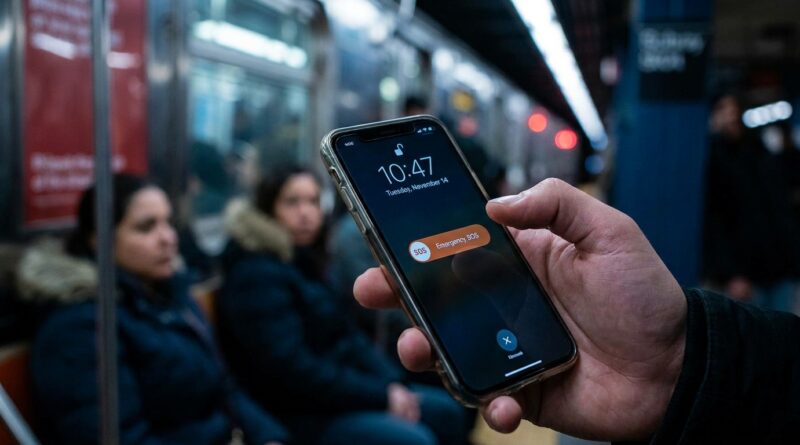
Stop Letting Emergencies Catch You Off Guard: The Hidden ‘Smart SOS Setup’ Trick Power Users Use To Turn Their iPhone Into A Lifeline
You do not want to discover your iPhone Emergency SOS settings are wrong while you are scared, hurt, lost, or trying to get help fast. But that is exactly what happens to a lot of people. They assume the red SOS screen is ready to go out of the box, never check it, and move on. Then a real emergency happens and the phone calls by accident, alerts the wrong people, stays too quiet, or behaves in a way they did not expect.
The good news is this is fixable in a few minutes. Apple has quietly changed and expanded Emergency SOS over the last few iOS versions, which means the best setup for your phone may not be the one you started with. If you use your iPhone for late-night commutes, solo walks, rideshares, travel, or simply peace of mind, it is worth doing one dry run now. Think of it like checking a smoke alarm. You hope you never need it. You will be very glad it works if you do.
⚡ In a Hurry? Key Takeaways
- iPhone Emergency SOS hidden settings can change who gets alerted, how fast a call is made, and whether a loud countdown gives you time to stop a false alarm.
- Go to Settings > Emergency SOS, review every option, then test the button sequence without completing the call.
- Your setup is only useful if your emergency contacts, Medical ID, and location sharing details are current.
Why this matters more than most people realize
Emergency features are easy to ignore because they sit quietly in the background. They are not fun. They do not make your phone faster. They do not give you better photos. So most people leave them alone.
That is a mistake.
Your iPhone can do a lot more than place a 911 call. Depending on your settings and region, it can contact emergency services, notify your emergency contacts, share your location, and update them if your location changes afterward. That is a real safety tool. But only if it is set up right.
Where to find the iPhone Emergency SOS hidden settings
Open Settings, then scroll down to Emergency SOS.
This is the screen most people have never really looked at. Here is what you will usually see, though the exact wording can vary a little by iPhone model, iOS version, and country:
- Call with Hold and Release
- Call with 5 Button Presses
- Call Quietly
- Countdown Sound
- Emergency Contacts in Health
The names may shift slightly over time, but the core choices stay pretty similar.
The settings that actually matter
Call with Hold and Release
This lets you press and hold the side button plus a volume button to start the Emergency SOS slider or countdown. On many iPhones, if you keep holding, the phone begins a countdown and then places the call automatically.
Best for: People who want the fastest hands-on shortcut.
Watch out for: Accidental triggers in a pocket, bag, or during a panicked grip.
Call with 5 Button Presses
This starts Emergency SOS if you press the side button five times quickly. For some people, this is easier to remember under stress than the hold-and-release method.
Best for: Anyone who wants a simple, repeatable backup method.
Watch out for: It can be triggered by mistake if you fidget with your phone or hand it to a child.
Call Quietly
This one is more important than it sounds. If enabled, your iPhone can place the emergency call and send alerts without the loud warning alarms and flashing countdown that normally happen.
Best for: Situations where drawing attention could make things worse.
Watch out for: The loud countdown can also save you from accidental calls. Quiet mode removes that warning cushion.
Countdown Sound
If this is on, your iPhone makes a loud alert sound before the call goes through. That gives you a few seconds to cancel if you triggered SOS by mistake.
Best for: Most people, especially if false alarms worry you.
Watch out for: In some situations, noise is the last thing you want.
The smartest setup for most people
If you want a practical middle ground, this is the setup I usually suggest:
- Turn on Call with Hold and Release.
- Turn on Call with 5 Button Presses as a backup.
- Leave Countdown Sound on, unless you have a specific reason to keep things silent.
- Only use Call Quietly if you have thought through why you want it.
Why this mix? Because emergencies are messy. Fine motor skills get worse when you are stressed. One method may fail if your hands are shaking, if the phone is in your pocket, or if you are trying not to look at the screen. Two ways to trigger SOS is better than one.
Do this part too: Set up emergency contacts correctly
This is where many setups fall apart. Your iPhone may do exactly what it should, but it alerts an ex, an old roommate, or a family member who moved away three years ago.
To check this, go to the Health app and look at your Medical ID. That is where emergency contacts are tied in.
Review:
- Who your emergency contacts are
- Whether those people would actually answer
- Whether they know your routine and location
- Whether their phone numbers are still current
If your emergency contact is someone who never picks up unknown calls, sleeps through everything, or lives in another time zone, pick someone else.
How to do a safe dry run without calling emergency services
This is the part people skip, and it is the most useful part.
Method 1: Practice the button sequence and stop before the call
Try your chosen SOS trigger while paying close attention. If you use hold-and-release, press and hold the side button and a volume button until the Emergency SOS screen appears. If you use the five-press method, press the side button five times quickly.
When the countdown screen appears, do not let it finish. Cancel it.
This teaches your hands what the process feels like without placing a real call.
Method 2: Learn the visual cues
Notice what appears on screen. You may see the SOS slider, a countdown, medical info options, or prompts to cancel. That matters. In a real emergency, familiarity can save precious seconds.
Method 3: Tell family members you are updating your emergency settings
If you make any changes to Medical ID or emergency contacts, give those people a quick heads-up. It prevents confusion later and helps them know what an SOS alert from you might look like.
One hidden detail many people miss
After an emergency call ends, your iPhone can send a message to your emergency contacts with your current location, and it may keep updating them if your location changes for a period of time. That is incredibly helpful if you are traveling, in a rideshare, or on foot.
It is also why your contact list needs to be right.
If the wrong person gets that alert, your carefully built safety net turns into noise.
When you might want a quieter setup
Not everyone needs the same SOS behavior. If you are often in situations where noise or a visible countdown could create risk, you may want to turn on quieter options.
That said, be honest with yourself. For most people, accidental calls are more likely than a movie-style emergency. A loud countdown is annoying, yes. It is also a useful safety buffer.
What to check after every major iPhone update
Apple changes features quietly. Sometimes options move. Sometimes labels change. Sometimes defaults are not what you expect.
After a major iOS update, take 60 seconds and re-check:
- Your Emergency SOS options
- Your emergency contacts
- Your Medical ID details
- Whether location services are working as expected
This is the kind of small maintenance job people never think about, a bit like reviewing your privacy settings or app permissions after an update.
Common mistakes to avoid
Assuming “default” means “best”
Default settings are generic. Your life is not. Someone who commutes home alone at midnight may want different options than someone who mostly works from home.
Picking the wrong emergency contacts
Choose people who are reliable, available, and likely to act.
Never practicing the trigger
Under stress, even simple things feel complicated. Practice once now so your body remembers later.
Turning on every feature without thinking
More settings do not always mean better results. The goal is a setup you understand and trust.
Who should check this today
If any of these sound like you, move this to the top of your to-do list:
- You use rideshares regularly
- You walk alone at night
- You travel solo
- You have older parents or teens with iPhones
- You recently changed partners, roommates, or close contacts
- You upgraded your iPhone and never reviewed the emergency settings
Honestly, that covers most of us.
At a Glance: Comparison
| Feature/Aspect | Details | Verdict |
|---|---|---|
| Call with Hold and Release | Fast trigger using side button plus volume button, often with an automatic countdown. | Great primary option for quick access. |
| Call with 5 Button Presses | Simple backup method that many people find easier to remember under stress. | Worth enabling as a second path. |
| Countdown Sound and Quiet Calling | Loud alerts help prevent false alarms, while quiet mode is better for situations where silence matters. | Choose based on real-world risk, not guesswork. |
Conclusion
Emergency SOS is one of those rare iPhone features that can matter a lot more than a flashy new app or camera trick. It has been quietly evolving in recent iOS versions, but almost nobody checks it until something goes wrong. Spend a few minutes now. Review the iPhone Emergency SOS hidden settings, update your contacts, and practice the button sequence without placing a call. That small, calm bit of prep can turn a confusing red screen into a real safety net for solo travel, rideshares, late-night commutes, and everyday peace of mind. It is simple, practical, and exactly the kind of tech habit worth sharing with friends and family.