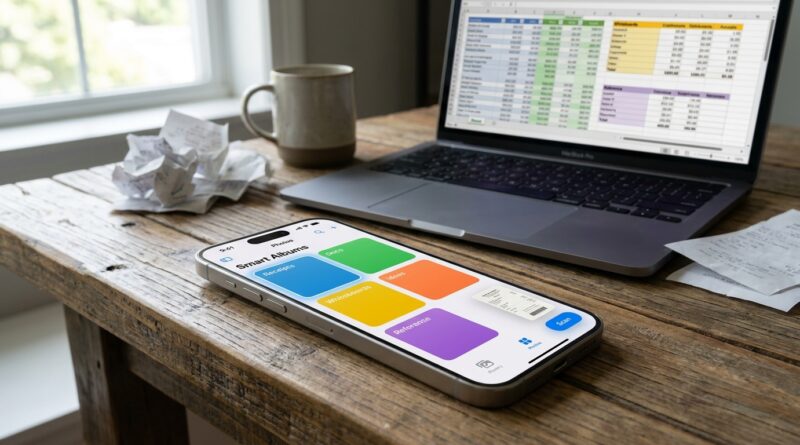
Stop Babysitting Your Photos App: The Hidden iOS 18 ‘Smart Albums’ Power Users Turn Into Auto‑Organized Libraries
Your Photos app probably started out as a camera roll and slowly turned into a junk drawer. Family pictures sit next to screenshots, Amazon returns, parking receipts, PDFs, menu snaps, and blurry photos of serial numbers you swore you would label later. Then the moment you actually need one of those images, you end up scrolling like a maniac and muttering at your phone. That is the part Apple does not really fix for you out of the box. iOS 18 is better at spotting documents, receipts, and other useful stuff, but detection alone is not the same as having a system. The good news is you do not need to manually sort thousands of images. With a couple of hidden Photos filters and one or two simple Shortcuts automations, you can turn your messy library into something that quietly organizes itself. Think less babysitting, more background housekeeping.
⚡ In a Hurry? Key Takeaways
- iOS 18 can identify receipts, documents, screenshots, and other image types, but you need Albums, filters, and Shortcuts to turn that into a real filing system.
- Start with three albums only: Receipts, Documents, and Reference Photos. Then use Shortcuts to send matching images there automatically or with one tap.
- You are not moving files out of Photos or risking deletion. You are adding structure on top of your existing library so searches get faster and less stressful.
Why Photos feels smart, but not smart enough
Apple has spent years teaching the Photos app to recognize pets, trips, faces, food, text, and now more useful paperwork-type content. That sounds great in a keynote. In real life, most people still open Photos and see chaos.
The problem is simple. Detection is passive. Organization is active.
Your iPhone may know a picture is a receipt, but unless you can reliably gather all receipts in one place, that intelligence does not help much in April when you are looking for business expenses. Same goes for appliance serial numbers, whiteboard photos, insurance documents, or warranty paperwork.
That is where the hidden power comes in. Not really “smart albums” in the Mac sense, but a mix of Photos filtering, search, and Shortcuts that behaves a lot like an auto-organized library on iPhone.
The basic idea: build buckets, then feed them automatically
Do not start by making 27 albums. That is how people give up.
Start with three buckets:
- Receipts for purchases, reimbursements, tax records
- Documents for scanned forms, letters, IDs, warranties, manuals
- Reference Photos for whiteboards, serial numbers, parking spots, labels, measurements
These three cover most of the non-memory clutter sitting in your library.
How to create them
Open Photos, scroll to Albums, tap Create or the + button, then make those three albums. Keep the names plain and obvious. Fancy naming systems sound good and age badly.
Use iOS 18’s built-in filters first
Before you touch Shortcuts, spend five minutes with Photos itself. Apple hides some of the good stuff in plain sight.
Find screenshots and get them out of your way
In Photos, search for Screenshots or open the Media Types section and tap Screenshots. This instantly pulls one of the biggest sources of clutter out of the main stream.
If you only do one cleanup step today, do this one.
Search for documents and receipts
Try searches like:
- receipt
- document
- invoice
- whiteboard
- text
Results will vary, but iOS 18 is much better at spotting this kind of content than many people realize. If Photos can already identify these shots, you have the raw material for an automatic system.
Use filtering inside search results
After a search, look for filtering and sorting options. Narrow by date, media type, favorites, or not-in-album items where available. This is the easiest way to round up stray clutter without manually browsing your whole library.
The one-tap version: create a Shortcut that files selected photos
If fully automatic sounds like too much setup, start with one tap. This works well because it fits how people actually use their phones.
You scan or photograph something important, then hit Share and file it immediately.
Shortcut idea: “File to Receipts”
In the Shortcuts app:
- Create a new shortcut called File to Receipts.
- Add the action Receive images and photos from share sheet or set it to appear in the Share Sheet.
- Add Save to Photo Album.
- Choose the album Receipts.
Now when you view a photo of a receipt, tap Share, then run File to Receipts. Repeat with shortcuts for Documents and Reference Photos.
This is low effort, and it is surprisingly effective.
Why this matters
You are not trying to classify every image in your life. You are only catching the useful non-photo stuff at the moment it enters your library. That small habit prevents a giant cleanup later.
The better version: let Shortcuts ask where each image belongs
If you want one shortcut instead of three, make a single “File Photo” shortcut.
How it works
- Accept image input from the Share Sheet.
- Add Choose from Menu.
- Create menu options: Receipt, Document, Reference.
- Under each menu branch, add Save to Photo Album and pick the matching album.
That gives you a tiny filing assistant every time you share an image.
One tap to share, one tap to choose the category, done.
The semi-automatic version: use reminders instead of full automation
Apple still does not make iPhone photo sorting as automatic as many people want, especially compared with rule-based systems in desktop apps. But you can fake a lot of it.
Create a daily or weekly review shortcut
Build a shortcut that:
- Finds photos added in the last 7 days
- Filters for screenshots or images with text if available in your setup
- Shows the results
- Prompts you to move the useful ones into Receipts, Documents, or Reference Photos
This is not glamorous, but it works. It turns a giant backlog into a tiny maintenance task.
How to set up a “receipts inbox” workflow that actually sticks
This is the system I would suggest to most readers because it is realistic.
Step 1: Capture everything in Photos
Do not stress about where the image starts. Just take the picture or scan the document.
Step 2: Share important items into one album called “Receipts Inbox”
This is your holding pen. If you know an image matters financially, send it here right away using your shortcut.
Step 3: Once a month, split the inbox
Sort the inbox into:
- Receipts for taxes and reimbursements
- Warranties if you want one extra album for expensive purchases
- Business Expenses if you mix personal and work spending
If you are self-employed or track a lot of deductions, this step saves real time later.
Step 4: Favorite the truly critical items
For example, a receipt for a laptop, bike, TV, or appliance. Favorites become your “please never lose this” layer.
Do not ignore captions. They are the secret sauce.
Here is the part power users quietly rely on. Add captions to the images you know you will need later.
Not to every photo. Just the important ones.
Good caption examples
- Samsung washer serial number kitchen remodel 2025
- IRS mileage log receipt parking Boston March
- Whiteboard project plan client kickoff
That may look basic, but Photos search is very good at finding text in captions later. Combine that with iOS 18’s image recognition and you stop depending on memory.
What about scanned PDFs and notes?
If you scan from Notes or Files, some documents will live outside Photos. That is fine. Photos should be your fast-capture tool, not your only filing cabinet.
Use Photos for quick grabs, reference shots, and on-the-go records. Use Files or a cloud storage folder for long-term paperwork that needs folders, filenames, and sharing.
If a document matters legally or professionally, consider exporting it from Photos to Files after you file it into the right album. Photos is great for retrieval. Files is better for formal storage.
Three workflows that work in real life
1. Tax season workflow
Take receipt photos throughout the year. Use the Share Sheet shortcut to send them to Receipts. Add captions for big purchases or business expenses. When tax time arrives, open one album instead of searching your whole camera roll.
2. Home inventory workflow
Photograph appliance labels, model numbers, paint cans, furniture tags, and electronics boxes. Send them to Reference Photos or Documents. Add captions with room names and product types. Sixteen months later, that random water heater label is still easy to find.
3. Work and study workflow
Use your iPhone for whiteboards, slides, handwritten notes, and handouts. File them into Reference Photos and caption them with project or class names. Suddenly Photos becomes searchable memory, not clutter.
Mistakes that make the system fall apart
Making too many albums
If every category gets its own album, you will stop using the system. Keep the top level simple.
Trying to clean up your whole history first
Do not start with 18,000 existing photos. Start from today forward, then backfill only what matters.
Trusting search without adding any labels
Search is good, not magic. Captions and a few carefully chosen albums make it much more reliable.
Using Photos for everything forever
Photos is great for capture and retrieval. It is not always the best final home for contracts, tax packets, or documents you must share with others.
A simple setup you can finish in 15 minutes
If you want the shortest possible version, do this:
- Create albums: Receipts, Documents, Reference Photos
- Create one Share Sheet shortcut called File Photo
- Add a menu that asks where to save the selected image
- Favorite your most important proof-of-purchase images
- Add captions only to things you know future-you will need
That is enough to change how Photos feels day to day.
At a Glance: Comparison
| Feature/Aspect | Details | Verdict |
|---|---|---|
| Built-in Photos search | Finds screenshots, documents, receipts, text-heavy images, and more with better recognition in iOS 18 | Great starting point, but not enough on its own |
| Albums plus Share Sheet shortcuts | Lets you file useful images in one or two taps right when you capture them | Best mix of simplicity and control |
| Full hands-off automation | Possible in limited ways, but iPhone still does not offer perfect smart album rules like some desktop systems | Useful for review tasks, not magic sorting |
Conclusion
Your iPhone is already acting as your scanner, notebook, and filing cabinet. The problem is most people stop at capture and never build the tiny system that makes all that information useful later. iOS 18 gives you better receipt and document detection, and that is the missing opening. Add a few simple albums, one Share Sheet shortcut, and some smart captions, and your Photos app starts working like a quiet assistant instead of a camera roll graveyard. That means less rage-scrolling, less duplicate snapping, and a much better chance of finding the warranty shot, tax receipt, or whiteboard photo exactly when you need it. Start small. Three albums is enough. Once you feel the difference, you will wonder why Apple does not make this the default.