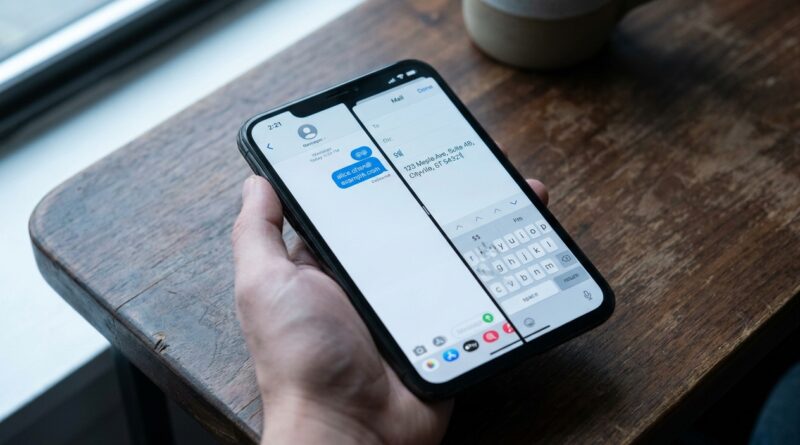
Stop Letting Typing Slow You Down: The Hidden ‘Text Replacement System’ Trick iPhone Power Users Use To Type Like A Machine
Typing the same thing on an iPhone over and over gets old fast. Your email address. Shipping details. That polite “I’m on my way” text. That one reply you send ten times a week. It is annoying, it is slow, and it somehow always happens when you are in a hurry. Worse, autocorrect loves to jump in at exactly the wrong moment. The good news is that one of the best iPhone text replacement shortcuts has been hiding in plain sight for years. Once you set it up, your phone can turn a tiny shortcut like “@@” into your full email address, or “adr1” into your home address in a split second. It is simple, built into iOS, and one of those rare settings that saves time every single day. If your iPhone often feels more like a tiny typewriter than a smart tool, this is the fix worth five minutes of your time.
⚡ In a Hurry? Key Takeaways
- iPhone text replacement shortcuts let you type a short code and have it instantly expand into full words, phrases, addresses, or canned replies.
- Go to Settings > General > Keyboard > Text Replacement, then tap the plus sign to add your own shortcuts.
- Use unique shortcuts you would never type by accident, especially for personal info, to avoid messy or unwanted auto-expansions.
What Text Replacement Actually Does
Text Replacement is Apple’s built-in shorthand system. You create a short trigger, then connect it to a longer piece of text.
For example, you can make:
- “@@” become your email address
- “myadr” become your full home address
- “omw1” become “I’m on my way and should be there in about 10 minutes.”
- “tysm1” become “Thanks so much. I really appreciate it.”
Then, when you type the shortcut, your iPhone offers or inserts the full phrase. It works across many apps, which is what makes it so useful. You set it once, then benefit everywhere.
How to Set Up iPhone Text Replacement Shortcuts
Step-by-step
On your iPhone, open:
Settings > General > Keyboard > Text Replacement
Then do this:
- Tap the + button in the top-right corner.
- In Phrase, type the full text you want inserted.
- In Shortcut, type the short code you want to trigger it.
- Tap Save.
That is it. No extra app. No subscription. No deep tech knowledge required.
The Best Shortcuts to Create First
If you are new to this, start with the things you type constantly. This is where iPhone text replacement shortcuts really earn their keep.
1. Email addresses
If you have one or two email accounts you type often, create shortcuts for both.
Examples:
- “@@p” for personal email
- “@@w” for work email
2. Home or work address
This is perfect for delivery apps, forms, ride-sharing apps, and account setup pages.
Examples:
- “adrh” for home address
- “adrw” for work address
3. Phone number
Useful when filling out forms or sending contact info to someone.
Example:
- “ph1” for your main mobile number
4. Common replies
This is where people start to feel like they have a tiny assistant living inside their keyboard.
Examples:
- “omw2” for “On my way now.”
- “callu” for “Can I call you in a few minutes?”
- “mtg1” for “I’m in a meeting right now. I’ll reply as soon as I can.”
5. Awkward words autocorrect keeps ruining
If your phone always “fixes” a name, brand, or technical term incorrectly, Text Replacement can help you fight back.
Examples:
- A family name with unusual spelling
- A product code you use for work
- A phrase in another language
How to Pick Smart Shortcuts
The trick is choosing shortcuts you would never normally type by accident.
If you make “hi” expand into a full paragraph, you are going to regret it by lunchtime.
Good shortcuts usually:
- Use symbols, numbers, or odd letter combos
- Are short enough to save time
- Still make sense to you at a glance
Good examples:
- “@@”
- “sig1”
- “addrs”
- “rpy3”
Not-so-good examples:
- “ok”
- “no”
- “home”
Those can fire when you least expect it.
Why This Feels So Much Faster Than Normal Typing
It is not just about speed. It is about friction.
Most phone typing feels slow because of all the tiny interruptions. You miss a key. Autocorrect changes something. A form scrolls. Your thumb hits the wrong field. Then the page refreshes and your patience disappears.
Text Replacement cuts through that. Instead of typing 30 or 40 characters carefully, you type 3 or 4 and move on.
That matters when you are:
- Signing into services
- Filling out delivery forms
- Replying to routine messages
- Sending business contact info
- Handling boring admin tasks on the go
It is one of those small changes that makes your phone feel less tiring to use.
Where Text Replacement Works Best
For most people, the biggest wins show up in Messages, Mail, Notes, Safari forms, and many third-party apps.
If you are already trying to make the iPhone feel less cramped and distracting, this pairs nicely with interface clean-up tricks too. If that sounds familiar, take a look at Stop Letting On‑Screen Clutter Kill Your Focus: The Hidden ‘Per‑App Full‑Screen Gestures’ Trick iPhone Power Users Use To Make Every App Feel Custom‑Built. Less clutter on screen and less typing by hand is a pretty great combo.
Things to Watch Out For
Accidental triggers
This is the big one. If your shortcut is too common, it may expand when you do not want it to.
Use unusual combinations to avoid this.
Private information
Be thoughtful about adding sensitive details like account numbers, ID numbers, or anything you would not want popping into the wrong field.
Your address and email are usually fine for most people. Banking details are a different story.
Outdated phrases
Your shortcuts can become a little digital junk drawer if you never review them. If you move, switch jobs, or change email addresses, update them right away.
Power User Ideas That Are Actually Useful
You do not need to go full productivity nerd here, but a few advanced uses are genuinely handy.
Multiple versions of the same info
Create separate shortcuts for:
- Short address
- Full mailing address
- Work signature
- Personal signature
Templates for support or sales replies
If you run a small business, answer customer questions, or coordinate family logistics, canned responses can save a surprising amount of time.
Examples:
- “hrs1” for store or office hours
- “eta2” for arrival updates
- “thxg” for a standard thank-you note
Special characters and symbols
If you often need symbols, accent marks, or phrases in another language, shortcuts can help there too.
Should Everyone Use It?
Honestly, yes. At least a little.
You do not need 100 shortcuts. Even three to five good ones can noticeably cut down your typing every week.
This is why text replacement keeps coming back into fashion among power users. It is not flashy. It is not new. But it solves a real problem that almost everybody has.
At a Glance: Comparison
| Feature/Aspect | Details | Verdict |
|---|---|---|
| Setup difficulty | Built into iPhone. Just add a phrase and a shortcut in Keyboard settings. | Very easy |
| Everyday usefulness | Best for email addresses, addresses, phone numbers, and repeated replies across many apps. | Excellent daily time-saver |
| Risk of mistakes | Low if you choose unique shortcuts. Higher if you use common words that may trigger by accident. | Safe with smart setup |
Conclusion
Most iPhone tricks are nice once in a while. Text Replacement is different. It pays you back every day. If you are tired of typing the same details again and again, iPhone text replacement shortcuts are one of the simplest fixes around. Set up a few for your email, address, and most common replies, and your phone instantly becomes faster and less annoying to use. That is why Text Replacement is trending again in power user circles. It gives you a permanent speed advantage with fewer taps, fewer errors, and less friction doing the boring parts of digital life. It is a small setup change, but it makes your iPhone feel a lot more like a command console and a lot less like a tiny typewriter.