Stop Letting Random Taps Break Your Flow: The Hidden ‘Ultra‑Fast Text Selection’ Trick iPhone Power Users Use To Edit Like A Pro
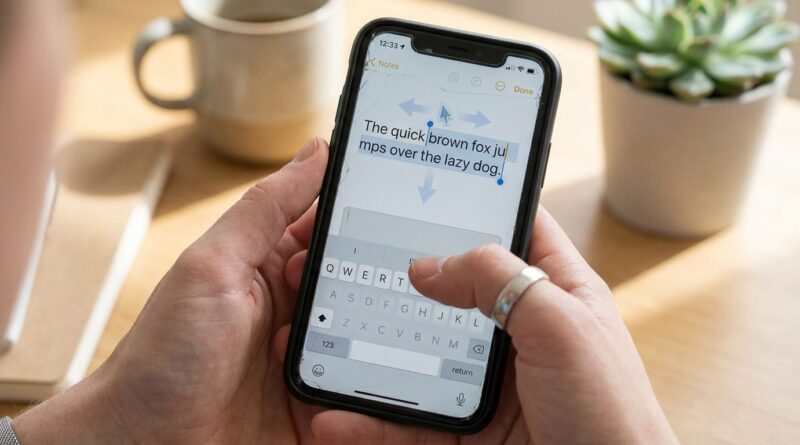
You know the moment. You spot one tiny typo on your iPhone, tap to fix it, and the cursor lands three letters too far. You tap again, and now the whole word is selected. One more try and you are suddenly deleting half the sentence like a raccoon in a junk drawer. It is maddening, especially when you are replying to work messages, editing notes, or trying to clean up a long email on the go. The good news is that Apple quietly built a much better system into iOS. Most people just never learned the full set of moves. Once you know these iphone hidden text selection tricks, editing on an iPhone stops feeling like a game of chance. There are three habits that matter most. Turn the keyboard into a trackpad, drop the cursor with precision, and use the built-in selection gestures instead of random tapping. Learn those as one little routine, and your phone suddenly feels much more like a real editing tool.
⚡ In a Hurry? Key Takeaways
- Press and hold the space bar to turn your iPhone keyboard into a trackpad for much easier cursor control.
- After placing the cursor, use Apple’s selection handles and drag gestures instead of repeated tapping to highlight exact text.
- These tricks are built into iPhones already, need no app or setup, and work on most modern iPhones and recent iOS versions.
The trick most people miss is that this is a system, not one feature
A lot of people know one part of this. Maybe they have heard about the space bar trick. Maybe they know you can drag the little text handles. But the real improvement happens when you combine them.
Think of it as a three-step editing habit.
Step 1: Move the cursor with keyboard trackpad mode
Open any app where you can type. Messages, Notes, Mail, Safari, it all works the same in most places.
Now press and hold the space bar.
The keyboard letters fade, and the whole keyboard becomes a mini trackpad. Without lifting your finger, slide around to move the cursor exactly where you want it. This is the fastest way to get into the middle of a word or between two stubborn letters.
If you only learn one of these iphone hidden text selection tricks, learn this one first. It solves the biggest problem, which is getting the cursor to stop jumping somewhere random.
Why it feels so much better
Normal tapping asks you to hit a tiny spot on a glass screen. Trackpad mode lets you steer the cursor instead. It is slower to explain than to use. After two tries, it usually clicks.
How to place the cursor more accurately without fighting the screen
Sometimes a simple tap is enough. If you need to move only a little, tap near the word, then use trackpad mode to fine-tune it. That combo is much more reliable than tapping over and over.
If your iPhone keeps selecting the whole word when you only wanted the cursor, do not keep mashing the display. That usually makes things worse. Pause for a second. Tap once near the area, then hold the space bar and slide into position.
It feels almost silly how much frustration this removes.
How to highlight exactly the text you want
This is where many people give up. They can move the cursor, but selecting part of a sentence still feels awkward.
Here is the easier way.
Method 1: Double-tap or press on a word, then drag the handles
Double-tap a word to select it. You will see grab points on each side of the highlighted text. Drag those handles to expand or shrink the selection.
This works well when you need to replace a word, copy a phrase, or fix a chunk of text without deleting everything around it.
Method 2: Select by dragging after the cursor is in place
First, use trackpad mode to put the cursor exactly where you want to start. Then tap and hold near the cursor or use the selection handles if they appear. From there, drag across the text.
The exact behavior can vary a little between apps, which is the annoying part of iPhone text editing. But the basic idea stays the same. Get the cursor right first. Then expand the selection. Do not try to do both with frantic taps.
Method 3: Use Apple’s built-in multi-tap shortcuts
These are easy to forget, but handy:
- Double-tap usually selects a word.
- Triple-tap often selects a sentence or paragraph, depending on the app.
- A long press can bring up the text menu with options like Select, Select All, Cut, Copy, and Paste.
If you are editing longer chunks, these shortcuts can save a lot of fiddling.
The muscle-memory routine that makes you faster
If you want this to stick, do the same sequence every time:
- Spot the typo.
- Hold the space bar.
- Slide the cursor into place.
- Select only if needed.
- Type the fix and move on.
That routine matters because serious phone work now happens in bursts. You are editing while walking into a meeting, standing in line, or clearing inbox clutter from the passenger seat. The real slowdown is rarely typing fresh text. It is fixing what you just typed.
Where these tricks work best
They are especially useful in:
- Messages when autocorrect changes a name or weirdly rewrites a sentence
- Mail when you want to clean up a professional reply
- Notes when you are drafting ideas quickly
- Safari text boxes and forms
- Third-party apps that use Apple’s standard text editing tools
Most modern iPhones support these gestures, and they have been around for years in iOS in one form or another. You do not need a Pro model. You do not need a hidden setting. You do not need to install anything.
What can trip you up
There are a few catches.
Some apps behave a little differently
Not every app handles text selection in exactly the same way. Apple’s own apps tend to be the smoothest. Some third-party apps are slightly fussier with long-press actions or selection handles.
If one app feels stubborn, do not assume the trick stopped working. Try trackpad mode first, because that part is usually the most consistent.
Keyboard trackpad mode can feel hidden at first
If pressing the space bar just types a space, make sure you are pressing and holding it long enough. It is a short hold, not just a tap.
Once the letters on the keyboard fade or blank out, you are in trackpad mode.
Selection handles are tiny
Yes, they still can be fiddly. But they are less fiddly when the cursor is already in the right place. That is why the order matters so much.
Why power users keep talking about this
Spend enough time in iPhone tips threads and the same features keep coming back. People who use their phones heavily swear by cursor control and text selection gestures because they save time every single day.
Not in a flashy way. In a quiet way. A few seconds here, a little less irritation there. Over a week, that adds up. More importantly, it helps you keep your train of thought. That is the part people notice most. You stop fighting the phone and get back to writing.
At a Glance: Comparison
| Feature/Aspect | Details | Verdict |
|---|---|---|
| Keyboard trackpad mode | Press and hold the space bar, then slide your finger to move the cursor precisely. | Best everyday trick. Fast, built-in, and easy to learn. |
| Tap-to-place cursor | Works for quick edits, but can jump to the wrong spot or select text by mistake. | Fine for simple edits, but less reliable than trackpad mode. |
| Selection gestures and handles | Double-tap to select words, then drag handles to adjust exact text. | Very useful once the cursor is placed correctly first. |
Conclusion
If editing text on your iPhone has been driving you up the wall, the fix is not to tap harder. It is to stop relying on random taps in the first place. Learn the full routine. Use keyboard trackpad mode, place the cursor with intention, then select text with the built-in gestures when you need to. That small shift can make your phone feel far more capable, especially now that so much real work happens on it instead of on a laptop. That is why these tricks keep coming up in power-user circles. They are not flashy. They are just incredibly useful. Best of all, this is an immediate productivity win with zero apps, zero setup, and it works on almost every modern iPhone and iOS version. Once it becomes muscle memory, you will wonder how you ever edited text any other way.