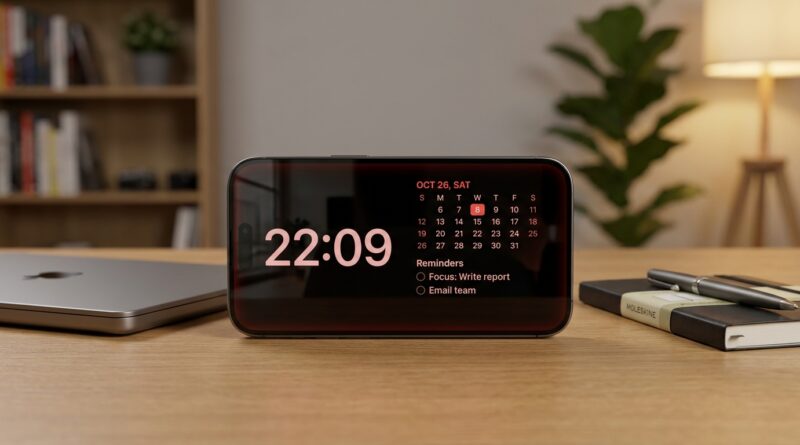
Stop Letting Screens Hijack Your Space: The Hidden ‘StandBy Smart Desk’ Trick iPhone Power Users Use To Turn Charging Time Into Focus Time
You know the scene. Your iPhone is charging on your desk, lighting up with banners you did not ask for, or just sitting there as an expensive little rectangle doing nothing useful. That gets old fast. It is distracting when you are trying to work, and weirdly stressful at night when your phone still feels like it is calling for attention. The good news is that Apple already gave you a fix, but most people stop at the default clock and miss the point. A smart iphone standby mode productivity setup turns charging time into something calmer and more useful. Instead of one more screen begging to be checked, your iPhone becomes a glanceable dashboard for time, timers, calendar, and a few carefully chosen widgets. Done right, it can help you pick up your phone less, not more. Better still, you can set it up in about five minutes.
⚡ In a Hurry? Key Takeaways
- StandBy works best as a low-noise desk dashboard, not just a bedside clock.
- Use one screen for time and calendar, one for timers and reminders, and turn off noisy notifications.
- If StandBy feels distracting, the problem is usually your widget choices, screen position, or alerts, not the feature itself.
Why most people set up StandBy wrong
Apple shows StandBy as a pretty clock. That is fine for demos. It is not enough for real life.
If your phone is on a stand while you work from home, you need it to answer one simple question at a glance. “What matters right now?” Not, “How can I look stylish on a nightstand?”
That is why the best StandBy setup is not the flashiest one. It is the one that cuts down on random pickups. You should be able to glance, get what you need, and get back to work.
First, make sure StandBy is turned on
Before you build anything, check the basics:
- Open Settings.
- Tap StandBy.
- Turn StandBy on.
- If you want the screen to stay visible in darker rooms and on supported models, review the Display options there too.
StandBy starts when your iPhone is charging and placed sideways in landscape orientation, usually on a stand or MagSafe charger. If it is lying flat, you may not get the effect you want.
The best iphone standby mode productivity setup for a desk
Think in zones. You are building a tiny control panel, not a mini Times Square.
Zone 1: Your calm home screen
Your main StandBy page should show only two things:
- A simple clock
- A calendar or reminders widget
This gives you the time and your next commitment without tempting you into an app. For most people, that is the sweet spot.
If you tend to miss meetings, use Calendar. If your day runs on task lists, use Reminders instead.
Zone 2: Your focus screen
Swipe to a second widget pair and make this your “do the work” page.
- Timer widget
- Notes, Reminders, or a habit tracker widget
This is great for Pomodoro sessions, kitchen timers during deep work, or simple “finish this before lunch” blocks.
The trick is to keep it boring in a good way. Useful. Not exciting.
Zone 3: Your low-noise info screen
If you want a third page, use it sparingly. Good options include:
- Weather
- Battery
- A second time zone if you work with people elsewhere
Bad options, for most people, are anything that sparks scrolling or emotional checking. News headlines and constantly changing feeds are not helping you focus.
How to customize StandBy widgets step by step
Here is the easy version.
- Put your iPhone on its side while charging.
- Let StandBy appear.
- Swipe until you reach the widget view.
- Press and hold on a widget stack.
- Unlock your phone if asked.
- Add, remove, or reorder widgets.
- Turn off widget rotation if you want a more predictable layout.
That last part matters. Smart Rotate can be handy, but it can also feel like your phone has a mind of its own. If your goal is less distraction, manual control is usually better.
The secret move power users make: turn off the visual noise
This is where StandBy becomes a genuinely smart desk tool instead of a gimmick.
Cut back notifications
If every message lights up your phone, StandBy will not feel calm. It will feel like a neon interruption machine.
Do this:
- Go to Settings > Notifications.
- Reduce alerts from apps that do not deserve your attention during work hours.
- Use Focus modes to filter who and what can break through.
A good desk setup is only as peaceful as the alerts behind it.
Use a Focus mode tied to your workday
Create a Work Focus and schedule it for your usual hours. Then let only the people and apps you really need come through.
This is what makes StandBy useful. You are not just changing how the screen looks. You are changing how much mental clutter reaches you.
Pick a stand that angles the phone away from your face a bit
This sounds minor. It is not.
If the phone is upright and centered like a tiny TV, you will keep noticing it. If it sits slightly off to the side, it becomes glanceable instead of dominant. That is the whole game.
Best widget combinations for different kinds of people
If you work from home
- Clock
- Calendar
- Timer
- Reminders
If you are easily distracted
- Large simple clock
- One reminders widget
That is it. Fewer moving parts. Fewer pickups.
If you use your desk for work and sleep nearby
- Daytime Work Focus widgets
- Nighttime simple clock or alarms only
If your bedroom doubles as your office, this split matters even more. You want your phone to feel different at 10 p.m. than it does at 10 a.m.
What to avoid if you want less screen time
Some setups look clever and fail in real life.
- Too many widgets on one page
- Photo screens that constantly pull your eye
- Widgets that update every few seconds
- Notification-heavy apps on display
- Using StandBy as an excuse to keep your phone front and center all day
The best productivity setup should make your phone easier to ignore.
Troubleshooting when StandBy is not helping
“It still distracts me”
Your layout is probably too busy, or your notifications are too loose. Strip it back to a clock plus one useful widget.
“The screen keeps changing”
Turn off Smart Rotate for the widget stack you are using most often.
“It is too bright at night”
Check StandBy display settings and Night Mode behavior. You may also need to move the stand farther from the bed or angle it away from your line of sight.
“I still pick up my phone constantly”
That usually means the phone is still offering too much. Reduce what is visible. The goal is glance and continue, not glance and tap.
At a Glance: Comparison
| Feature/Aspect | Details | Verdict |
|---|---|---|
| Default StandBy clock | Looks nice, but offers limited day-to-day help beyond the time | Good start, not the best desk setup |
| Custom widget-based desk setup | Can show calendar, reminders, timers, and battery with low effort | Best for productivity and fewer screen pickups |
| Notification-heavy setup | Constant banners and visual movement break focus quickly | Avoid if your goal is calm, focused work |
Conclusion
StandBy is everywhere in headlines, but almost nobody shows people how to use it like a power user instead of a gimmicky desk clock. That is the real win here. With a practical, five-minute setup, your charging iPhone can become a calm little dashboard instead of one more thing fighting for your attention. If you are working from home, juggling tasks, or sleeping worse because your phone feels too loud visually and mentally, this is one of those rare small changes that actually sticks. Pick a simple clock. Add one or two useful widgets. Tighten your notifications. Then let your phone fade into the background where it belongs. That is what a smart desk should do.