Stop Letting Apps Eat Your Data: The Hidden ‘Per‑App Cellular Controls’ Trick iPhone Power Users Use To Stay Fast Without Blowing Their Plan
You are not imagining it. A few apps really can chew through a shocking amount of mobile data without ever asking nicely first. One social app starts autoplaying video. A cloud app quietly syncs in the background. A music or podcast app grabs downloads over cellular because one setting got flipped months ago. Then the bill shows up, and suddenly your “normal” month looks like you were hotspotting a laptop from the middle of nowhere. It is frustrating, and it can feel impossible to pin down.
The good news is that iPhone has a useful hidden feature most people never touch. Per app cellular data settings let you decide exactly which apps are allowed to use mobile data and which ones have to wait for Wi-Fi. You do not need to shut off cellular completely. You just need to stop the worst offenders. Once you spend about fifteen minutes auditing the list, your plan usually lasts longer, your important apps get a cleaner connection, and those end-of-month slowdowns become a lot less likely.
⚡ In a Hurry? Key Takeaways
- The iPhone per app cellular data settings hidden feature lets you turn mobile data on or off for individual apps without disabling cellular for everything.
- Go to Settings > Cellular, review which apps used the most data, then switch off cellular for non-essential apps like social, shopping, games, and cloud tools.
- This is safe for most apps. They will still work on Wi-Fi, and your key real-time apps like Maps, Messages, and banking can stay fast on cellular.
Why this matters more now than it used to
Years ago, mobile data mostly meant web pages, email, and the occasional app update. Now it means background syncing, autoplaying video, high-res uploads, live widgets, cloud backups, and apps that never seem fully “closed.”
That is part of why your bill can feel random. It is not always one dramatic thing. Sometimes it is death by a thousand tiny refreshes.
Carriers are not exactly sad about this trend either. If your current plan keeps feeling cramped, a more expensive unlimited plan starts to look tempting. But before you pay more every month, it makes sense to tighten up what your iPhone is already allowing.
Where the hidden setting lives
If you have never seen it before, here is the path:
Open the per app cellular controls
Go to Settings > Cellular.
On some iPhones or carriers, it may say Mobile Data instead of Cellular. Same idea.
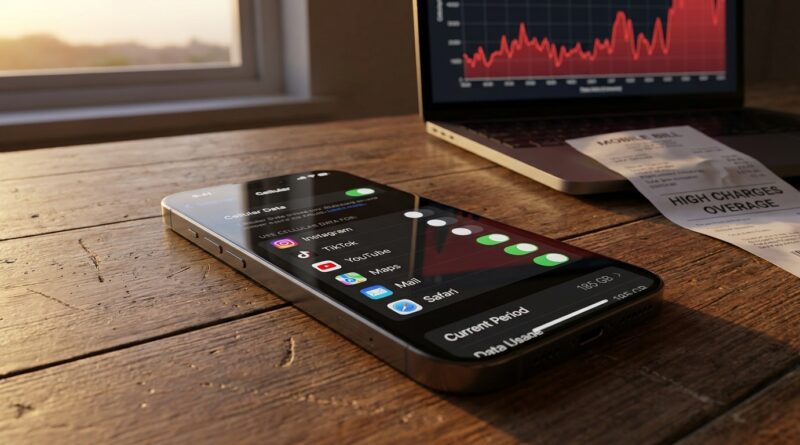
Scroll down. You will see a long list of apps with little switches next to them. That is the hidden feature. Each switch decides whether that app can use mobile data.
Above that list, you will also see data usage totals. If you have not reset the statistics in a long time, those numbers may cover many months, so do not panic yet.
How to audit your data use without getting overwhelmed
The app list can be long. Do not try to perfect everything. Start with the obvious categories.
Step 1: Look for the biggest users
In Settings > Cellular, scroll through the app list and check the amount of data listed under each app.
Common heavy hitters include:
- Social media apps
- Video streaming apps
- Photo and cloud storage apps
- Music and podcast apps
- App stores and shopping apps with lots of media
- Games with frequent downloads or ads
Step 2: Ask one simple question
Do you need this app to work fully when you are away from Wi-Fi?
If the answer is no, turn its cellular switch off.
That does not uninstall the app. It does not delete your account. It just tells that app to wait until Wi-Fi is available.
Step 3: Keep the essentials on
For most people, these should usually stay enabled:
- Phone
- Messages
- Maps
- Banking apps
- Ride-share apps
- Authentication apps
- Email, if you truly need it on the go
This is where the trick becomes useful instead of annoying. You are not cutting yourself off. You are making room for the apps that matter.
The smart way to decide what to switch off
Here is the practical rule I give friends and family. If an app is mostly for entertainment, shopping, or casual browsing, it probably does not need cellular access all the time.
Usually safe to switch off
- Social apps you mostly check at home
- Streaming video apps
- Large cloud drive apps
- Game apps
- Retail and food ordering apps
- Photo editing apps
- Smart home apps you rarely use away from home
Think twice before switching off
- Navigation apps
- Messaging apps used for work or family
- Travel apps with boarding passes
- Security camera alerts
- Medical apps
- Two-factor authentication apps that depend on internet access
If you are unsure, turn the app off for a week and see if you notice. Most people do not.
Do not ignore these other cellular settings nearby
While you are in this part of Settings, a few other options are worth checking because they can quietly add up too.
Wi-Fi Assist
This feature uses cellular when Wi-Fi is weak. Helpful sometimes. Sneaky other times.
Go to the bottom of Settings > Cellular and look for Wi-Fi Assist. If your phone often clings to weak public or office Wi-Fi, this can burn data in the background while you think you are still on Wi-Fi.
If that sounds familiar, you may also like Stop Letting Wi‑Fi Waste Your Battery: The Hidden ‘Per‑Network Smart Connect’ Trick iPhone Power Users Use To Stay Fast And Secure Everywhere, which pairs nicely with this data-saving cleanup.
Low Data Mode
Go to Settings > Cellular > Cellular Data Options.
Turn on Low Data Mode if you want iPhone to reduce background tasks, automatic updates, and some syncing behavior while on cellular. It is not magic, but it helps.
App Store downloads
Go to Settings > App Store and check whether automatic downloads are allowed over cellular. App updates and large downloads can quietly eat through a plan if this is left wide open.
How to reset the stats and get a clean monthly reading
The built-in data tracker is useful, but only if you know what period it covers.
Reset once per billing cycle
At the bottom of Settings > Cellular, tap Reset Statistics on the day your carrier billing cycle starts.
Then, each month, you get a cleaner picture of which apps are actually causing the problem.
This is one of those tiny habits that makes the whole feature much more useful. Otherwise, you are judging today’s behavior using numbers from six months ago.
Set up a one-tap Focus profile for travel or tethering
This is the part power users love. You can pair your data-saving setup with a Focus mode so your phone becomes less distracting and less data-hungry when you are traveling, commuting, or using a hotspot.
What Focus can and cannot do here
Focus will not directly flip every cellular app switch on and off. Apple does not currently give it that kind of per-app data control.
But it can still help in a very practical way:
- Reduce app interruptions that tempt more scrolling and streaming
- Show only essential Home Screen pages
- Let only key people and apps through
- Turn on automatically by location, time, or app use
A simple “Travel Data Saver” Focus setup
Go to Settings > Focus > tap the + icon.
Create a custom Focus called Travel Data Saver.
Then:
- Allow only essential contacts
- Allow only important apps like Maps, Messages, Phone, and airline or train apps
- Hide your social and entertainment Home Screen pages
- Set it to turn on automatically when you arrive at the airport, train station, office, or when you open Maps
Now pair that with your manual per-app cellular settings. The result is simple. Fewer distractions. Less background activity. Better odds that your useful apps stay fast.
A good 15-minute setup plan
If you want the fastest path from “my bill is ridiculous” to “I think I fixed it,” do this:
Minute 1 to 5
- Open Settings > Cellular
- Scroll the app list
- Turn off cellular for obvious non-essential apps
Minute 6 to 10
- Turn on Low Data Mode
- Check Wi-Fi Assist
- Review App Store download settings
Minute 11 to 15
- Create a Travel Data Saver Focus
- Hide distracting apps from that Focus
- Reset cellular statistics if your billing cycle is starting
That is it. You do not need a new app. You do not need a new plan. You just need firmer rules.
Common questions people ask after they try this
Will turning off cellular for an app break it?
No. In most cases, it just means the app works only on Wi-Fi. You can still open it. It may just show older content until you connect.
Can I still get notifications?
Sometimes yes, sometimes no, depending on how the app handles notifications and background communication. If alerts from that app matter, test it before relying on it.
What about iCloud?
Be careful here. If you heavily use iCloud Photos or Drive, leaving everything fully open on cellular can eat data fast. But turning too much off may delay uploads and syncing. This is one area where your personal habits matter.
Is this useful even on an unlimited plan?
Absolutely. Many “unlimited” plans slow you down after a certain amount of use. Cutting waste can help you avoid throttling and keep speed available for the apps you actually care about.
At a Glance: Comparison
| Feature/Aspect | Details | Verdict |
|---|---|---|
| Per-app cellular switches | Lets you block specific apps from using mobile data while keeping cellular on for everything important. | Best first step for cutting waste fast. |
| Low Data Mode | Reduces background activity, auto-updates, and some syncing when on cellular. | Helpful extra layer, but not a full fix by itself. |
| Focus profile for travel or tethering | Cuts distractions and keeps only essential apps front and center during high-data situations. | Great companion tweak for daily control. |
Conclusion
This is one of those rare iPhone tweaks that feels small, but pays off all month long. Carriers are quietly nudging people toward pricier plans while apps get more aggressive with background refresh, autoplaying video, and silent syncing. Taking control of the iPhone per app cellular data settings hidden feature gives that power back to you. Audit the list. Shut off the worst offenders. Keep cellular open for the apps that truly matter. Then tie the whole thing to a simple Focus profile for travel, commuting, or hotspot days. In about fifteen minutes, you can keep your current plan, help Maps and Messages stay responsive, and avoid those nasty end-of-month slowdowns. It is practical, it works, and you will feel the difference every single day.