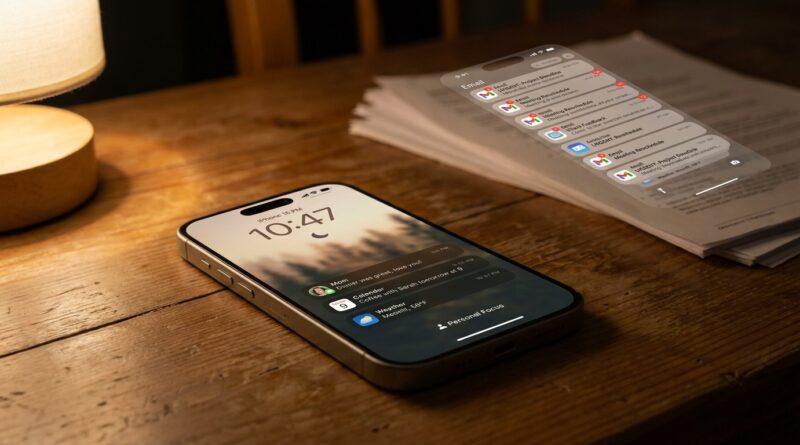
Stop Letting Random Pings Rule Your Day: The Hidden ‘Per‑Account Focus Filters’ Trick Power Users Use To Silence Work Email Without Missing Real Life
You did the responsible thing. You set up Focus on your iPhone so work would stop barging into dinner, soccer practice, or the couch at 9 p.m. Then your phone still found a way to annoy you. The banner might be gone, but your lock screen still shows Mail previews, unread counts, and those little reminders that yes, your boss is still emailing. It feels like the choice is either constant low-grade stress or going scorched-earth and missing something you actually need.
The fix is smaller, and smarter, than most people realize. If you use the Mail app, iPhone Focus filters can hide specific accounts while a Focus mode is on. That means your work inbox can disappear during Personal time, while your family, school, delivery, or doctor emails stay visible. It is one of the best examples of how iPhone Focus filters hide work email notifications without muting your whole life. Once you set it up, your phone starts acting less like a loud office hallway and more like a front door with a lock.
⚡ In a Hurry? Key Takeaways
- Use Focus Filters in iPhone settings to hide only your work Mail account during Personal or Sleep Focus.
- Set up separate Focus modes for Work, Personal, and side jobs, then attach the right Mail accounts to each one.
- This does not delete email or block emergency calls and texts, so you can cut noise without missing real-life essentials.
The trick most people miss
Most people stop at the basic Focus settings. They allow or silence certain people and apps, then call it a day. That helps, but it is not the full story.
Buried a little deeper is Focus Filters. This feature lets apps change what they show depending on which Focus mode is active. For Mail, that means you can tell your iPhone, “When I am in Personal Focus, only show my personal account. Hide the work one.”
That is a huge difference.
Instead of silencing every Mail notification and forgetting the app exists, you are separating channels. Work stays in the work lane. Life stays in the life lane.
What Focus Filters actually do for Mail
When set up correctly, Focus Filters can make the Mail app show only selected accounts while a Focus mode is on.
Example
Say you have these inboxes on your iPhone:
- Work Exchange account
- Personal iCloud account
- Freelance Gmail account
You can build Focus modes like this:
- Work Focus: Show work and freelance email
- Personal Focus: Show personal email only
- Sleep Focus: Show no work or freelance email at all
That is the real power-user move. You are not just blocking pings. You are deciding which version of your digital life is allowed to exist at that moment.
How to set it up on iPhone
If you want to use iPhone Focus filters to hide work email notifications, here is the path.
Step 1: Make sure your email accounts are already in Mail
This works best if your accounts are added to Apple Mail on the iPhone. Go to Settings > Apps > Mail > Mail Accounts, or in some iOS versions Settings > Mail > Accounts, and confirm your work and personal accounts are there.
Step 2: Open Focus settings
Go to Settings > Focus.
Pick the Focus you want to change, like:
- Personal
- Sleep
- Work
- A custom Focus, such as “Freelance” or “Weekend”
Step 3: Scroll to Focus Filters
Inside that Focus mode, scroll down until you see Focus Filters. Tap Add Filter.
Step 4: Choose Mail
Under app filters, tap Mail.
You should see an option to choose which mailboxes or accounts are shown while that Focus is active.
Step 5: Select only the accounts you want visible
For Personal Focus, uncheck your work account and leave your personal one on. For Work Focus, do the reverse if you want.
Then tap Add or Done.
Step 6: Test it
Turn that Focus mode on manually from Control Center. Open the Mail app. Your visible inboxes should change based on the filter you set.
If they do, you are done.
Why this feels better than simply muting Mail
Muting the whole Mail app is blunt. It solves one problem by creating another.
You stop hearing from your boss, sure. But you might also miss:
- A message from your kid’s school
- A shipping update for an expensive package
- A doctor’s office email
- A landlord or utility alert
- A receipt or fraud warning
Focus Filters are more precise. They let you cut off the noisy source without cutting off everything else.
It is the same basic idea behind smart notification control in other parts of your digital life. If you like this kind of targeted setup, you might also enjoy Stop Letting Important Stuff Slip: The Hidden ‘Notify Me On Any Website’ Trick Power Users Use To Auto‑Track Price Drops And Restocks. Different tool, same goal. Less pointless checking, fewer missed important updates.
A few limits you should know before you rely on it
This feature is useful, but it is not magic.
It works best in Apple Mail
If you live inside Gmail, Outlook, or another third-party mail app, your options may be different. Some apps support Focus filters, some do not, and some only partly do.
It hides selected account views, not reality itself
Your emails are still arriving on the server. They are not deleted. You are just changing what the app shows you while that Focus is active.
Badges can depend on your setup
If unread counts still seem odd, check the Mail notification settings and the Focus options tied to lock screen and home screen behavior. Some people confuse hidden previews with still-visible app badges. Both can matter.
VIPs and allowed people are separate settings
If there is one person at work you truly must hear from after hours, Focus itself may not be the best place to solve that through Mail. You may want that person texting or calling instead, using the People section in Focus to let those through.
The best real-world setup for most people
If you are not sure where to start, copy this framework.
Personal Focus
- Hide work account
- Show personal account
- Allow calls and texts from family, partner, school, and close contacts
- Optional: allow delivery or safety apps
Work Focus
- Show work account
- Optionally show freelance account
- Keep personal email visible only if you need it for life admin
Sleep Focus
- Hide all work-related accounts
- Allow repeated calls or emergency contacts only
Freelance or Side-Hustle Focus
- Show only client account
- Hide day-job inbox so your evening work block stays clean
This setup helps if your life is split across job, home, and side work. And honestly, that is a lot of people now.
If your lock screen is still cluttered, check these settings too
If the email account filter is working but your phone still feels noisy, the issue may be a separate setting inside Focus.
Check lock screen options
Go to Settings > Focus > [Your Focus] > Options.
Look for settings related to:
- Hide Notification Badges
- Dim Lock Screen
- Silence Notifications
If your complaint is “I still see ugly unread counts from work,” hiding badges during Personal Focus can help a lot.
Check Mail notifications directly
Go to Settings > Notifications > Mail.
Review:
- Lock Screen alerts
- Banners
- Badges
- Preview settings
The cleanest setup is usually a mix of both. Use Focus Filters to decide which account exists in that moment. Use notification settings to decide how loud Mail is allowed to be.
When this is better than deleting work apps from your phone
Some people solve after-hours stress by removing Mail, Teams, Slack, or Outlook entirely. That can work, but it is not always practical.
Maybe you are on call once a month. Maybe your manager sometimes sends next-day schedule changes. Maybe your freelance clients are in different time zones. Maybe you need the app on your phone, but not in your face every minute.
This is where Focus Filters shine. They give you a middle ground, which is usually what adults actually need.
At a Glance: Comparison
| Feature/Aspect | Details | Verdict |
|---|---|---|
| Focus Filters for Mail | Hides selected email accounts during a specific Focus mode instead of muting all email. | Best choice if you want to hide work email but keep personal messages visible. |
| Silencing the entire Mail app | Stops Mail from bothering you, but can also hide school, family, banking, and delivery alerts. | Too broad for most people. |
| Separate Focus modes | Lets Work, Personal, Sleep, and side-job schedules each show different accounts and notifications. | Worth setting up once, because it pays off every day. |
Conclusion
The big win here is simple. You do not have to choose between being always available and totally unreachable. iOS has quietly become good at separating your phone into lanes, so work, freelance clients, and personal life can each have their own rules and schedules. When you use iPhone Focus filters to hide work email notifications, you are not hiding from life. You are hiding the one slice of noise that keeps leaking into the rest of it. That means fewer ruined dinners, fewer twitchy lock-screen checks, and a much better chance of seeing the things that really matter, like childcare calls, delivery updates, or family messages. For a lot of people, that is the smartest kind of tech trick. Small setup. Real relief.