Stop Letting Screens Steal Your Sleep: The Hidden ‘Bedtime Scene Automations’ Trick iPhone Power Users Use To Wind Down Without Willpower
You are probably not “bad at bedtime.” You are just fighting a phone that stays fully open for business long after your brain is begging to clock out. That is how you end up promising yourself one quick scroll, then looking up at 1:17 a.m. with TikTok open, messages buzzing, and the bedroom lights still on. It is exhausting, and it adds up fast.
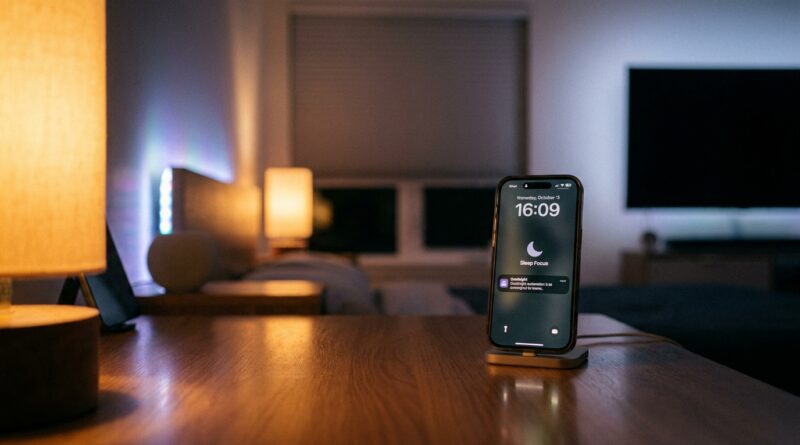
The good news is your iPhone already has most of the tools to fix this. The trick is not more willpower. It is setting up a bedtime routine with iPhone Sleep Focus, Home automation, and Shortcuts so your devices start shutting the night down for you. A proper “Goodnight” scene can dim lights, silence the noise, switch your phone into Sleep Focus, and make late-night distractions less tempting. Then a matching “Wake Up” automation can reset everything by morning. It feels small at first, but this is one of those hidden power-user habits that quietly gives you your evenings back.
⚡ In a Hurry? Key Takeaways
- Use Sleep Focus plus a “Goodnight” automation to dim lights, reduce notifications, and make your iPhone less distracting at bedtime.
- Start simple. Schedule Sleep Focus, add a Home scene, then build a “Wake Up” automation that resets your phone and room in the morning.
- You do not need to buy a whole smart home. Even just Sleep Focus, Night Shift, and a few Shortcuts can cut nightly chaos and help you sleep earlier.
The hidden trick is not Sleep Focus by itself
Most people hear “Sleep Focus” and think it is just a quieter Do Not Disturb mode. That is part of it, but not the interesting part.
The interesting part is what happens when you connect Sleep Focus to the rest of your evening. Your lights can dim. Certain people can still get through. Your lock screen can change. Your app notifications can calm down. A shortcut can launch white noise, start a playlist, or open a reading app instead of social media.
That is where the real bedtime routine shortcuts magic happens. You stop relying on your 11:00 p.m. self to make healthy choices.
What a smart bedtime scene can actually do
A good iPhone sleep focus home automation bedtime routine shortcuts setup does not need to be complicated. It just needs to remove friction.
Your “Goodnight” scene might:
Turn off bright overhead lights. Dim your lamp to 20 percent. Set Sleep Focus on your iPhone. Turn on Night Shift. Pause unnecessary notifications. Start a calm playlist. Open your Kindle or journaling app. Lock you out of your worst doom-scrolling apps with Screen Time.
Your “Wake Up” scene might:
Turn off Sleep Focus. Brighten the lights slowly. Read the weather. Start a morning playlist. Open your calendar. Turn on a coffee plug if you have one. Put your home screen back into work or normal mode.
That is the key idea. Bedtime should feel like the house and the phone are closing down with you, not trying to keep the party going.
Start with Sleep Focus first
If you skip this step and jump straight into Shortcuts, things get messy. Start with the built-in sleep schedule.
How to set it up
Open the Health app, tap Browse, then Sleep. Set your sleep schedule, bedtime, and wake-up time. Make sure “Use Schedule for Sleep Focus” is turned on.
Once that is active, your iPhone can automatically switch into Sleep Focus at the time you choose. You can customize which people and apps are allowed to reach you, which is important if you have family, kids, or work emergencies.
Why this matters
Sleep Focus gives your bedtime routine a reliable trigger. You are no longer trying to remember to tap five settings every night. The phone knows when your evening wind-down starts.
Then build your “Goodnight” scene in Home
If you have HomeKit-compatible lights, plugs, blinds, or speakers, this is where things get really nice.
Open the Home app and create a new scene called something like “Goodnight.” Add the actions you want, such as:
- Turn bedroom lights warm and dim
- Turn off living room lights
- Turn on a fan or white-noise machine using a smart plug
- Lock the front door, if your setup supports it
- Set the thermostat a little cooler
You can run this scene manually with Siri, from Control Center, or through an automation.
If you do not own smart home gear
Do not stop here. You can still create a useful bedtime routine with just the iPhone. Sleep Focus, Night Shift, Reduce White Point, background sounds, and app limits can still make a huge difference.
Use Shortcuts to make bedtime less tempting
This is the part many casual users miss. Shortcuts can steer your tired brain in the right direction.
For example, when Sleep Focus turns on, you can run a shortcut that:
- Opens your reading app instead of your social apps
- Starts a sleep playlist or podcast timer
- Turns on Background Sounds like rain or ocean
- Shows a note with your next-day to-do list, so your brain stops spinning
- Changes your watch face or home screen to a calmer layout
You are basically building a digital off-ramp. The point is not to create a perfect robot bedtime. The point is to make the easy choice the healthier one.
How to create a bedtime automation
Option 1: Trigger by time
Open the Shortcuts app, tap Automation, then create a personal automation for a specific time, like 10:30 p.m. Add actions such as Set Focus, Set Brightness, Open App, or Control Home.
Option 2: Trigger by Sleep Focus
This is usually the cleaner option. In Shortcuts, create a personal automation that runs when Sleep Focus turns on. Then choose the actions you want.
This setup feels more natural because if your schedule changes and Sleep Focus starts at a different time, your automation still follows it.
Tip for beginners
Keep your first automation boring. Really. Start with three actions:
- Turn on Sleep Focus
- Dim screen brightness and enable Night Shift
- Run your “Goodnight” Home scene
Live with that for a week before adding more.
Do not forget the morning half
A bedtime system works better when it has a clean ending. That is why a matching “Wake Up” routine matters.
When your alarm goes off or Sleep Focus turns off, your iPhone can shift back into daytime mode. This is also a good time to clean up any restrictions you set overnight.
If mornings are a mess too, you should also read Stop Letting Your Alarms Fail You: The Hidden ‘Context‑Aware Alarm Profiles’ Trick Power Users Use To Wake Up Right Every Single Time. It pairs nicely with a bedtime automation because there is no point in building a great wind-down routine if your wake-up setup is still chaotic.
Small settings that make a big difference
Use a Sleep Screen or simpler home screen
During Sleep Focus, hide distracting app pages if you can. A calmer home screen makes those “just checking one thing” moments less dangerous.
Set app limits for your worst offenders
If TikTok, Instagram, YouTube, or Reddit are your bedtime trapdoors, put them behind Screen Time limits. You can still override them, of course, but adding one extra speed bump helps.
Let a few people through
Sleep Focus should not make you worry that you will miss something important. Allow calls or messages from family members or key contacts. You want peace, not anxiety.
Use warm light
If your bulbs support color temperature, make your “Goodnight” scene warmer, not just dimmer. Your room should look like evening, not a grocery store.
Common mistakes people make
They make it too complicated on day one
If your shortcut has 19 steps and three conditional branches, you are probably not going to maintain it. Start small.
They forget to test the automation
Run everything manually once before trusting it at night. Make sure lights respond, Focus modes switch correctly, and your shortcut does not open the wrong app.
They silence too much
You want fewer interruptions, not a new source of stress. Let urgent contacts through.
They do not connect bedtime and wake-up
The best routines are loops. Night mode should lead cleanly into morning mode.
Who benefits most from this setup
This works especially well if you:
- Lose track of time on your phone at night
- Leave bright lights on too late
- Get pinged by notifications when you are trying to sleep
- Wake up feeling like your phone is already in control of your morning
- Want a smarter routine without buying lots of gadgets
If that sounds like you, this is one of the highest-value things you can do with features already built into iOS.
At a Glance: Comparison
| Feature/Aspect | Details | Verdict |
|---|---|---|
| Sleep Focus alone | Silences distractions and follows a bedtime schedule, but does not control lights, music, or app behavior by itself. | Good starting point, but limited |
| Sleep Focus + Home scene | Adds room-level changes like dim lights, smart plugs, and a more obvious wind-down environment. | Best comfort upgrade |
| Sleep Focus + Home + Shortcuts | Creates a full bedtime and wake-up routine with automatic app, audio, display, and home actions. | True power-user setup |
Conclusion
If your nights feel scattered, loud, and way too bright, this is one of the easiest quality-of-life fixes hiding in your iPhone. You do not need perfect discipline. You need a system that starts closing the loops for you. By combining Sleep Focus schedules with smart “Goodnight” and “Wake Up” automations, you can reclaim 30 to 60 minutes most evenings, cut down on blue light and notification noise, and wake up to a phone that is already working with you instead of begging you to scroll. Right now, people are exhausted, anxious, and pulled in every direction. iOS already has the pieces to build a nightly shutdown ritual that runs itself. Set it up once, keep it simple, and let your phone finally help you go to bed.