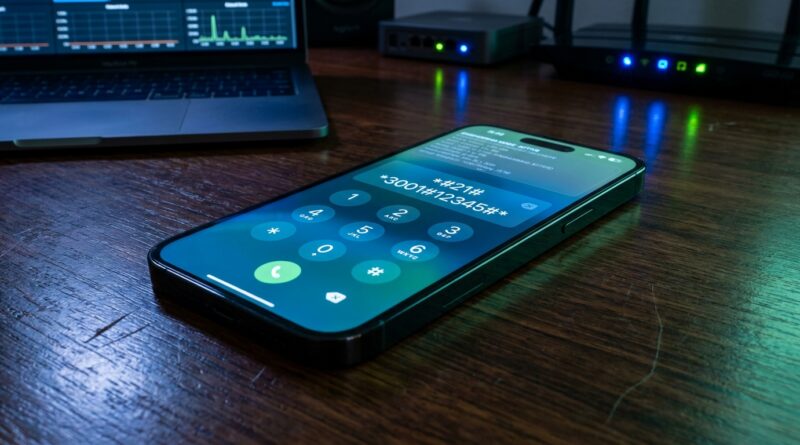
Stop Treating Your Dialer Like a Toy: The Hidden iPhone ‘Secret Codes’ Power Users Turn Into a Live Network Dashboard
You are not imagining it. Sometimes your iPhone says everything is fine while calls go straight to voicemail, one room in your house kills your signal, or your carrier swears call forwarding is off when it clearly is not. That is frustrating, especially because Apple hides most of the useful network info behind codes you have to type into the Phone app like it is still 2008. The good news is that several iPhone secret codes that still work in 2026 can tell you what your carrier is doing, show field test data, check forwarding status, and pull up key IDs support always asks for. The trick is knowing which ones are actually useful and which ones are just internet junk that stopped working years ago. Here is the short version. Treat your dialer like a mini control panel, not just a keypad, and your iPhone becomes a much better tool for troubleshooting real-world phone problems.
⚡ In a Hurry? Key Takeaways
- The most useful iPhone secret codes that still work are for field test mode, checking your IMEI, and confirming whether call forwarding is active.
- Save the codes you use most as Contacts favorites so you can tap them like shortcuts instead of memorizing symbols.
- These codes usually only show status info, but carrier-specific forwarding commands can change settings, so double-check before you hit Call.
Why these dialer codes matter more than most people think
Most iPhone owners use the Phone app for one thing. Make a call. That is it.
Meanwhile, your carrier controls a lot behind the scenes. Call forwarding rules. Voicemail routing. LTE and 5G handoffs. Which tower your phone prefers. Why your bars look fine but your call quality is terrible. iOS gives you very little of that in plain English.
That is why secret dialer codes are trending again. People are tired of guessing.
The problem is that many code lists online are a mess. They mix Android codes with iPhone codes, include stuff that stopped working years ago, or skip the one detail that matters most, what the code actually does in real life.
The iPhone secret codes that still work in 2026
These are the ones worth keeping. Results can vary by carrier and country, but these are the most consistently useful on iPhone.
1. Field Test Mode: *3001#12345#*
This is the big one. Type *3001#12345#* into the Phone app and press Call.
If your carrier supports it, your iPhone opens Field Test Mode. Think of it as a back door into live network stats. The layout has changed over the years, and it is not always pretty, but it can still reveal details like signal measurements, serving cell info, radio access data, and sometimes band information.
Use it when:
- Your home has one dead zone and you want proof it is not in your head
- Calls sound bad even with decent bars
- You are testing whether one room, one floor, or one carrier has better coverage
Real-world tip: Take screenshots in different rooms. If support tells you service looks normal, those screenshots give you something concrete to point to.
2. IMEI shortcut: *#06#
Type *#06# and your iPhone will instantly show the IMEI.
This is one of the oldest codes around, and yes, it still works.
Use it when:
- Carrier support asks for your IMEI
- You are checking a device before trade-in or resale
- You want to confirm the hardware ID without digging through Settings
You can also find this in Settings, but this code is faster. Much faster.
3. Check call forwarding status: *#21#
Type *#21# and press Call to check the status of call forwarding, at least on carriers that still support the standard response.
This can show whether voice calls, data, SMS, fax, or other services are forwarded. On some networks, it may also show conditional routing details.
Use it when:
- Calls are not reaching you
- Someone changed forwarding on your line and you want to confirm it
- Your carrier says forwarding is off but calls keep landing elsewhere
A quick note here. Some people confuse forwarding with missed-call routing to voicemail. Those are not always the same thing, and your carrier may present them differently.
4. Check conditional forwarding: *#67# and *#61# and *#62#
These are the useful follow-ups.
- *#67# checks forwarding when your line is busy
- *#61# checks forwarding when you do not answer
- *#62# checks forwarding when your phone is unreachable
Use them when:
- Calls go to voicemail too quickly
- Your phone misses calls when it briefly loses service
- You want to see where unanswered calls are being routed
This is especially handy if you are troubleshooting spotty service at home. If your phone drops off the network in one room, *#62# can help explain why those calls disappear into voicemail.
5. Disable forwarding status check and reset command: ##002#
Type ##002# and press Call. On many carriers, this cancels all conditional call forwarding settings.
This is one of the few codes here that can actually change something, so do not use it casually.
Use it when:
- Your forwarding settings got scrambled
- Voicemail routing seems wrong after travel or a carrier change
- Support tells you to clear all forwarding rules and start fresh
If you rely on custom forwarding, skip this unless you know what will be removed.
Codes people keep sharing that are less useful on iPhone
This is where many threads go off the rails.
A lot of “secret code” roundups include Android service menus, Samsung-only diagnostics, or old GSM commands that now return errors on modern US carriers. Others technically work but do nothing useful for the average person.
If a code promises hidden Apple settings, battery health hacks, or magical speed boosts, be skeptical. iPhone does not work like that. The codes that still matter are mostly network and carrier related.
How to save these as tappable contacts
This is the part most lists skip, and it is what makes these codes practical.
You do not need to memorize any of them. Save them as contacts.
How to do it
- Open the Contacts app or Phone app.
- Create a new contact.
- Name it something obvious like “Check Forwarding” or “Field Test Mode.”
- Paste the code into the phone number field exactly as written.
- Save it.
Now you can tap the contact any time you need it.
If you want to go one step further, add the most useful ones to Favorites in the Phone app. That turns your dialer into a tiny troubleshooting dashboard.
And if you like turning buried iPhone features into shortcuts, you will probably also appreciate Stop Typing The Same Replies: The Hidden iOS 18 Text Replacements Power Users Turn Into Instant Shortcuts. Same idea, different app. Less tapping, less annoyance.
When to use each code in real life
Bad coverage at home
Start with Field Test Mode. Walk room to room and compare what happens. If one area consistently performs worse, that is useful evidence for your carrier. It can also help you decide where to place Wi-Fi calling gear, a hotspot, or even your work desk.
Calls going straight to voicemail
Check *#21#, then *#61# and *#62#. You are trying to answer two questions. Is forwarding active, and if so, where are those calls being sent?
Support keeps asking for phone IDs
Use *#06# for the IMEI. Take a screenshot before you call support, so you are not trying to copy numbers while also listening to hold music.
You switched carriers and weird call behavior started
Run the forwarding checks first. Old voicemail and forwarding settings can linger in strange ways during a port or plan change. If support suggests a full forwarding reset, that is when ##002# may be useful.
Important safety notes before you start tapping
Most of these codes are safe because they only request information. Still, a few can change network behavior, especially forwarding-related commands.
- Read the code twice before pressing Call
- Use status-check codes first
- Only use reset or cancel commands if you know what they do
- Expect different results depending on your carrier
If a code fails, that does not necessarily mean your iPhone is broken. It often means your carrier does not support that command or handles it in a different way.
What still makes Field Test Mode worth your time
Field Test Mode is not as friendly as it should be. Apple could absolutely make this easier. But even in 2026, it is still one of the best hidden tools on the iPhone for anyone who cares about real network performance instead of just staring at signal bars.
Bars are a rough guess. Field data is actual evidence.
That matters when you are deciding whether to trust your carrier, whether to enable Wi-Fi calling full-time, or whether a bad-call problem is tied to one location instead of your phone itself.
At a Glance: Comparison
| Feature/Aspect | Details | Verdict |
|---|---|---|
| Field Test Mode | Opens live carrier and radio data with the code *3001#12345#* | Best tool for coverage troubleshooting |
| Forwarding check codes | Shows whether calls are being redirected when busy, unanswered, or unreachable | Excellent for voicemail and missed-call mystery solving |
| IMEI shortcut | Instantly displays your device IMEI with *#06# | Simple, fast, and still very useful |
Conclusion
Your iPhone dialer is a lot more useful than Apple makes it look. Secret dialer codes are trending right now because people are finally realizing they unlock menus Apple never surfaces in Settings, but most threads just dump a raw list of codes and leave you to figure out the rest. The useful approach is simpler. Keep a short list of iPhone secret codes that still work, save them as tappable contacts, and use them for real problems. Check forwarding when calls vanish. Open Field Test Mode when coverage feels off. Grab your IMEI in seconds when support asks for it. That is how you turn a boring stock app into a diagnostic console without getting lost in nonsense codes that no longer do anything. It is one of those small power-user habits that saves time, cuts through carrier fog, and helps unlock the missing 90 percent of what your iPhone can really do.