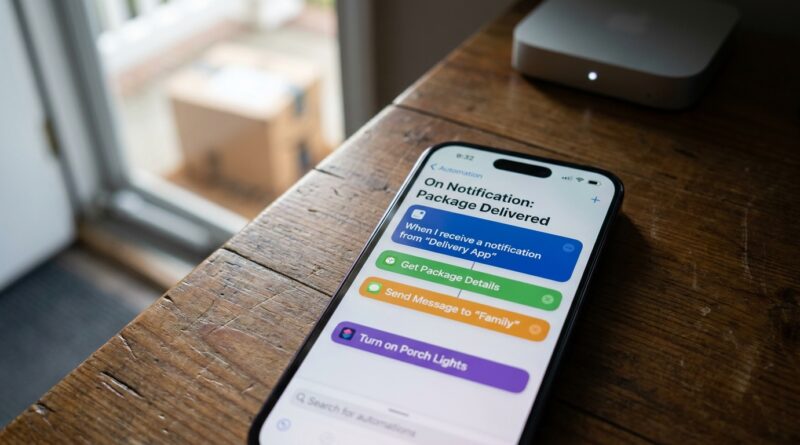
Stop Letting Notifications Run Your Life: The Hidden iOS 27 ‘On Notification’ Automation Trigger Power Users Turn Into a Personal Robot
Your iPhone can feel like a needy roommate. It buzzes for package deliveries, doorbell motion, bank alerts, shared family lists, and random app nonsense you do not even remember allowing. The annoying part is not just the noise. It is that every ping creates a tiny job. Check this. Save that. Text someone. Open an app later. And later, of course, never happens. That is why the new iOS 27 On Notification automation trigger matters more than it sounds. For the first time, regular iPhone users get a pretty practical way to make the phone react when certain notifications arrive, instead of just dumping them in your lap and waiting for you to do the work. Set up well, it can quietly sort, log, mute, launch, message, or prep actions in the background. Think less “toy shortcut” and more “personal robot with a very narrow job description,” which honestly is exactly what most of us need.
⚡ In a Hurry? Key Takeaways
- The iOS 27 On Notification automation trigger lets your iPhone react when specific notifications arrive, so repetitive tasks can happen automatically.
- Start with one or two narrow jobs, like logging delivery alerts to Notes or turning smart home notifications into a Focus mode change.
- It is powerful, but not magic. Some apps are more reliable than others, and you should avoid automations that handle sensitive notifications in risky ways.
What the iOS 27 On Notification automation trigger actually does
Here is the plain-English version.
When a notification appears on your iPhone, Shortcuts can now use that event as a trigger for an automation. Not every notification from every app will behave the same way, but the basic idea is simple. If a certain app, sender, keyword, or type of alert shows up, your phone can respond with a preset action.
That action might be tiny. Add a line to a note. Turn on a Focus mode. Start a timer. Save details to Reminders. Open a specific app. Change a smart home scene. Send a message to someone in your family.
Before this, iPhone automations were often impressive in demos but awkward in daily life. They worked off time, location, charging, app opens, NFC tags, and other triggers. Useful, yes. But notifications are where modern life actually lands. That is where packages, flights, bills, security cameras, transit delays, and work tools all show up first.
So this is a bigger shift than it sounds.
Why this feels new, even if you have used Shortcuts before
Shortcuts fans have spent years building clever workarounds. The problem was always the same. Your phone knew a lot, but it still could not reliably react to the thing you actually care about: the message that just arrived from another app.
The iOS 27 On Notification automation trigger closes part of that gap. Not all of it. Apple is still Apple. There are privacy limits. Some actions still need confirmation. Some apps format notifications inconsistently. But now there is finally a bridge between “I got an alert” and “my phone should do something useful with it.”
That is enough to make this practical for normal people, not just automation hobbyists who enjoy spending Saturday afternoon debugging text strings.
The best way to think about it
Do not treat this like a way to automate your whole life.
Treat it like hiring a very reliable assistant for the boring 10-second tasks you keep forgetting. The sweet spot is simple, repetitive, low-risk actions tied to predictable notifications.
Good jobs for this trigger
Package delivered. Log it and remind me at 6 p.m.
Doorbell motion after midnight. Turn on a stronger Focus mode and lamp.
Calendar change from work app. Add a backup reminder.
Bank deposit alert. Save amount to a note.
Rain alert from weather app. Turn on an “outdoor plans” reminder list.
Bad jobs for this trigger
Anything that depends on perfect wording from a flaky app.
Anything involving private one-time codes, passwords, or legal messages.
Anything where a false trigger would annoy someone, spend money, or unlock your home.
Three real use cases normal people will actually keep using
1. Turn delivery notifications into a running package dashboard
This is the easiest win.
If you get shipping alerts from Amazon, UPS, FedEx, Shop, or your local courier app, create an automation that watches for phrases like “delivered,” “out for delivery,” or “arriving today.” When one appears, your iPhone can append the text to a note called “Deliveries,” add a reminder to bring the package in, or even trigger a home scene that turns on your porch camera view when you unlock your phone.
This sounds small until you live with it for a week. Suddenly you are not mentally carrying package status all day. Your phone quietly keeps a log and gives you one useful nudge at the right time.
2. Make smart home alerts less noisy and more useful
Most smart home notifications are all interruption, no help. “Motion detected.” Great. Now what?
With the iOS 27 On Notification automation trigger, a late-night alert from a camera app could switch you into Sleep Focus exceptions, turn on a hallway light at low brightness, or open your preferred camera dashboard. A water leak notification could create a high-priority reminder and send a message to another household member.
The point is not to create a sci-fi house. The point is to turn a generic alert into a next step.
3. Use work notifications to protect your attention instead of destroy it
This one might be the most valuable.
If your work chat app sends a notification containing “urgent,” “meeting moved,” or a boss’s name, the phone can react differently from the endless flood of everything else. Maybe it creates a temporary Focus mode. Maybe it adds a follow-up reminder if the notice arrives after hours. Maybe it logs it into a work note so you do not have to reopen the app just to remember what it said.
That matters because the real cost of notifications is not the sound. It is the attention residue afterward.
How to set one up without making a mess
Apple will likely keep tweaking the exact layout, but the general flow is straightforward.
Step 1: Open Shortcuts and create a new automation
Look for the automation tab, then choose the new notification-based trigger.
Step 2: Pick the app or notification condition
You may be able to filter by app, sender, title, or message content. Be picky here. The narrower the trigger, the better the results.
Step 3: Add one simple action
This is where people overdo it. Start with one action, maybe two. Add text to a note. Create a reminder. Set a Focus mode. Show a custom alert. Keep it boring.
Step 4: Test with a real notification
Do not assume it works because it looks right on the setup screen. Trigger a real notification and see what happens.
Step 5: Live with it for a few days
This is the important part. Good automations feel invisible. If you notice one constantly, it probably needs to be simplified.
Rules for building automations that do not become another headache
Rule 1: Filter narrowly
If you tell the automation to react to every notification from an app, you will regret it. Match specific words or types of notifications when possible.
Rule 2: Automate outcomes, not curiosity
Do not build automations that just feed your urge to check things. Build ones that complete a small task so you do not have to think about it again.
Rule 3: Avoid loops and chains at first
If one notification triggers an action that creates another notification, things can get silly fast. Keep your first few setups isolated and quiet.
Rule 4: Keep sensitive stuff out of it
Banking, authentication codes, legal messages, private medical alerts. Those are not your practice area. Use the trigger on lower-risk chores until you trust how it behaves.
Rule 5: Review once a month
Apps change wording. Companies update notifications. What worked in July may break in September. A quick check prevents confusion later.
Where it still falls short
There is a reason I called this semi-reliable, not magical.
Some app notifications are structured cleanly. Others are a mess. Some arrive consistently. Others get summarized, delayed, or rewritten by the app. Notification permissions, Focus filters, and Apple’s own background rules can all affect what actually happens.
Also, Apple still puts guardrails around some background actions. That is usually a good thing. You want your phone to help, not go rogue.
So yes, the iOS 27 On Notification automation trigger is exciting. But it is best when used as a small systems tool, not a total life-management engine.
My favorite starter automations for most readers
Delivery catcher
If notification contains “delivered,” append it to a Deliveries note and create a reminder for 6 p.m. to bring packages in.
Late-night camera alert helper
If your doorbell app sends motion alerts between midnight and 5 a.m., turn on a low-light home scene and open the camera app shortcut on unlock.
Bill due backup
If your bank or billing app sends a “payment due” alert, create a reminder for the next morning. No more reading it and hoping you remember.
Family pickup nudge
If a school or family location app sends “arrived,” create a 15-minute reminder to head out if you are the pickup person that day.
Why power users are excited
Because they know what this changes.
The automation crowd is not excited just because there is another trigger to play with. They are excited because notifications are the glue between apps that do not talk to each other. Once your phone can react to those alerts, a lot of awkward manual checking starts to disappear.
That means less app hopping. Less “I should handle that.” Less forgotten follow-up. More tiny background systems doing their job quietly.
And that is usually where useful tech lives. Not in flashy demos, but in the small annoyances that stop happening.
At a Glance: Comparison
| Feature/Aspect | Details | Verdict |
|---|---|---|
| Best use case | Repeated, low-risk notification chores like package alerts, reminders, and smart home responses | Excellent if you keep the task narrow |
| Reliability | Depends on how consistently an app formats and delivers its notifications | Good enough for practical use, but test before trusting it |
| Privacy and safety | Can touch sensitive information if you automate recklessly | Safe for everyday tasks, avoid using it for codes, passwords, or high-stakes actions |
Conclusion
The iOS 27 On Notification automation trigger is one of those features that sounds small until you realize how many tiny decisions in your day begin with a buzz from your phone. This is the first time iOS has given normal users a semi-reliable way to react to notifications in the background, and people who love automation are already doing smart things with it. You do not need a giant setup to benefit. One or two good automations can claw back real attention, turn noisy alerts into a quieter background system, and save you from that familiar “I’ll deal with it later” trap. Start small. Pick one repetitive annoyance. Let your iPhone handle that job for you. Once you see it work in real life, you will understand why this feature matters long before the big blogs catch up and start showing useful examples.