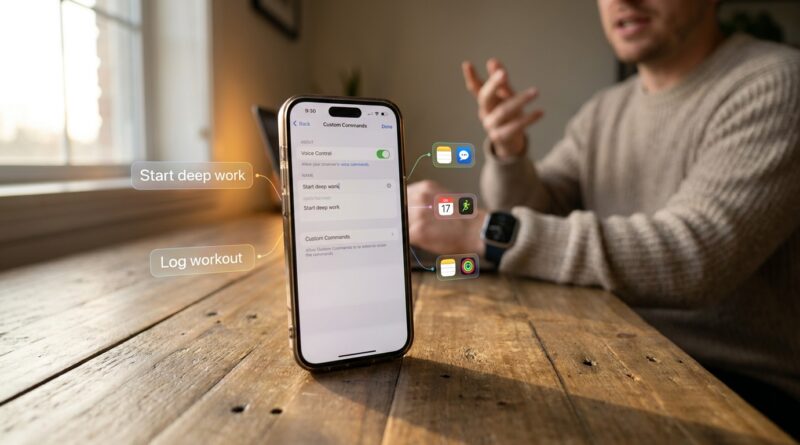
Stop Babysitting Every Tap: The Hidden Custom Voice Commands iPhone Power Users Turn Into One‑Sentence Superpowers
You already know the annoying routine. It is 9:30 p.m., you want to switch on Do Not Disturb, log your workout, queue up a playlist, and maybe block out tomorrow morning before you forget. Instead, you poke through four apps, miss a tiny button, back out, try again, and wonder why a phone this smart still makes simple habits feel like chores. That frustration is real. The good news is you do not need a new AI toy to fix it. If you have been searching for iOS 18 custom voice commands shortcuts, the useful stuff is already on your iPhone. Hidden in Accessibility and Shortcuts, you can create plain-English phrases that trigger multi-step actions hands-free. Think of them as one-sentence superpowers. Say a phrase you choose, and your iPhone can run a whole mini routine for you while you are cooking, driving, stretching, or carrying groceries.
⚡ In a Hurry? Key Takeaways
- Yes, iPhone custom voice commands can turn one spoken phrase into a chain of actions using Voice Control and Shortcuts.
- Start with one nightly or commuting routine, then assign it a simple phrase you will actually remember.
- This setup is useful for convenience and accessibility, but choose phrases carefully so you do not trigger actions by accident.
Why this matters right now
There is a lot of noise around flashy assistants. Meanwhile, one of the most practical upgrades on iPhone is sitting quietly in Settings. Custom voice commands are not new, but they have become more useful because many apps now support deeper Shortcuts actions.
That means your phone can do more with one command than it could a year ago. You are no longer limited to basic system actions. In many cases, you can set a Focus mode, create a note, log water or habits, add a calendar event, send a message, and start music, all from one phrase.
For busy people, that is the sweet spot. Less tapping. Fewer repeated steps. More getting on with your day.
What “custom voice commands” actually means on iPhone
Apple uses a few similar-sounding tools, so it helps to separate them.
Voice Control custom commands
This lives in Settings > Accessibility > Voice Control. You can create a phrase that makes the iPhone perform a custom action. That action might be a gesture, a series of taps, or a shortcut.
Shortcuts app
This is where you build the actual multi-step routine. Shortcuts can talk to Apple apps and many third-party apps. It is the engine under the hood.
Siri shortcuts phrases
Depending on your setup, you may also trigger shortcuts through Siri. But the hidden power-user move here is using Accessibility voice commands for very specific phrases and reliable hands-free control.
If you like practical hidden iPhone tools, this fits right in with tricks like Stop Treating Your Dialer Like a Toy: The Hidden iPhone ‘Secret Codes’ Power Users Turn Into a Live Network Dashboard, which shows another part of the phone most people ignore until they need it.
How to set up iOS 18 custom voice commands shortcuts
You do this in two parts. First, build the shortcut. Then attach a spoken phrase to it.
Step 1: Build a shortcut
Open the Shortcuts app and tap the plus sign to create a new shortcut. Add the actions you want in order.
For example, a bedtime shortcut could:
- Turn on Sleep Focus
- Set an alarm
- Log a habit
- Open your meditation app or start a calming playlist
- Create a note for tomorrow morning
Name the shortcut something clear, like “Night Reset.” Test it before doing anything else.
Step 2: Turn on Voice Control
Go to Settings > Accessibility > Voice Control, then switch it on. Your iPhone may download a small file the first time.
Step 3: Create a custom command
Inside Voice Control, tap Commands, then Custom, then Create New Command.
Now:
- Enter the phrase you want to say, like “Start my shutdown”
- Tap Action
- Choose “Run Custom Gesture” if you need on-screen taps, or use the option that runs a shortcut if available on your device setup
- Save it
If your exact menu wording looks slightly different, do not panic. Apple changes labels from version to version. The idea stays the same. You are linking a spoken phrase to an action.
Step 4: Test in the real world
Do not test only while sitting still in a quiet room. Try it while your hands are busy. In the kitchen. In the car before you start driving. On a walk. That is where you will learn if your phrase is easy to remember and if the shortcut does what you hoped.
Three voice-command routines worth stealing
1. The “I’m heading out” routine
Say: “I’m heading out.”
Your shortcut could:
- Turn on Driving or Work Focus
- Text a family member your ETA
- Start navigation home or to work
- Play your favorite podcast
This is perfect when your hands are full and you are trying not to forget three things at once.
2. The evening reset
Say: “Start my shutdown.”
Your shortcut could:
- Enable Sleep Focus
- Log your habits for the day
- Add a calendar block for tomorrow’s workout
- Start a low-volume playlist
- Dim the screen or open your reading app
This is where iOS 18 custom voice commands shortcuts really shine. The command becomes a ritual trigger, not just a tech trick.
3. The workout launch
Say: “Let’s train.”
Your shortcut could:
- Open your fitness app
- Start a timer
- Play your gym playlist
- Turn on a Fitness Focus
- Log the session in your habit tracker
That saves a weird number of taps when you are already trying to get moving.
Tips that make these commands actually useful
Use natural phrases
Pick phrases you would really say. Not robotic labels. “Start bedtime” is better than “Execute evening workflow.” You need something that feels normal.
Keep the shortcut short at first
Do not build a 17-step monster on day one. Start with two or three actions. If it works well for a week, add more.
Avoid common accidental phrases
Do not pick something your TV show might say. “Play music” is too generic. “Start my shutdown” is less likely to fire by mistake.
Check app permissions
Some actions need permission for reminders, calendars, health data, or notifications. If a shortcut seems flaky, permissions are often the reason.
Remember that reliability beats novelty
This is the big one. A boring shortcut that works every day is worth more than a fancy assistant trick that fails half the time.
What custom voice commands are not great at
They are not magic. Some apps still have weak Shortcuts support. Some actions need your phone unlocked. And voice control can mishear you in loud places.
If you want broad conversation and open-ended questions, that is not the point here. This is about repeatable actions. The stuff you do over and over. The boring parts of phone use that add up.
Think of it like setting up labeled light switches in your house. You are not making the house smarter. You are making it easier to live in.
Best use cases for accessibility and everyday convenience
These tools are often discussed as accessibility features, and they absolutely matter there. If tapping small controls is painful, tiring, or inconsistent, custom voice commands can make the iPhone much easier to use.
But even if you have no accessibility needs, they are still handy. Busy parents, commuters, runners, people cooking dinner, anyone carrying a bag or juggling a dozen tasks can benefit.
That is why this feature deserves more attention. It helps people who need hands-free control, and it also helps everyone else waste less time.
At a Glance: Comparison
| Feature/Aspect | Details | Verdict |
|---|---|---|
| Setup effort | Takes a few minutes to build a shortcut and assign a phrase in Accessibility. | Worth it if you repeat the same routine daily. |
| Everyday usefulness | Best for bedtime, commuting, workouts, focus modes, logging habits, and quick app chains. | High value for busy users and hands-free use. |
| Reliability | Usually more dependable than flashy assistant features, but depends on app support and clean phrase choices. | Very good when kept simple. |
Conclusion
If you are tired of babysitting every tap, this is one of the easiest quality-of-life upgrades you can make on an iPhone. Everyone is chasing shiny AI features, but the ultra-reliable automation tools already in Settings > Accessibility deserve a lot more love. Custom voice commands are especially useful right now because more apps quietly support better Shortcuts actions, so one natural phrase can set a focus, log to your habit tracker, drop in a calendar block, and start a playlist without you poking through menus. That is not just a neat trick. It saves time, helps with accessibility, and gives regular people a simple path to pro-level hands-free automation while commuting, cooking, or working out. Start with one routine you hate doing manually. Build it once. Then let your iPhone do the busywork.