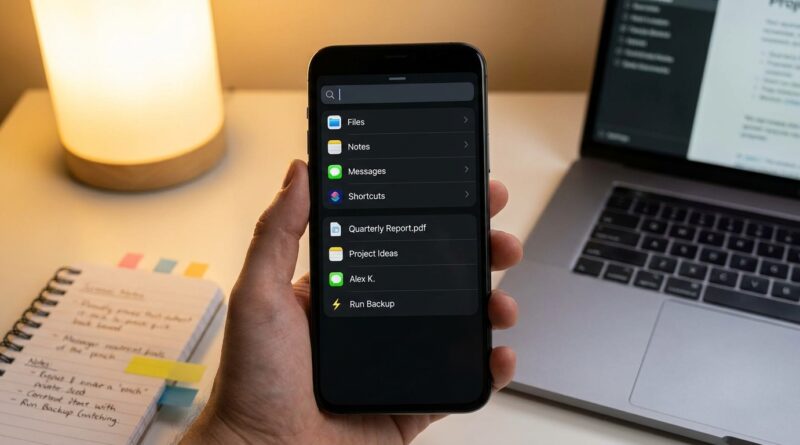
Stop Letting Your iPhone Lose Things: The Hidden ‘System-wide Search Filters’ Trick Power Users Use To Turn Spotlight Into A Command Line
Spotlight on the iPhone should be the fastest way to find stuff. Too often, it feels like the opposite. You swipe down, type a few letters, and get a jumble of app icons, old contacts, random web suggestions, Siri guesses, and maybe the thing you actually wanted buried halfway down the screen. It is annoying, and it makes a feature that should save time feel like one more thing fighting for your attention.
The fix is not a secret app or some nerdy shortcut you need a weekend to learn. It is a quieter setup for Spotlight itself, plus a simple habit power users rely on: using app-level search filters after trimming Apple’s extra noise. Once you clean up Spotlight, it stops feeling like a slot machine and starts acting more like a command line for your phone. You type a few words, tap the right section, and jump straight into the exact note, file, photo, email, or message thread you need.
⚡ In a Hurry? Key Takeaways
- Spotlight gets much better when you turn off the suggestion clutter and keep search focused on the apps and content you actually use.
- Go to Settings, then Siri & Search, and trim web results, suggestions, and app-by-app search permissions to build a cleaner filter-first search setup.
- This does not delete your data. It simply changes what Spotlight is allowed to show, so you can find documents, notes, emails, and message threads faster.
Why Spotlight feels worse than it should
Apple has made Spotlight more powerful over the years. That is the good news.
The bad news is that “more powerful” often turns into “more crowded.” Instead of acting like a clean search box, Spotlight now tries to predict what you want, suggest things you did not ask for, and mix local results with online ones. For some people, that is helpful. For a lot of people, it just creates visual noise.
If you use one iPhone for work, family, admin, travel, side projects, and the usual life chaos, search should narrow things down. It should not make you sort through a mini department store every time you type.
The hidden trick is not one button, it is a filter-first setup
Here is the part many people miss. There is no giant “advanced Spotlight mode” switch in iOS. The real hidden trick is building your own system-wide search filters by changing what Spotlight is allowed to show and which apps it is allowed to search.
That means two things:
- Cut the junk from Spotlight’s main results page.
- Keep the useful app content indexed, so search points you straight into the right app result.
Think of it like cleaning your kitchen counter. The toaster is still there if you need it. It is just not sitting on top of the coffee maker.
Step 1: Turn down the Spotlight clutter
Open the right settings
On your iPhone, go to Settings > Siri & Search.
This is where Apple hides most of the controls that affect Spotlight behavior.
What to turn off first
Depending on your iPhone and iOS version, look for options like these:
- Show Suggestions
- Show Recent Searches
- Show Content in Search
- Suggest App
- Suggest Notifications
- Show on Home Screen
- Safari Suggestions
- Suggestions from Apple
You do not have to switch off everything. Start with the pieces that annoy you most.
If Spotlight keeps throwing web junk at you when you are trying to find a PDF or note, turn off web-facing suggestions first. If you are tired of “helpful” Siri guesses, turn those off next.
The goal
You want Spotlight to prioritize your actual stuff. Apps, files, notes, photos, emails, messages, calendar items. Not a parade of guesses.
Step 2: Choose which apps deserve a place in search
Still inside Settings > Siri & Search, scroll down to the app list.
Tap individual apps and you will often see their own search permissions, such as:
- Show App in Search
- Show Content in Search
- Learn from this App
- Suggest App
- Show on Home Screen
This is where the setup gets powerful.
For example, you might want these apps searchable:
- Notes
- Files
- Messages
- Calendar
- Reminders
- Photos
- Your main cloud storage app
And you might want these toned down or removed from search:
- Games
- Shopping apps
- Food delivery apps
- Social apps with noisy suggestions
- Retail apps you only use once a month
That one pass through the app list can make Spotlight feel dramatically calmer.
How power users make Spotlight feel like a command line
Here is the mindset shift. Power users do not expect Spotlight to do every last step perfectly. They use it as a launch-and-filter tool.
In plain English, that means they type just enough into Spotlight to jump into the right app or the right result category, then use the app’s own filters to finish the job.
Examples help here.
Find a buried PDF fast
Type part of the file name in Spotlight. If Files is well indexed and not buried under junk, the document may appear right there. If not, tap into Files from the result and continue with the narrower in-app search.
Find one specific note
Type a unique word or phrase from the note. Spotlight can often surface the note itself. If it opens Notes, you are already halfway there instead of starting from the top of a giant note list.
Find a message thread, not just a person
Search a phrase, subject, or name in Spotlight. If Messages content is enabled, you can often jump much closer to the actual conversation instead of opening Messages and digging manually.
Find a photo without scrolling for ages
Spotlight can surface photo matches based on text, places, captions, or recognized content. It is much faster when the result page is not packed with unrelated distractions.
The best setup for most people
If you want a practical middle ground, use this setup:
- Keep Show App in Search on for your core apps.
- Keep Show Content in Search on for Notes, Files, Mail, Messages, Photos, Reminders, and Calendar.
- Turn off app suggestions for low-value apps.
- Turn off web suggestions if you mostly use Spotlight to find things already on your phone.
- Turn off Home Screen suggestion widgets if they create clutter for you.
That gives you a much cleaner search layer without making the phone feel stripped down.
What this does not do
It is worth being clear about the limits.
This trick does not turn Spotlight into a true Mac-style terminal. You are not typing system commands. You are not changing iOS at a deep level. And no, this is not jailbreaking.
What you are doing is more useful for everyday life. You are deciding what deserves your attention when you search.
That is why this matters. Search is not just a feature. It is how you move through your phone when you are in a hurry.
Three smart searches to try today
1. Project keyword
Type the name of a client, trip, school event, or side hustle. A good Spotlight setup should pull related notes, files, emails, and messages much faster.
2. Document type plus name
Try something like “invoice March” or “passport PDF.” This often surfaces buried files without opening three apps first.
3. Exact phrase from a message or note
If you remember one odd sentence someone sent you, Spotlight can sometimes locate it quicker than browsing a thread manually.
If Spotlight still feels messy
If results are still poor after changing the settings, try these quick fixes:
- Restart the iPhone.
- Make sure the apps you care about are updated.
- Give indexing time after adding a lot of files or notes.
- Check each app’s Siri & Search settings again.
- Turn off and then re-enable Show Content in Search for a problem app.
Also, keep your search terms a bit more specific. Spotlight usually works better with a unique word, a file type, or a phrase than with something vague like “plan” or “photo.”
Why this matters more now
Right now, iOS keeps adding more intelligence, more suggestions, and more content surfaces. Some of that is useful. Some of it just makes your phone feel busier.
A clean Spotlight setup is a small act of resistance. You are telling the phone, “Show me my stuff first.”
That is especially helpful if your phone is carrying your whole life. Work emails. School notes. Family logistics. Travel bookings. Personal admin. Random ideas you swore you would remember later.
At a Glance: Comparison
| Feature/Aspect | Details | Verdict |
|---|---|---|
| Default Spotlight | Mixes apps, contacts, suggestions, web results, and Siri guesses in one busy view. | Useful for casual users, but often too noisy for fast everyday searching. |
| Filtered Spotlight Setup | Turns off low-value suggestions and keeps content search active for core apps like Notes, Files, Mail, Messages, and Photos. | Best balance for most people. Faster, calmer, and more predictable. |
| Power User Workflow | Uses Spotlight as a quick launcher into precise app results, then relies on in-app filters for the final step. | Closest thing to a command line on iPhone without getting technical. |
Conclusion
If Spotlight has been making you feel like your iPhone is hiding your own stuff from you, you are not imagining it. Search can get bloated fast when Apple keeps stuffing more AI, more content, and more “helpful” suggestions into every corner of iOS. The good news is you do not have to live with the default setup. A clean, filter-first Spotlight setup lets you design your own search layer on top of iOS, so you can jump to deep links, buried documents, and specific message threads without wading through Apple’s noise. It is one of those rare iPhone tweaks that pays off every single day, especially if you are juggling work, personal life, and side projects on one phone.