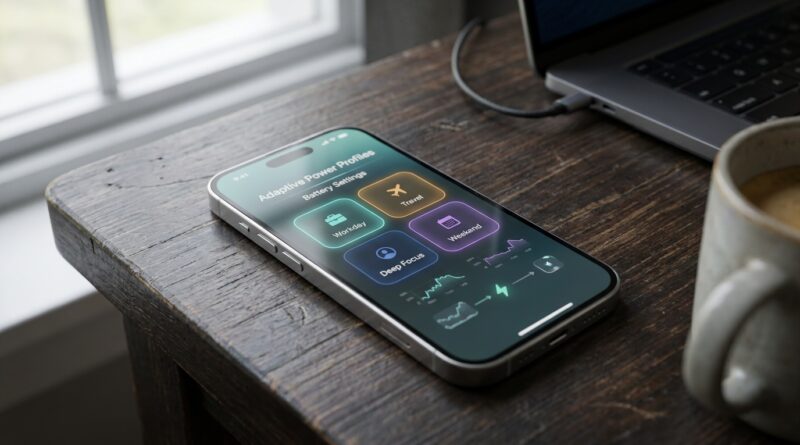
Stop Letting Your Battery Boss You Around: The Hidden ‘Adaptive Power Mode Profiles’ Trick Power Users Use To Squeeze Hours Out Of iOS 26+
Your iPhone battery can still feel annoyingly fragile after an iOS 26 upgrade. That is the part nobody tells you. You update, expect smarter battery behavior, then by late afternoon you are already eyeing the charger again. And yes, Low Power Mode still feels like a blunt tool. It helps, but it can make your phone feel dimmer, slower, and just a little more irritating to use. The better move is to use the iOS 26 adaptive power mode hidden battery feature as a set of profiles, not a panic button. Once you tune it for your real life, like work days, commuting, or travel, you can save meaningful battery without making your iPhone feel broken. Think of it as teaching your phone when to ease up, instead of forcing it into battery jail all day.
⚡ In a Hurry? Key Takeaways
- Adaptive Power Mode works best when you set it up for specific situations, not as a full-time replacement for normal use.
- Use Shortcuts and simple automations to switch battery settings based on time, location, Focus mode, or battery percentage.
- You do not need to cripple performance all day. Small changes to background activity, brightness, and radios often save more battery than always forcing Low Power Mode.
Why this matters more in iOS 26 and later
Battery anxiety is back for a reason. Phones do more now, even when you are not touching them. iOS 26 pushes harder on AI features, photo processing, indexing, widgets, location checks, and all the usual background jobs that quietly nibble away at your battery.
That is why the old advice often falls flat. “Just turn on Low Power Mode” is fine in an emergency. It is not a great all-day strategy if you still want your phone to feel fast and normal.
The smarter approach is to treat the iOS 26 adaptive power mode hidden battery feature like a flexible system. You create a few different battery behaviors for the times you actually need them.
If you have been toggling Low Power Mode over and over, you are not alone. We covered that frustration in Stop Babysitting Your Battery: The Hidden iOS 26 ‘Adaptive Power Mode’ Switch Power Users Turn On And Forget, and the next step is making it work around your schedule instead of against it.
What “adaptive power mode profiles” really means
Apple does not always label this in a way regular people would call “profiles,” but that is the easiest way to think about it. You are building a few repeatable setups that change how power-hungry your iPhone is in different moments.
A profile can include things like:
- Whether Low Power Mode turns on
- Screen brightness and Auto-Lock timing
- Whether Always-On Display is active
- Which Focus mode is enabled
- When Background App Refresh should matter less
- Whether cellular data settings should stay normal or be more conservative
- Whether certain apps or widgets should be avoided during long days away from power
The trick is simple. Do not make one extreme battery mode. Make two or three smart ones.
The three profiles most people actually need
1. Work Day Profile
This is for normal weekdays when you need reliability, not maximum battery savings.
Good settings for this profile:
- Adaptive Power Mode on
- Brightness slightly reduced, not dramatically dim
- Always-On Display off, if your iPhone supports it
- Background App Refresh left on only for important apps like messaging, calendar, rideshare, or work apps
- Mail fetch less often if you do not need instant updates
This profile usually gives the best balance. Your phone still feels like your phone.
2. Commute or Errand Profile
This is for short windows where battery drain often spikes. Navigation, streaming audio, Bluetooth, cellular handoffs, and brighter outdoor use can hit hard.
Try this mix:
- Low Power Mode on only during the commute window
- Brightness around 50 to 60 percent if Auto-Brightness tends to overshoot
- Navigation app active only when needed
- Podcast or music pre-downloaded instead of streamed
- Focus mode on to cut random app wakeups and notifications
This one is sneaky effective because it targets the exact part of the day when batteries often drop fast.
3. Travel Day Profile
This is the big saver. Airports, train stations, long photo days, and poor signal areas are brutal on battery life.
For travel, start here:
- Low Power Mode on earlier than usual, even around 50 or 60 percent
- 5G Auto or LTE if your area has weak 5G coverage
- Always-On Display off
- Raise Auto-Lock aggressiveness
- Turn off non-essential widgets that refresh often
- Download maps, playlists, and shows before leaving
- Use Focus mode to limit notification noise
When signal is weak, your iPhone works harder just to stay connected. That is why travel profiles can save a lot more than people expect.
How to build these profiles without getting lost
You do not need to turn your phone into a science project. Start with Settings, then finish in Shortcuts.
Step 1: Audit the obvious battery drains
Go to Settings > Battery and look at what is actually eating power. If one app is chewing through 20 or 30 percent of your battery, no power mode trick will fully fix that.
Also check:
- Settings > Display & Brightness
- Settings > General > Background App Refresh
- Settings > Cellular
- Settings > Privacy & Security > Location Services
Step 2: Decide what you can comfortably give up
This is important. The best battery plan is the one you will actually stick with.
Most people barely notice these changes:
- Turning off Always-On Display
- Reducing background refresh for shopping and social apps
- Using shorter Auto-Lock timing
- Dropping screen brightness a little
Most people do notice these:
- A phone that is always stuck in Low Power Mode
- Severely dimmed screen
- Laggy performance during camera use or multitasking
That is why targeted profiles work better.
Step 3: Use Shortcuts to automate the switch
Open the Shortcuts app, then go to Automation. You can create personal automations based on:
- Time of day
- Arriving at or leaving a location
- Battery level
- Focus mode turning on
- When an app opens
Useful examples:
- At 7:30 AM on weekdays, turn on your Work Day battery profile
- When Driving Focus starts, turn on Low Power Mode and set brightness lower
- When battery drops below 40 percent, activate your Travel or Saver setup
- When you arrive home, return everything to normal
This is where the iOS 26 adaptive power mode hidden battery feature becomes truly useful. It stops being a buried switch and starts acting like a quiet assistant.
What settings give the biggest battery payoff
Brightness is still king
Screen power is one of the biggest drains on any iPhone. If you only change one thing, change brightness behavior. Not to cave level. Just enough that your phone is not blasting full power indoors.
Poor signal can destroy battery life
If you are in a weak 5G area, your iPhone may burn extra battery trying to hold that connection. In those cases, LTE can actually be the more battery-friendly choice.
Background App Refresh is often overrated
Many apps do not need constant background access. Weather, navigation, messaging, and a few work apps might. Most others can wait until you open them.
Always-On Display is convenient, not essential
It is nice. It is also one of the easiest battery cuts you can make with almost no downside during travel or long workdays.
Profile ideas you can copy today
The “I Need This Phone Alive Until Bedtime” setup
- Trigger: Battery hits 45 percent
- Actions: Low Power Mode on, brightness to 55 percent, Always-On off, Work Focus on
The “Morning Commute” setup
- Trigger: Weekdays at 7:00 AM or when CarPlay connects
- Actions: Low Power Mode on, open Maps if needed, brightness lower, Do Not Disturb or Driving Focus on
The “Airport Survival” setup
- Trigger: Leaving home for travel or manually from a Shortcut on your Home Screen
- Actions: Low Power Mode on, Always-On off, brightness moderate, airplane documents app ready, downloaded media only
What not to do
There are a few battery myths that waste time.
- Do not obsessively close every app. It usually does not help much, and sometimes it can use more power when apps fully reload.
- Do not leave Low Power Mode on 24/7 unless you genuinely like the tradeoff.
- Do not chase every tiny setting. Fix the big drains first.
- Do not ignore battery health if your phone is older. Software tricks help, but worn batteries still wear out.
At a Glance: Comparison
| Feature/Aspect | Details | Verdict |
|---|---|---|
| Standard Low Power Mode | Quick and effective, but can dim the screen, cut background activity, and feel too aggressive for all-day use. | Best as an emergency tool, not your only battery plan. |
| Adaptive Power Mode with Profiles | Lets you match battery behavior to work, commuting, or travel, especially when paired with Shortcuts automations. | Best overall balance of battery savings and normal phone use. |
| Manual Micromanaging | Constantly toggling settings by hand can work, but it gets annoying fast and is easy to forget. | Useful for testing, but automation is the smarter long-term fix. |
Conclusion
You do not have to accept a choice between a dead phone and a miserable phone. That is the real win here. Battery anxiety is climbing again as iPhones take on heavier AI, camera, and background processing work in iOS 26 and beyond, but the answer is not just slapping on Low Power Mode and suffering through the day. If you use the iOS 26 adaptive power mode hidden battery feature with a few simple profiles for work, commuting, and travel, then tie those into Shortcuts or automations, you can get real extra screen-on time without making your iPhone feel crippled. Start small. Build one profile today. Once it saves you from reaching for a charger at 5 PM, you will wonder why Apple does not make this setup more obvious.