Stop Letting Your iPhone Guess Wrong: The Hidden ‘Custom Keyboard Shortcuts + Text Replacements’ Stack Power Users Use To Type 3x Faster
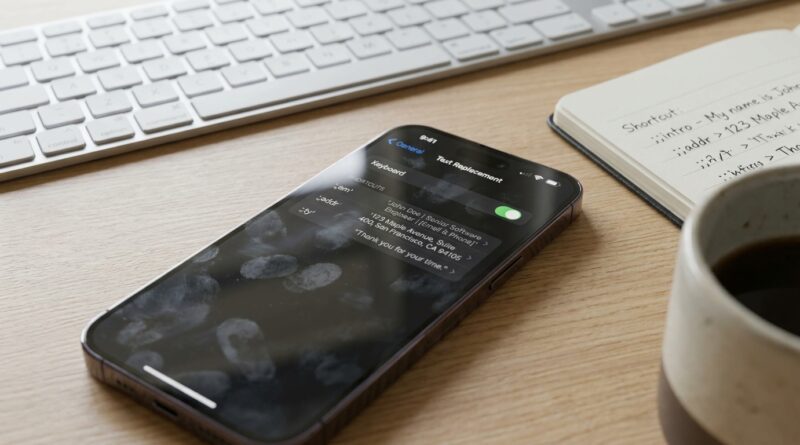
You know the feeling. You type your email address for the tenth time today, then your shipping address, then the same “I’ll send that over shortly” reply, and your iPhone still finds a way to “help” by changing something you actually meant to write. It is annoying, slow, and a little ridiculous when you think about how often we all repeat ourselves on a phone. The good news is that Apple already gives you a quiet little speed system built right into iPhone. Once you set up iphone text replacement keyboard shortcuts, your phone stops guessing so much and starts doing useful work instead. A few minutes in Settings can turn tiny shortcuts into full sentences, links, contact details, and canned replies that appear instantly on your iPhone, iPad, and Mac. It is one of the simplest upgrades you can make, and it can easily save you real time every single week.
⚡ In a Hurry? Key Takeaways
- iPhone text replacement lets you type a short trigger like “@@” or “omw1” and expand it into full phrases, emails, addresses, and longer replies instantly.
- Set them up in Settings under General, Keyboard, Text Replacement, then use unique shortcuts that you would never type by accident.
- This system is built into Apple devices, works offline, syncs across iPhone, iPad, and Mac with iCloud, and is safer than pasting sensitive info into random apps.
Why this matters more than the flashy new stuff
Every year, new iPhone features get all the attention. Meanwhile, most people are quietly wasting time on the same tiny task over and over. Typing the same names, greetings, email addresses, support responses, directions, and school notes on a glass keyboard.
That is where iphone text replacement keyboard shortcuts shine. They are not exciting in the way a big iOS update is exciting. They are better. They remove friction from your day.
If you answer customers, message family groups, manage school pickups, send invoices, or take notes on the go, this little settings page can feel like getting faster thumbs overnight.
What text replacement actually does
Text Replacement lets you create your own mini shortcuts. You type a short code, and your iPhone swaps it for a full word, phrase, sentence, or paragraph.
For example:
- Type @@, get your full email address
- Type adr1, get your home address
- Type omw1, get “On my way. I should be there in 15 minutes.”
- Type tysm1, get “Thanks so much. I appreciate your help.”
- Type mtg1, get your standard meeting confirmation
This is not just for convenience. It also cuts down on typos, saves mental energy, and keeps your wording consistent.
How to set up iphone text replacement keyboard shortcuts
On iPhone or iPad
Go to Settings, then General, then Keyboard, then Text Replacement.
Tap the + in the top-right corner.
In Phrase, enter the full text you want inserted.
In Shortcut, enter the short trigger you want to type.
Tap Save.
On Mac
Go to System Settings, then Keyboard, then Text Replacements. If you use iCloud, your shortcuts can sync across your Apple devices.
That cross-device syncing is the secret sauce here. Set it up once, and the same shortcuts can work on your iPhone, iPad, and Mac.
The smart way to build your shortcut stack
The biggest mistake people make is choosing shortcuts that are too common. If you pick something like “omw,” you might trigger it when you did not mean to. The fix is simple. Use unusual codes.
Use triggers you will never type by accident
Good shortcut styles include:
- @@ for email
- ##adr for address
- ;sig for email signature
- xthank1 for a thank-you reply
- qqzoom for your standard meeting link message
Add a pattern and stick with it. That is what turns random shortcuts into a real system.
Group them by category
Power users usually organize shortcuts by purpose:
- Personal. Address, email, phone number, directions
- Work. Follow-ups, client replies, scheduling messages
- School. Pickup notes, absence messages, teacher replies
- Support. Refund responses, troubleshooting steps, common answers
- Notes. Templates for meeting notes, call logs, to-do structures
If this sounds familiar, it is because many people have started building full shortcut libraries from the same idea covered in Stop Typing The Same Replies: The Hidden iOS 18 Text Replacements Power Users Turn Into Instant Shortcuts. The trick is not just creating one or two replacements. It is building a small stack you rely on every day.
Best real-world uses for text replacements
1. Contact info you type constantly
Your email address, mailing address, phone number, business name, and website are perfect candidates. These are boring to type, easy to mistype, and used all the time.
2. Common replies
If you often send “Running five minutes late,” “Yes, that time works,” or “Please send the order number,” save them as shortcuts.
3. Customer support or client messages
If you run a small business or freelance, this is huge. You can save polite, consistent replies for pricing, availability, turnaround times, next steps, and thank-you notes.
4. School and family communication
Parents send the same messages constantly. Pickup changes, absence notes, activity reminders, and schedule confirmations all make great text replacements.
5. Note templates
You can even create a shortcut that expands into a mini form, like:
Date:
Topic:
Action items:
Follow-up:
That makes fast note-taking much easier in Notes, Mail, or many third-party apps.
What about passwords?
This is the one area where you should be careful. For most people, passwords should stay in a proper password manager, not in Text Replacement. A password manager is better because it is designed to protect sensitive logins, generate strong passwords, and fill them securely.
Text Replacement can be fine for non-sensitive things like a membership number, a canned Wi-Fi instruction message, or a public account ID. But for actual passwords, use Apple Passwords or another trusted password manager.
How to stop autocorrect from getting in the way
Sometimes the issue is not just slow typing. It is your iPhone changing words you wanted to keep.
Text Replacement can help here too.
Add words or names your phone keeps “fixing”
If your iPhone keeps changing a person’s name, a brand name, or a niche term, create a text replacement where the phrase is the word you want, and leave the shortcut field blank if your version of iOS allows it. If not, create a close custom trigger.
This teaches the keyboard your preferred spelling and can reduce annoying corrections.
Turn off specific keyboard features if needed
Go to Settings > General > Keyboard. From there, you can adjust:
- Auto-Correction
- Predictive Text
- Auto-Capitalization
- Check Spelling
You do not have to disable everything. Often, keeping text replacements while trimming the most annoying autocorrect features gives you the best mix.
A simple starter setup you can copy today
If you want quick wins, start with these five:
- @@ = your email address
- ##adr = your full address
- omw1 = “On my way. I should be there in about 15 minutes.”
- thx1 = “Thanks. Got it.”
- cal1 = “That works for me. Send a time and I’ll confirm.”
Use those for a week. You will quickly notice what else you type too often. That is your roadmap for the next set.
Tips that make the system work better long term
Keep shortcuts short, but not too obvious
You want speed, but you also want to avoid accidental triggers. A weird two-to-five-character code is usually the sweet spot.
Review and clean up old entries
Some shortcuts stop being useful. Delete them. If your list gets messy, your system gets less helpful.
Test them in the apps you actually use
Most Apple and many third-party apps play nicely with text replacement, but it is worth checking your go-to apps for messaging, email, and notes.
Think in saved seconds, not fancy automation
You do not need a giant setup. If a shortcut saves you just 10 seconds and you use it 10 times a day, that is real time back in your pocket.
At a Glance: Comparison
| Feature/Aspect | Details | Verdict |
|---|---|---|
| Speed boost | Short triggers expand into full phrases, addresses, replies, and templates in seconds. | One of the easiest ways to type faster on iPhone. |
| Privacy and reliability | Built into Apple devices, works offline, and does not depend on trendy AI tools or third-party services. | A strong choice for people who want something simple and dependable. |
| Best use cases | Great for contact details, repeated replies, support messages, family logistics, and note templates. Less ideal for actual passwords. | Excellent for everyday typing. Use a password manager for sensitive logins. |
Conclusion
The funny thing about iPhone productivity is that the biggest wins are often hiding in plain sight. While everyone is talking about iOS 27’s flashy new extras, plenty of people are still losing 30 to 60 minutes a week just retyping the same information on a tiny keyboard. A good set of iphone text replacement keyboard shortcuts fixes that in a very practical way. It speeds up messaging, support tickets, client replies, school communication, and note-taking without asking you to trust another app or learn some complicated automation system. It is built in, offline-friendly, privacy-friendly, and it follows you across iPhone, iPad, and Mac. That makes it one of the rare tech tips that feels useful immediately. Spend ten minutes setting up a few shortcuts today, and your thumbs will thank you all week.