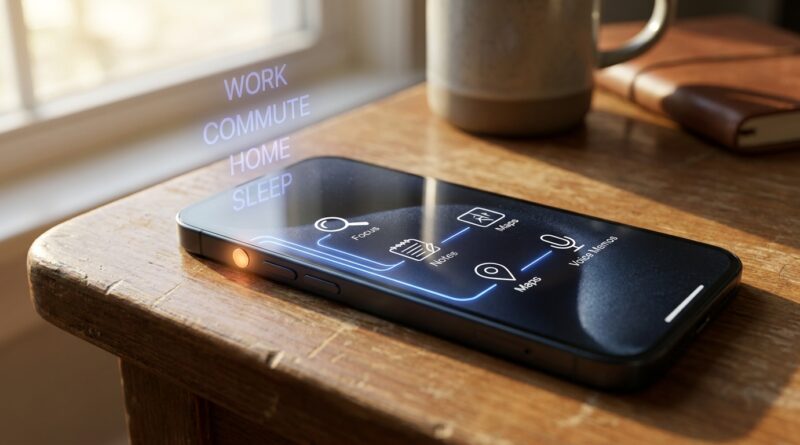
Stop Letting Your iPhone Slow You Down: The Hidden ‘Action Button Profiles’ Trick Power Users Use To Trigger Anything In 0.5 Seconds
You paid for an iPhone that feels smart, fast, and polished, yet somehow the little things still take too long. That is the annoying part. You want to start a voice memo, get directions home, switch into Work focus, or scan a receipt, and somehow you are still tapping through menus like it is 2018. If your phone has an Action Button, there is a much better way to use it. The trick is not just assigning one shortcut to that button. It is building a simple set of Action Button shortcuts profiles so the same button does different jobs depending on where you are or what part of the day it is. Think work, commute, home, and sleep. Press once, get the right tool. No hunting. No extra swipes. Once set up, this is one of those iPhone changes that quietly saves time every single day.
⚡ In a Hurry? Key Takeaways
- The best iPhone Action Button shortcuts profiles use one button to run different shortcuts for work, commute, home, or sleep.
- You can build this yourself in Apple Shortcuts by checking Focus mode, time, or location, then routing the Action Button to the right task.
- It uses built-in iPhone features, so there is no need for extra apps, and you can always keep a manual fallback if you want something simple.
Why the Action Button feels wasted for most people
Apple gives you a dedicated hardware button, then most people set it once and forget it. Flashlight. Camera. Silent mode. Fine choices, but a bit boring.
The real power move is to stop treating the Action Button like a single-purpose switch. Instead, think of it like a tiny remote control for your day. The button stays the same, but the job changes based on context.
That is what people mean when they talk about iPhone Action Button shortcuts profiles. You are not creating official Apple profiles inside one menu. You are building a smart shortcut that behaves like profiles.
What an Action Button profile system actually does
At its simplest, this system asks one question before doing anything: “What situation am I in right now?”
Then it picks the matching action.
For example:
- Work profile: Turn on Work Focus, open Slack or Mail, and start a note.
- Commute profile: Open Maps to Home, start a playlist, or text someone your ETA.
- Home profile: Open Reminders, start a grocery list, or control smart home scenes.
- Sleep profile: Turn on Sleep Focus, start white noise, or set an alarm.
Same button. Different result. That is why it feels so fast.
How to build iPhone Action Button shortcuts profiles
Step 1: Make the individual shortcuts first
Open the Shortcuts app and create a few basic shortcuts for the things you repeat all the time.
Good starter ideas:
- Open Maps and route to Home
- Start Voice Memo
- Scan Document
- Turn on a Focus mode
- Open Notes to a specific folder
- Play a favorite playlist or podcast
Keep these simple. One job per shortcut is best.
Step 2: Create one “master” shortcut
Now make a new shortcut called something like Action Button Profile.
This is the brain of the system. Inside it, you will add conditions.
In Shortcuts, use If actions to check things like:
- Current Focus mode
- Time of day
- Location
- Connected device, like CarPlay
Example logic:
- If Work Focus is on, run the Work shortcut
- Otherwise, if connected to CarPlay, run the Commute shortcut
- Otherwise, if time is after 9:30 PM, run the Sleep shortcut
- Otherwise, run the Home shortcut
That is your profile system.
Step 3: Assign that master shortcut to the Action Button
Go to Settings > Action Button. Swipe until you see Shortcut, then choose your new master shortcut.
Now every press runs the profile logic first, then the right task.
A smart setup that works well for most people
If you want something practical, not overcomplicated, start here:
Work profile
- Turn on Work Focus
- Open your task app or email
- Optionally start a quick note
Commute profile
- Open Maps with directions home or to work
- Play a driving playlist
- Optionally send ETA to a family member
Home profile
- Open Reminders
- Start a grocery note
- Control a HomeKit scene like “Relax”
Sleep profile
- Turn on Sleep Focus
- Set an alarm
- Start a calming audio app
You do not need to build all four on day one. Two profiles is enough to feel the benefit.
The easiest trigger is Focus mode
If you are new to Shortcuts, Focus mode is the cleanest way to sort profiles. It is more reliable than trying to guess everything from location alone.
Work Focus equals work actions. Sleep Focus equals sleep actions. Very simple.
In fact, once you start using Focus as the switchboard for your button, a lot of other iPhone tricks start making more sense too. If battery life is also bugging you, this pairs nicely with Stop Letting Your Battery Boss You Around: The Hidden ‘Adaptive Power Mode Profiles’ Trick Power Users Use To Squeeze Hours Out Of iOS 26+, because the same profile mindset can change how your phone behaves throughout the day.
Should you use time, location, or Focus?
Here is the plain-English answer:
- Focus mode: Best for most people. More predictable.
- Location: Great if your routine is stable, like office, gym, home.
- Time of day: Useful as a fallback, especially for sleep.
You can also mix them. That is often the best setup.
For example, your shortcut can first check Work Focus. If that is off, it can then check whether you are in the car. If not, it can use the time to decide whether you probably want your home or sleep action.
Good shortcuts to assign to each profile
Not every action is worth a hardware button. The best ones save multiple taps and help you avoid distraction.
Best Work picks
- Open a notes inbox
- Start a voice memo
- Open calendar
- Toggle Work Focus
Best Commute picks
- Directions to Home or Work
- Play a specific playlist
- Text ETA
- Call a frequent contact hands-free
Best Home picks
- Open grocery list
- Scan a document
- Start a timer while cooking
- Toggle home lights
Best Sleep picks
- Turn on Sleep Focus
- Set wake alarm
- Play sleep sounds
- Open a journaling app
What to avoid
A lot of people get excited and build a shortcut so clever that they hate using it three days later.
Try not to:
- Add too many menus
- Stack five actions when one would do
- Use unreliable triggers for important tasks
- Make the button do something risky, like sending messages automatically, without a confirmation step
If an action has a chance of embarrassing you or causing confusion, make it ask for confirmation first.
If you want a simpler version, use a menu
Maybe you do not want your button making assumptions. Fair enough.
A good middle-ground option is a shortcut that shows a short menu with four choices: Work, Commute, Home, Sleep. You press the Action Button, tap the one you want, and the right shortcut runs.
That is slightly slower than full automatic profiles, but still much faster than hunting through apps.
At a Glance: Comparison
| Feature/Aspect | Details | Verdict |
|---|---|---|
| Single Action Button task | Assigns one fixed action like flashlight or camera. | Easy, but leaves a lot of value on the table. |
| Profile-based shortcut | Uses Shortcuts to change behavior based on Focus, location, or time. | Best mix of speed and usefulness for daily life. |
| Menu-based Action Button | Shows a list of options when pressed instead of guessing context. | Great fallback if you want more control. |
Conclusion
The loudest iPhone talk right now is about flashy AI features, but that is not what most people need help with. Most people need their phone to stop wasting their time. That is why iPhone Action Button shortcuts profiles are such a useful little upgrade. You press one button and get the right action for work, commute, home, or sleep. Fewer taps. Fewer distractions. Faster access to the stuff you already use every day. Best of all, this is not some future promise or app-store gimmick. It is built into recent iPhones and Apple Shortcuts right now. If you have been curious about moving from casual iPhone use into smarter, more power-user habits, this is one of the best places to start.