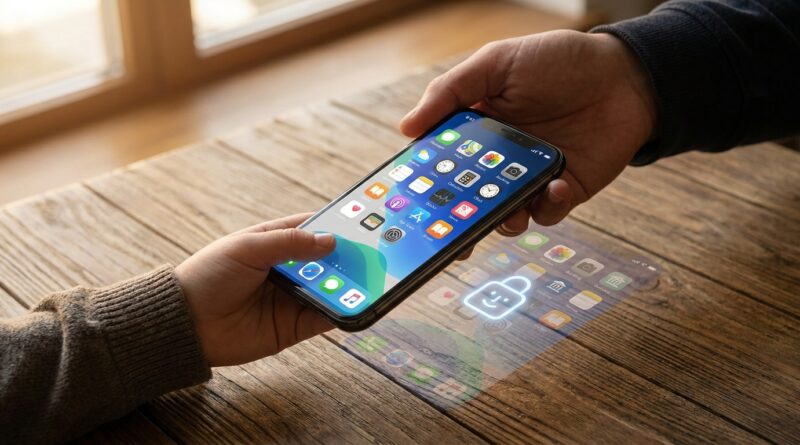
Stop Letting Random Apps Spy On Your Habits: The Hidden ‘App Usage Locks’ Trick Power Users Use To Share Their iPhone Without Sharing Their Life
You know the feeling. Someone says, “Can I borrow your iPhone for a second?” and your brain instantly runs through everything on it. Messages. Photos. Banking apps. Work email. That private note you forgot was sitting right there. Most people either say yes and panic, or say no and sound rude. The annoying part is that Apple has had privacy tools for this, but for years they were awkward, buried in settings, or too easy to spot and sidestep. That has changed. If you have been wondering how to lock and hide apps on iPhone when loaning phone to someone, there is now a much better way. You can lock specific apps, hide some of them entirely, and even create a quick “loaner mode” so your phone is safe before it leaves your hand. Once you set it up, sharing your iPhone gets a lot less stressful.
⚡ In a Hurry? Key Takeaways
- You can now lock or hide certain iPhone apps so other people cannot casually open them when you hand over your phone.
- The best setup is a simple “loaner mode” that combines app locking, hidden apps, and Guided Access for one-app sharing.
- This is far safer and less awkward than hoping people behave or digging through settings every single time.
Why this matters more now
We share our phones constantly now. You hand it to a child to play a game in a waiting room. You pass it to a friend to see vacation photos. A coworker needs to make a quick call. One phone often holds your whole life, both personal and work.
That is the real problem. iPhones are still built mostly like a single-user device, but real life is messier than that. So the smart move is not just trusting people more. It is setting boundaries on the phone itself.
The three tools that actually help
Think of this as a privacy toolbox. Each tool does a different job.
1. App Lock
Some apps can now be locked so they require Face ID, Touch ID, or your passcode before opening. That means even if someone is holding your unlocked phone, they still hit a wall when they tap the app.
2. Hidden Apps
You can also hide certain apps so they do not sit out in plain sight on the Home Screen. This is useful for things like banking, health, dating, notes, or work tools you would rather not advertise.
3. Guided Access
This older feature is still very useful. It locks the iPhone into one app until you end the session. If you are giving your phone to a child for a game or to a friend to watch one video, this is still one of the best options.
The best “loaner mode” recipe
If you want one repeatable setup for loaning your phone, this is the sweet spot.
Step 1: Lock your sensitive apps
On supported versions of iOS, press and hold an app on the Home Screen. If the feature is available for that app, you should see an option to require Face ID or to lock and require authentication. Turn that on for the apps that matter most.
Start with the obvious ones:
- Messages
- Photos
- Notes
- Banking and payment apps
- Cloud storage apps
- Work chat apps
Not every app supports the exact same behavior, so check the ones you care about most first.
Step 2: Hide the apps you never want casually seen
Locking is good. Hiding is better for anything especially private. If an app supports hiding, press and hold it and look for the hide option. This removes the app from normal view and places it in a protected hidden area.
This is great for apps that invite curiosity just by existing. Even a locked app can make someone ask questions. A hidden one does not.
Step 3: Use Guided Access when you are sharing for one task
If someone only needs one app, do not hand over the whole phone experience. Open the app they need first. Then turn on Guided Access.
To set it up:
- Go to Settings
- Tap Accessibility
- Tap Guided Access
- Turn it on
- Set a passcode or use Face ID
When you are ready to loan the phone, open the app, then triple-click the side button to start Guided Access. Now they are stuck in that app until you end it.
This is the easiest answer for kids, YouTube videos, games, and maps.
How to choose the right level of protection
For a friend who wants to see one thing
Use Guided Access. It is fast and keeps things simple.
For a child using your phone for 10 or 15 minutes
Use Guided Access and make sure in-app purchases and account changes are already locked down elsewhere.
For a partner, relative, or coworker borrowing your phone more casually
Lock key apps and hide the really private ones. This keeps the phone usable without exposing your whole digital life.
For a shared work-and-home phone
This is where the system really shines. Lock work apps, financial apps, and personal communications. Hide anything that does not need to be visible every day.
What to lock first, if you only have two minutes
If you are in a rush, do not try to secure everything. Start with the apps that can cause the biggest headache.
- Messages
- Photos
- Notes
- Your banking app
- Any password manager
That short list alone cuts down most of the risk.
Common mistakes people make
They only hide apps, but do not lock them
Hiding is helpful, but it is not a complete privacy plan. If the app can still be reached elsewhere, locking adds another layer.
They only use Screen Time
Screen Time still has uses, especially for kids, but it is not the cleanest tool for quick phone sharing. It can feel clunky and is not the smooth, everyday answer most adults want.
They forget notifications
An app can be locked and still show previews on the Lock Screen or notification banners. Check your notification settings for messages, mail, and other private apps if you want fewer surprises.
They hand over an already-open app switcher
Before loaning your phone, swipe away anything sensitive from the recent apps view. It takes two seconds and removes a lot of risk.
A few smart extras for privacy nerds
If you want to go one step further, here are a few bonus habits power users rely on:
- Turn off message preview text on the Lock Screen.
- Keep private photos in a hidden album and check whether that album itself is protected.
- Remove the most sensitive apps from your Home Screen entirely.
- Use Face ID for individual apps whenever available, not just for unlocking the phone.
- Create a simple checklist before you hand your phone over: close apps, open the safe app, start Guided Access.
What this does not do
It does not create true separate user accounts like a laptop might. Your iPhone is still your iPhone. These features simply put doors and locks in the right places so casual borrowing does not become accidental snooping.
That is still a huge improvement. Most privacy problems happen because access was too easy, not because someone was some master hacker.
At a Glance: Comparison
| Feature/Aspect | Details | Verdict |
|---|---|---|
| App Lock | Requires Face ID, Touch ID, or passcode to open supported apps, even after the phone is unlocked. | Best for everyday privacy on sensitive apps. |
| Hidden Apps | Removes select apps from plain sight and places them in a more protected area. | Best for apps you do not even want noticed. |
| Guided Access | Locks the iPhone into a single app until you end the session. | Best for kids, videos, games, and one-task borrowing. |
Conclusion
You do not have to choose between being helpful and protecting your privacy. That old moment of panic when someone asks to borrow your phone is fixable now. Right now everyone is sharing phones more often, whether it is showing a video, letting a child play a game or using one device for both work and home. At the same time, iOS has quietly added truly powerful app locking and hidden-app controls that most people either do not know exist or only use halfway. Once you turn those scattered tools into a simple, repeatable loaner mode, the whole experience changes. You stop worrying about oversharing. You stop fumbling through settings every time. And you finally use your iPhone more like a flexible shared device, instead of a tiny glass vault you are scared to hand to anyone for even a minute.