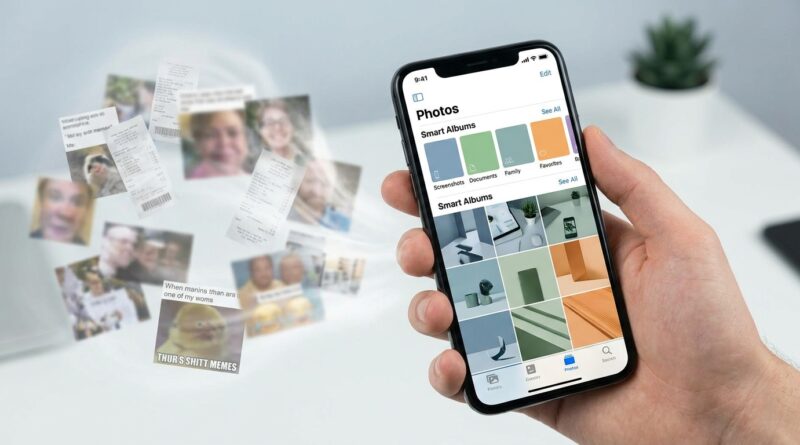
Stop Letting Your Photos Be a Mess: The Hidden ‘Smart Albums + Live Filters’ Stack Power Users Use To Auto‑Clean Their Camera Roll
Your iPhone camera roll gets messy fast. Not because you are careless, but because the phone saves everything. Screenshots. Blurry dog photos. Duplicate grocery labels. Ten versions of the same sunset. Then, when you actually need that one boarding pass or your kid’s school form, Photos suddenly feels like a junk drawer with a search bar. If your iPhone has been feeling a little sluggish or your iCloud storage keeps flashing warnings, this pileup is often part of the problem. The good news is you do not need to spend a whole weekend doing manual cleanup. Apple already gives you a surprisingly good stack of hidden tools inside Photos. If you use filters, search, pinned collections, duplicates detection, and a few smart habits together, your camera roll starts cleaning itself up over time. That is the real trick. You are not organizing once. You are building a system that keeps the mess from coming back.
⚡ In a Hurry? Key Takeaways
- Your best hidden iphone photos tricks to clean up camera roll automatically are built into Photos already: Filters, Duplicates, search terms, Utilities, and pinned albums.
- Start with Screenshots, Duplicates, Receipts, and Videos. Those four categories usually free up space the fastest with the least risk.
- Always review before deleting, and check the Recently Deleted album after big cleanup sessions so storage is actually recovered.
The real problem is not storage. It is friction.
Most people think the issue is just running out of space. That is part of it, sure. But the bigger annoyance is that a cluttered camera roll slows down everything you do with your phone. Searching takes longer. Sharing the right picture gets harder. Face recognition feels less useful. Even backing up to iCloud can feel heavier when your library is packed with junk you never meant to keep.
That is why power users do not just delete random photos when they are bored. They use a stack. A repeatable set of filters and albums that makes cleanup quick and almost automatic.
First, learn where Apple hides the useful stuff
Open the Photos app and scroll past the main library. Most people never spend enough time in the lower sections. That is where the cleanup tools live.
Go straight to Utilities
In the Utilities section, look for:
- Duplicates
- Hidden
- Recently Deleted
- Receipts, if your iPhone has categorized them
- Handwriting, Illustrations, QR Codes, and other media types on newer iOS versions
Apple has gotten much better at on-device sorting. It is not perfect, but it is much better than manually scrolling through 18,000 photos with your thumb.
Use Media Types like a vacuum cleaner
Media Types is another underused gold mine. Tap through:
- Screenshots
- Screen Recordings
- Videos
- Live Photos
- Bursts
- Selfies
If you want a fast win, start with Screenshots and Screen Recordings. Most of them are temporary by nature. They were useful for five minutes, then forgotten forever.
The hidden stack that works: Smart filters plus batch cleanup
Here is the simple version. You are going to use Apple’s own grouping tools as if they were smart albums, even though the iPhone does not call all of them that.
Step 1: Clean the obvious junk categories first
Open Albums, then go to:
- Screenshots
- Screen Recordings
- Duplicates
- Bursts
- Live Photos
Why these first? Because they contain the highest number of low-value files. You usually do not need to debate each one very much.
For screenshots, tap Select, then swipe across rows to grab big chunks quickly. Delete in batches. Be ruthless here.
For duplicates, use the Merge option. Apple keeps the best combined version and preserves metadata better than if you manually guess which copy to keep.
Step 2: Use search like a filter, not a finder
Most people only use search when they are looking for one specific photo. Better idea. Use search to build cleanup lists.
Try searches like:
- receipt
- screenshot
- menu
- document
- whiteboard
- car
- dog
- beach
- video
This sounds basic, but it is powerful. Search gathers similar types of clutter into one place so you can make decisions in batches. If your phone is full of random shopping photos, return-label screenshots, or parking spot pictures, search exposes the pattern fast.
Step 3: Filter before you delete
Inside many views in Photos, tap the sort or filter controls and narrow what you see. Depending on your iOS version, you may be able to filter by:
- Edited
- Photos
- Videos
- Favorites
This is a sneaky-good trick. For example, filtering to show only non-favorites helps protect the photos you already marked as important. Filtering to show only videos helps you find storage hogs quickly.
Your best “smart album” on iPhone is actually a habit
On the Mac, Apple Photos has more traditional smart album behavior. On the iPhone, the closest thing is a mix of search, pinned albums, utilities, and consistent sorting.
Pin your cleanup zones
In Photos, customize and pin the sections you use most. Put these near the top if possible:
- Duplicates
- Screenshots
- Videos
- Favorites
- Recently Saved
Now your cleanup workflow is always one or two taps away. That matters. If a task is buried, you will avoid it.
Create one holding album called “Review This Week”
This is one of the most effective low-effort systems I know. Instead of trying to decide everything in the moment, add uncertain photos to a manual album called Review This Week.
That album becomes your inbox. Every few days, open it and either:
- Keep and favorite the good shots
- Move meaningful ones into named albums
- Delete the rest
This stops the “I will decide later” problem from spreading across your whole library.
The Live Photos trick most people miss
Live Photos are nice. They are also sneaky storage eaters. If you take lots of casual photos, this is an easy place to trim the fat without feeling like you are sacrificing memories.
Convert throwaway Live Photos to stills
Open a Live Photo you do not need motion on. Tap Edit, then turn off the Live setting if your iOS version allows it, or export/share a still version when appropriate. Save the motion effect for moments that matter, like kids, pets, or events.
For everything else, a regular photo is usually enough.
Pick the best frame from bursts and Live Photos
Bursts and Live Photos often hide the real keeper inside a pile of almost-identical shots. Review them, pick the best frame, favorite it, and delete the rest. This alone can cut hundreds of photos from a heavy camera roll.
Batch actions that save surprising amounts of space
If your iCloud is full, focus less on tiny screenshots and more on large file types first.
Start with videos
Videos are often your biggest storage users by far. Open the Videos album and sort through clips longer than a minute, accidental black-screen recordings, concert clips you will never watch again, and duplicate pans of the same moment.
Even deleting five or ten videos can make a visible dent in storage.
Then check downloads disguised as memories
Many people save images from Messages, WhatsApp, Safari, shopping apps, and social media without realizing how much junk that creates. Search terms like “meme,” “poster,” “receipt,” or brand names can bring these up fast.
Do not forget Recently Deleted
This is the part people miss. Deleting photos does not instantly free all the space. They sit in Recently Deleted until you remove them for good or wait for the timer.
After a major cleanup session, go there and clear it out.
How to make the camera roll stay clean automatically
There is no one-button magic switch called “auto-clean my camera roll.” But you can get close by setting up a few rules that work with the way iPhone Photos already thinks.
Rule 1: Favorite the good stuff immediately
The second you know a photo matters, tap the heart. Favorites become your safety net. Later, when you are bulk deleting, you can be much more confident because your keepers are already marked.
Rule 2: Delete screenshots the same day
Treat screenshots like sticky notes. Useful now, disposable later. If you make this a nightly 30-second habit, your camera roll changes fast.
Rule 3: Use albums for people and events, not everything
Do not try to build a filing cabinet for every tiny category. That gets old fast. Just make albums for the things you truly revisit, like:
- Family
- Trips
- Work docs
- Home receipts
- Pets
Everything else can stay searchable in the main library.
Rule 4: Run a 10-minute weekly cleanup
This is the whole game. Ten minutes once a week beats promising yourself a six-hour cleanup marathon that never happens.
My suggested order:
- Duplicates
- Screenshots
- Videos
- Bursts and Live Photos
- Recently Deleted
What about iCloud and “Optimize iPhone Storage”?
This setting helps, but it is not a substitute for cleaning up. If you use iCloud Photos, your clutter simply gets synced clutter. Optimize iPhone Storage can reduce how much full-size media sits on the device, but your library is still bloated, and search still has to work through all of it.
So yes, keep optimization turned on if storage is tight. But also clean the source material. That is what actually improves the experience.
Safety tips before you go on a deleting spree
Do a quick backup check
Make sure iCloud Photos is syncing properly, or that you have another backup method you trust. Not because Photos is dangerous, but because nobody wants to accidentally erase vacation memories while trying to delete pizza screenshots.
Be careful with shared family libraries
If you use Shared Library or share albums with family, double-check what you are removing and from where. Deleting from your personal library is one thing. Deleting from shared spaces can surprise other people.
Review “Duplicates” instead of blindly merging everything
Apple is good at spotting duplicates and near-duplicates, but if one image has a crop, edit, or different metadata you care about, take a second look before merging.
If your iPhone still feels slow after cleanup
A bloated photo library is common, but it is not the only reason an iPhone drags. If cleanup helps only a little, the issue may be broader, like background app activity, old storage caches, or battery health. Still, cleaning Photos is one of the quickest wins because it improves storage, search, and day-to-day usability at the same time.
At a Glance: Comparison
| Feature/Aspect | Details | Verdict |
|---|---|---|
| Duplicates album | Finds matching or near-matching photos and lets you merge them quickly while keeping the best version and metadata. | Best first stop for safe, easy cleanup. |
| Screenshots and Media Types | Groups common clutter like screenshots, videos, bursts, and screen recordings into easy batch-delete categories. | Fastest way to recover space with minimal effort. |
| Search plus pinned albums | Lets you build a repeatable cleanup routine using saved habits, favorites, and quick access to the same categories every week. | Best long-term system for keeping the mess from returning. |
Conclusion
If your iPhone feels crowded, slow, or weirdly hard to search, there is a good chance your photo library is part of the mess. The fix is not buying a new phone or paying for yet another iCloud tier right away. It is using the hidden iphone photos tricks to clean up camera roll automatically, or at least close enough to automatic that it stops being a dreaded project. Start with Duplicates, Screenshots, Videos, and Live Photos. Favorite what matters. Pin the sections you use most. Spend ten minutes a week maintaining it. That gives you more storage, a snappier phone, and a camera roll that behaves more like a useful database than a digital junk drawer. Best of all, it makes your current iPhone feel smarter without spending a dime on new hardware.