Stop Letting Random Text Slip Away: The Hidden ‘Universal Clipboard History’ Stack Power Users Use To Recall Anything You Copied All Day
You copy a delivery tracking number on your iPhone, hop over to Messages to paste it, then grab a one-time code from Mail, and suddenly the tracking number is gone. It happens all the time. The iPhone clipboard only holds one thing at a time, so the last thing you copied replaces the thing you actually needed. That is why so many people feel like they are fighting their phone all day.
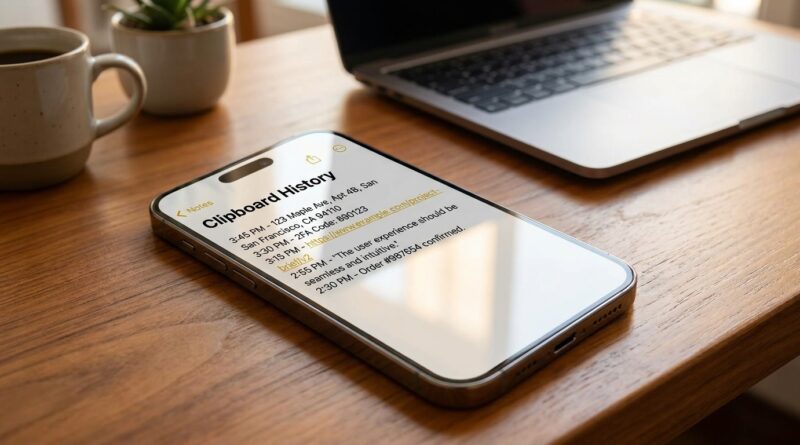
The fix is not some hidden Apple setting called clipboard history, because iPhone does not offer a true built-in clipboard manager. The real workaround power users rely on is an iPhone clipboard history shortcut, usually built in Apple Shortcuts and paired with Notes, Files, or iCloud. It creates a simple running stack of the things you copy, so you can go back and grab that address, quote, link, or prompt later instead of starting over. It is not flashy, but it is one of the most useful little systems you can add to your phone.
⚡ In a Hurry? Key Takeaways
- There is no true built-in iPhone clipboard history, but you can make a practical version with an iPhone clipboard history shortcut.
- The easiest setup is a Shortcut that saves copied text into a note, file, or list you can search later.
- Do not store passwords, banking details, or private codes in a clipboard log unless you are sure it is secure.
Why the iPhone clipboard feels so limited
Apple keeps the clipboard simple. You copy one item. You paste one item. Then it gets replaced by the next copied item.
That works fine until real life gets messy. Maybe you are comparing hotel prices, moving an address from Safari into Maps, then grabbing a booking code from email. Or maybe you are juggling AI prompts, package updates, receipts, and logins. The clipboard becomes a revolving door.
The frustrating part is that you usually notice the problem one step too late. By then, the thing you needed has vanished.
What people mean by “universal clipboard history”
Apple already has something called Universal Clipboard. It lets you copy on one Apple device and paste on another, like copying on your iPhone and pasting on your Mac. It is handy, but it is not history. It is still just one live clipboard passed between devices.
What power users want is a memory layer on top of that. A stack. A running log. A place where copied text lands automatically or with one tap, so it is still there later.
That is where an iPhone clipboard history shortcut comes in.
What an iPhone clipboard history shortcut actually does
A shortcut cannot fully watch every copy action in the background the way a desktop clipboard manager can. iPhone limits that for privacy and battery reasons. But Shortcuts can still do something very useful.
You run a shortcut after copying text, and it grabs the current clipboard contents and saves them somewhere permanent. That somewhere could be:
- A note in Apple Notes
- A text file in iCloud Drive
- A list in Data Jar or another shortcut-friendly app
- A simple menu you can reopen later
Think of it like pressing “save copy” whenever something matters.
The easiest setup for most people
Option 1: Save copied text to a running note
This is the easiest method and the one I recommend to most iPhone owners.
You create a shortcut that:
- Gets Clipboard
- Adds the current date and time
- Appends the text to a note called something like “Clipboard Stack”
Now every time you copy something important, you tap the shortcut from the Share Sheet, Home Screen, Action Button, or Control Center, and it gets saved.
Why this works so well:
- Notes syncs across iPhone, iPad, and Mac
- You can search old copied items fast
- It takes only a few seconds to set up
Option 2: Save copied text to a plain text file in iCloud Drive
If you like a cleaner, more portable system, use Files instead of Notes. The shortcut appends every copied item to a text file.
This is nice for people who want a simple archive they can open anywhere. It also avoids cluttering Notes if you already use Notes heavily.
Option 3: Save to a list and reopen as a menu
This is the more “power user” route. With a helper app like Data Jar, your shortcut can store multiple copied snippets in a list, then show them back to you later in a menu. You tap one, and it gets copied back to the clipboard.
That feels much closer to real clipboard history.
How to build a basic clipboard history shortcut
If you want the simple Notes version, here is the basic recipe inside the Shortcuts app:
- Open Shortcuts and tap the + button.
- Add the action Get Clipboard.
- Add Current Date.
- Add Text and format it like this:
[Current Date]
[Clipboard Content]
——————- - Add Append to Note.
- Choose or create a note named Clipboard Stack.
- Name the shortcut something obvious, like Save Clipboard.
That is it. Copy text. Run the shortcut. Your item is saved.
Make it faster to use
The trick is reducing friction. If it takes too many taps, you will stop using it.
Try one of these:
- Add the shortcut to your Home Screen
- Put it in the Share Sheet
- Assign it to the Action Button on supported iPhones
- Add it to the Lock Screen widget area
- Use Back Tap to trigger it
Once it becomes muscle memory, it is surprisingly useful.
What this setup is great for
This sort of clipboard stack shines when you keep bouncing between apps.
- Addresses from texts or emails
- Tracking numbers
- Order IDs and receipts
- Quotes and research snippets
- AI prompts you want to reuse
- Links you plan to send later
- One-time details from travel bookings
If you work from your phone even part of the day, this can save you from a lot of repeat copying and a lot of muttering at your screen.
Its biggest limitation
This is the part to be honest about. An iPhone clipboard history shortcut is not fully automatic in the way many people imagine.
Because of Apple’s privacy rules, your iPhone is not really built for apps to constantly watch and store everything you copy in the background. That is probably a good thing overall, but it means you must be intentional.
So the workflow is not “copy anything and it is magically stored forever.”
It is closer to “copy something important, tap save, and now it will not disappear.”
For most people, that is still enough to solve the problem that matters.
Privacy matters here more than people think
Your clipboard often holds very sensitive stuff. Password reset links. Login codes. Personal addresses. Bank references. Health info.
So before you build a giant clipboard archive, decide what belongs in it and what does not.
Good safety rules
- Do not save passwords in a clipboard history note
- Be careful with one-time passcodes
- Use a locked note if you must store sensitive text
- Delete your clipboard stack regularly if it fills with private data
- Stick with trusted apps and Apple’s own tools when possible
If something feels too private for a sticky note on your desk, it is probably too private for a casual clipboard log too.
Best apps and tools for this job
Apple Shortcuts
This is the core tool. It is built in, free, and good enough for most people.
Apple Notes
Best for simplicity. Search is good. Sync is easy. Almost anyone can use it.
Files and iCloud Drive
Best if you want a plain text archive with less visual clutter.
Data Jar
Best for people who want more structured shortcut storage and menu-style recall.
Paste-style desktop managers
These are great on Mac, but iPhone is where the restrictions kick in. If you also use a Mac, you can combine Mac clipboard history with an iPhone save shortcut for a much better cross-device system.
A smart workflow if you use iPhone and Mac together
Here is the setup I see a lot of organized people use:
- Use Universal Clipboard for quick copy and paste between devices.
- Use a Mac clipboard manager for deep history on the desktop side.
- Use an iPhone clipboard history shortcut for anything important copied on the phone.
That gives you a pretty solid system without fighting Apple too much.
It is not perfect, but it feels much less like information is slipping through your fingers.
Who should bother setting this up
You should do this if you:
- Work from your phone regularly
- Copy and paste between apps all day
- Often lose links, numbers, or snippets
- Use your iPhone for travel, shopping, support chats, or freelance work
- Want your phone to feel more like a serious productivity tool
If you only copy the occasional web link, you may not need it. But if you have ever said, “Wait, what did I just copy?” more than once this week, you probably do.
At a Glance: Comparison
| Feature/Aspect | Details | Verdict |
|---|---|---|
| Built-in iPhone clipboard | Stores only the most recent copied item | Too limited for heavy copy and paste use |
| iPhone clipboard history shortcut with Notes | Manual save, searchable history, syncs across Apple devices | Best balance of simplicity and usefulness |
| Advanced list-based shortcut setup | Can mimic real history better, but takes more setup and maintenance | Best for tinkerers and power users |
Conclusion
Clipboard rage is one of those tiny iPhone annoyances that adds up fast. You lose an address here, a receipt number there, then waste ten minutes retracing your steps. A simple iPhone clipboard history shortcut fixes more of that than you might expect. No, it is not a perfect built-in clipboard manager. But it creates the missing memory layer Apple still does not offer. And at a time when people are constantly moving OTP codes, AI prompts, receipts, links, and snippets across apps and devices, that little bit of memory turns your iPhone into a much more reliable work tool instead of a leaky bucket. Big tech sites do not talk about this much, but once you set it up, you will probably wonder why you waited so long.