Stop Letting Screenshots Be Dumb Pictures: The Hidden ‘Instant Smart Actions’ Trick Power Users Use To Turn Any Screenshot Into A To‑Do List In 5 Seconds
Your screenshot folder is probably a mess. Most of ours are. You grab a boarding pass, a recipe, a concert ticket, a tracking number, a meeting address, then promise yourself you’ll deal with it later. Later never comes. It just turns into a wall of random images in Photos, and when you finally need that one receipt or flight time, you’re squinting at a grid of tiny thumbnails like you’re hunting for buried treasure. The good news is iPhone screenshot text actions can turn those “dumb pictures” into something useful almost instantly. On newer iPhones, Apple can spot text, dates, phone numbers, links, addresses, and other details right inside the screenshot. That means you can make a reminder, add a calendar event, open a website, call a number, copy a recipe ingredient list, or save info to Notes in a few taps. Think of screenshots as a quick inbox, not a digital junk drawer.
⚡ In a Hurry? Key Takeaways
- iPhone screenshot text actions let you pull usable info from a screenshot, like dates, links, phone numbers, and text, instead of leaving it as a plain image.
- After taking a screenshot, tap the preview or open it in Photos, then tap and hold on text or use detected options to create reminders, calendar events, notes, or calls in seconds.
- This is fastest on newer iPhones with Apple’s latest on-device intelligence features, but always double-check important details like travel times, totals, and addresses before saving them.
What this trick actually does
Here’s the simple version. Your iPhone can read what’s inside many screenshots.
Not in a spooky way. In a useful way.
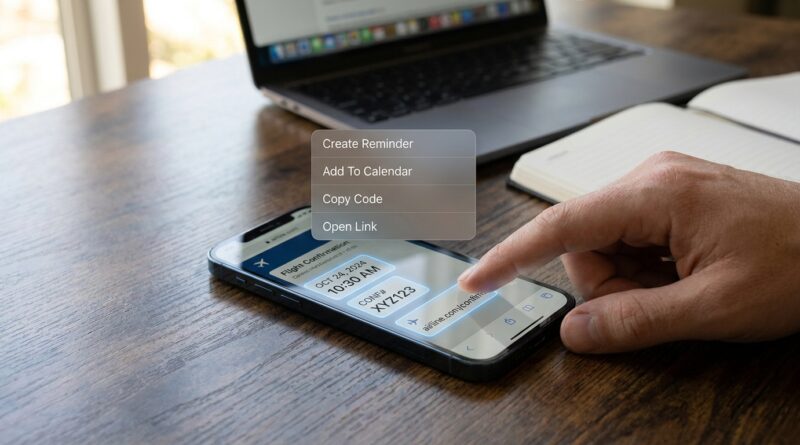
If a screenshot contains a date, your iPhone may offer to create an event. If it sees a phone number, you can call or save it. If it finds a URL, you can open it. If it sees blocks of text, you can copy them into Notes or Reminders without typing a thing.
That’s why this matters. A screenshot stops being the end of the task. It becomes the start of one.
How to use iPhone screenshot text actions in real life
Right after you take the screenshot
This is the fastest way, and honestly the one power users rely on most.
Take the screenshot. Tap the little preview in the corner before it disappears. When the screenshot opens, look for text you can select, links you can tap, or smart suggestions based on what the image contains.
From there, you can usually:
- Copy text
- Open a website
- Call a phone number
- Get directions from an address
- Create a calendar event from a date and time
- Share details to Reminders or Notes
If your phone shows a Live Text icon or lets you press and hold on the text, that’s your cue.
From the Photos app later
Missed the moment? No problem.
Open Photos and find the screenshot. Tap it. Then press and hold on any visible text, or tap the text-detection controls if they appear. Once the text is selectable, you can copy it, share it, translate it, look it up, or use smart actions tied to whatever was detected.
This is where old screenshots become useful again. That receipt from last week can go into your expense app. That event flyer can become a calendar entry. That recipe screenshot can become a grocery list.
The 5-second workflow that makes screenshots useful
If you want one habit to start today, use this:
- Take the screenshot.
- Open the preview right away.
- Tap and hold the important text.
- Send it somewhere useful, like Reminders, Calendar, Notes, or Contacts.
- Delete the screenshot if you don’t need the image anymore.
That last step matters more than people think. If the information has already been turned into a task or saved in the right app, the screenshot has done its job.
Best examples of when this works
Flights and boarding info
Screenshot your confirmation screen, then pull the date, time, airline details, or confirmation code. Add the trip to Calendar or Notes. If there’s a link, open it directly. If there’s a phone number, tap to call support.
Receipts and order confirmations
Copy the store name, total, order number, or return deadline. Paste it into Notes or your budget app. If you save business receipts for work, this cuts out a lot of manual typing.
Recipes
Found a recipe buried in a social post? Screenshot it, copy the ingredients, and drop them into Reminders as a shopping list. No retyping. No flipping back and forth.
Meeting details
If someone sends a screenshot of a meeting invite, venue, or contact card, you can pull out the date, address, or phone number and turn it into a proper event or contact entry.
Random ideas
This is the sneaky good one. A lot of people screenshot quotes, product ideas, and rough plans because it’s faster than opening Notes. Fine. Just make sure you go back and extract the useful part into Notes or Reminders so the idea doesn’t die in Photos.
Why this feels new to people
Because most of us were taught to think of screenshots as storage, not action.
Take picture. Save picture. Forget picture.
Apple has been quietly turning the screenshot into a bridge between apps. Photos can read the image. Then Reminders, Calendar, Notes, Contacts, Maps, Safari, and Phone can do something with the details. That’s the real trick. It’s not one feature. It’s a lightweight workflow hiding in plain sight.
A couple of settings and habits that make it even better
Keep your iPhone updated
Newer iOS versions keep getting better at detecting text, dates, and structured info inside images. If the smart actions seem limited, a software update may improve things.
Crop before saving if the screenshot is cluttered
If the screenshot includes too much junk, crop it down. Cleaner screenshots are easier for your iPhone to read, and easier for you to find later.
Pair it with a shortcut gesture
If you like fast, one-handed tricks, it’s worth reading Stop Letting Your iPhone Stay Boring: The Hidden ‘Custom Back Tap Shortcuts’ Button Power Users Turn Into A One‑Tap Control Center. Back Tap can make it quicker to open the app or action you use after screenshots, like Notes, Reminders, or a favorite shortcut.
What to watch out for
This stuff is helpful, but not magic.
Always double-check:
- Flight dates and departure times
- Addresses with apartment or suite numbers
- Receipt totals
- Phone numbers with odd formatting
- Event details pulled from busy images
If the screenshot is blurry, tiny, or filled with stylized fonts, text detection can miss things. It’s fast, not perfect.
If your iPhone doesn’t show the actions you expected
Try these quick fixes:
- Open the screenshot in Photos instead of the editor preview
- Zoom in slightly on the text
- Tap and hold directly on the words
- Make sure Live Text and related intelligence features are enabled if your iPhone supports them
- Update iOS
And yes, some screenshots simply work better than others. Clean confirmation pages usually do great. Chaotic social posts, not always.
At a Glance: Comparison
| Feature/Aspect | Details | Verdict |
|---|---|---|
| Speed | You can turn a screenshot into a reminder, note, call, or event in just a few taps, often right after capturing it. | Excellent for busy people |
| Accuracy | Works best with clear text, clean layouts, and obvious details like dates, links, and phone numbers. | Very good, but always verify important info |
| Everyday usefulness | Great for flights, tickets, receipts, recipes, meeting details, and random ideas you would otherwise lose in Photos. | One of the most practical hidden iPhone habits |
Conclusion
Screenshots are not going away. If anything, we’re all taking more of them because it’s the fastest way to save something before it disappears. The smart move now is to stop treating them like a graveyard. With iPhone screenshot text actions, that quick image can become a reminder, event, note, saved contact, map destination, or follow-up in seconds. That matters because Apple’s newer intelligence features are getting better at reading text, dates, links, and structured details right inside the image. When you use screenshots as an inbox instead of a dumping ground, you book flights faster, save receipts where they belong, capture meeting details, and keep ideas moving without manual typing. It connects Photos, Reminders, Calendar, Notes, and Contacts in a way that fits how people really use an iPhone in 2026. Fast, messy, and screenshot-first.