Stop Letting Your Photos Be Static: The Hidden ‘Live Text Workbench’ Trick iPhone Power Users Use To Capture, Clean And Reuse Any Text In Seconds
Your Camera Roll probably has a graveyard in it. Slides from a meeting. A whiteboard from class. A recipe card. A shipping label. A page from a book you meant to quote later. The problem is not capturing the info. The problem is what happens next, which is usually nothing, because retyping it all feels annoying enough that you put it off and forget about it.
This is where one of the best iPhone Live Text hidden features becomes much more than a neat trick. If you treat Live Text as a small workbench instead of a one-off tool, you can turn photos into usable text in seconds, then send that text straight into Notes for cleanup and Reminders for action. It is simple, built into the iPhone, and far more useful than a lot of flashy new features getting all the attention. For students, office workers, and anyone trying to tame information overload, this is one of the most practical productivity workflows on the iPhone today.
⚡ In a Hurry? Key Takeaways
- Use Live Text as a system, not a gimmick. Capture text with the camera, clean it in Notes, then turn important lines into reminders or to-dos.
- The fastest workflow is Photos or Camera to Copy Text, then paste into a dedicated Notes inbox and pull out dates, tasks, and key quotes.
- This works best for clear, well-lit images. Always double-check names, numbers, and dates before you rely on the extracted text.
Why most photo-based notes never become useful
A photo feels productive in the moment. You see a slide changing fast, so you snap it. Someone fills a whiteboard, so you grab a picture. You save a screenshot with an address, tracking number, or event time. Problem solved, right?
Not really.
A photo is often just frozen information. It sits in your library mixed in with pet pictures, receipts, and random memes. Later, when you actually need the text, you have to hunt for the image, zoom in, squint, and maybe retype the parts that matter. That is the step that breaks the habit.
The better approach is to think of your iPhone as a capture-and-convert tool. The photo is only the first step. The goal is searchable, reusable text.
The “Live Text Workbench” idea
Here is the opinionated workflow. It is simple on purpose.
Step 1: Capture the text
Take a photo of a slide, document, whiteboard, sign, package, receipt, or handwritten note. You can do this in Camera, or use an existing image in Photos or even a screenshot.
Step 2: Extract the useful part
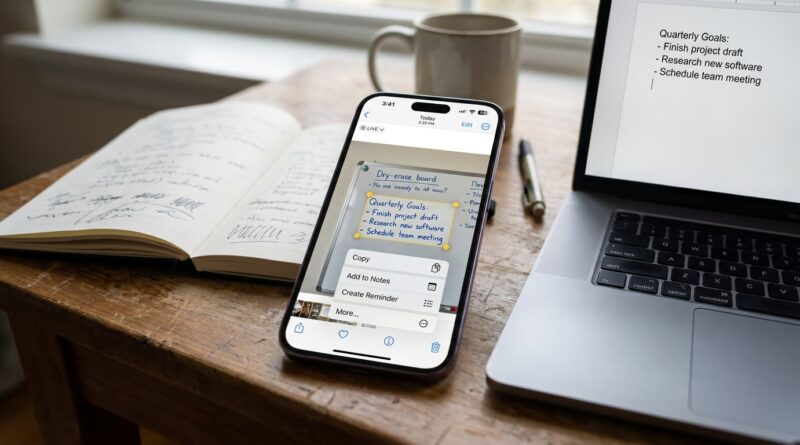
Open the image and use Live Text. Press and hold on the text, then select, copy, or use any available action. On newer versions of iOS, this gets even better with direct actions. If you have not explored those yet, Stop Manually Copy‑Pasting Screenshots: The Hidden iOS 18 ‘Live Text Actions’ Power Users Turn Into One‑Tap Workflows is worth a read.
Step 3: Paste into a Notes inbox
Create one note called something like “Text Inbox” or “Captured Text.” Paste the extracted text there first. Not into ten different apps. Not into a message to yourself. Start with one staging area.
Step 4: Clean it up
Fix the obvious errors. Add line breaks. Delete junk. Pull out the actual useful points. In a lot of cases, what looked like a busy slide photo becomes five clean bullet points.
Step 5: Move action items to Reminders
If the text includes tasks, deadlines, addresses, phone numbers, or things you need to follow up on, send those to Reminders. The note keeps the context. Reminders keeps the action.
That is the workbench. Capture, clean, reuse.
How to use it in real life
For meeting slides
Instead of keeping fifteen nearly identical slide photos, pull the key text from each one and paste it into a single meeting note. Add your own summary at the top. Now the meeting is searchable, shareable, and much easier to review.
For classroom notes and lectures
This is great for slides that move too fast to copy by hand. Take the photo, extract the text later, then turn it into bullets under your class note. If the professor posts deadlines or reading assignments, send those lines straight to Reminders.
For whiteboards
Whiteboards are one of the best use cases. The image preserves layout, but the extracted text gives you the outline. Keep both if you want. The photo for reference, the text for actual use.
For paper documents
Letters, forms, handouts, printed schedules, and recipes all fit nicely into this workflow. You are not trying to archive a perfect scan every time. You are trying to free the information from the photo so you can do something with it.
For screenshots
Screenshots are often where clutter really starts. Login details, order numbers, promo codes, event details, and addresses all pile up fast. Live Text can pull those details out so the screenshot does not have to live forever in your Photos app.
Three small habits that make this actually stick
1. Use one capture album
Create a Photos album called “To Extract” or “Text Capture.” Add relevant photos there right away. This keeps them out of the general mess and gives you one place to process later.
2. Keep one Notes inbox
Do not over-organize at first. One inbox note is enough. Once a day or once a week, sort what matters into permanent notes.
3. Treat Reminders as the finish line
If something needs action, it should not stay buried inside a note. Dates, calls, assignments, follow-ups, and shopping items belong in Reminders.
Best practices for cleaner Live Text results
Live Text is good, but you can help it a lot.
- Take photos in decent light.
- Keep the phone as flat and straight as possible.
- Fill the frame with the text instead of standing too far back.
- Crop before extracting if the image has lots of background clutter.
- Double-check numbers, email addresses, names, and dates.
Handwriting can work surprisingly well, but neat, high-contrast writing gets better results than faint marker scribbles on a glossy board.
Where Notes fits better than Photos
Photos is for capture. Notes is for thinking.
That is the key shift.
Once text is inside Notes, you can search it, rearrange it, add your own comments, make checklists, and group related bits together. A random lecture image becomes a study guide. A whiteboard photo becomes a project outline. A snapped menu becomes a saved recommendation list.
That is why the iPhone Live Text hidden features productivity workflow is so effective. It turns passive images into active information.
What this workflow does better than fancy all-in-one apps
There are plenty of apps that promise to scan, sort, summarize, and organize everything. Some are great. Some are expensive. Some are a little too clever for their own good.
The built-in Apple route has a big advantage. It is already on your phone, it is fast, and it does not ask you to rebuild your whole life inside yet another app. Photos, Notes, and Reminders are basic tools, but together they solve the core problem very well.
And because the text ends up in places you already use, there is a much better chance you will come back to it.
Common mistakes people make
Keeping the image but not extracting the text
This is the big one. If you stop at the photo, you have only done half the job.
Saving everything forever
Once the important text is in Notes and the tasks are in Reminders, many of those original images can be deleted or archived to an album. Your Camera Roll does not need to become a filing cabinet.
Trying to organize too early
Do not build a perfect note structure on day one. Start with a simple inbox. The system has to be easy enough that you will actually use it.
At a Glance: Comparison
| Feature/Aspect | Details | Verdict |
|---|---|---|
| Capture speed | Snapping a photo or screenshot is instant, and Live Text usually pulls text in a few taps. | Excellent for fast-moving info like slides, signs, and whiteboards. |
| Cleanup and organization | Notes gives you a simple place to fix errors, trim junk, and save the useful version. | Best when paired with a single inbox note and a quick review habit. |
| Turning text into action | Reminders is ideal for deadlines, follow-ups, and to-dos pulled from captured text. | This is what turns a neat trick into a real productivity workflow. |
Conclusion
Live Text has been around long enough that many people shrug at it and move on. That is a mistake. Used casually, it is a fun trick. Used as a system, it is one of the most practical features on the iPhone. Right now, while everyone is chasing flashy new “AI” tools, the bigger everyday win is often much quieter. Turn visual clutter into clean text you can search, sort, and act on. If you chain Photos, Notes, and Reminders together, those forgotten screenshots and lecture snaps stop being digital junk and start becoming a personal cheat sheet that actually helps you get things done.