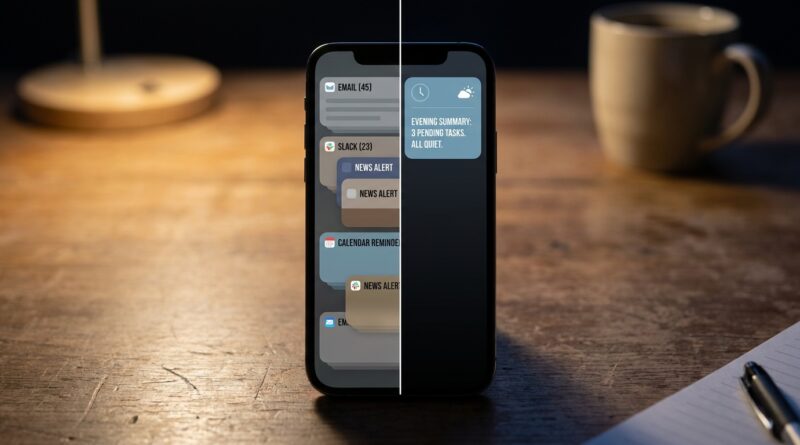
Stop Letting Your Notifications Be Chaos: The Hidden ‘Per‑App Notification Presets’ Trick iPhone Power Users Use To Tame Alerts In One Tap
If your iPhone feels like it is tattling on you all day, you are not imagining it. Notification settings really do turn into a mess fast. One new shopping app wants badges. Your bank wants lock screen alerts. A social app begs for sounds and previews. Then Apple adds another “helpful” suggestion and suddenly your phone feels less like a tool and more like a needy roommate. The good news is that there is a smarter way to handle this. iPhone does not offer one official button called “notification presets,” but power users build their own simple presets by grouping apps into a few repeatable settings styles. Once you do that, every new app gets sorted in seconds instead of forcing you to poke through banners, sounds, badges and previews one by one. It is not magic. It is just a system, and it can calm your phone down in under fifteen minutes.
⚡ In a Hurry? Key Takeaways
- There is no single Apple menu called presets, but you can create your own repeatable iPhone per app notification settings presets using 3 to 4 app categories.
- Start by sorting apps into groups like Critical, Useful Quietly, Badge Only, and Off, then apply the same notification choices to each group.
- This cuts noise without missing important alerts, and it also improves privacy by reducing previews on your lock screen.
The hidden trick is not a button. It is a template.
Here is the part Apple does not explain well. Most people open notification settings app by app and make random choices based on how annoyed they feel in that moment. That is why the whole thing turns into chaos.
Power users do it differently. They make a few preset types first, then assign every app to one of those types. You are basically building your own notification rulebook.
Think of it like this:
- Critical: Calls, messages from key people, banking fraud alerts, home security.
- Useful Quietly: Calendar, delivery updates, rideshare, school apps, health reminders.
- Badge Only: Email, shopping, forums, store apps, low-priority work tools.
- Off: Games, promo-heavy apps, random social apps, apps you barely use.
That is your preset system. No guesswork. Every new app gets dropped into one of those buckets.
How to build your iPhone per app notification settings presets
Preset 1: Critical
Use this for the tiny number of apps that deserve to interrupt you.
Recommended settings:
- Allow Notifications: On
- Immediate Delivery: On
- Lock Screen: On
- Notification Center: On
- Banners: On
- Sounds: On
- Badges: On
- Show Previews: When Unlocked, or Always if you are comfortable
Examples: Phone, Messages, your bank’s fraud alerts, security camera apps, medication reminders.
Preset 2: Useful Quietly
This is the sweet spot for apps that matter, but do not need to shout.
Recommended settings:
- Allow Notifications: On
- Lock Screen: Off or limited
- Notification Center: On
- Banners: On
- Sounds: Off
- Badges: Optional
- Show Previews: When Unlocked
This is perfect for package tracking, calendar updates, school notices, utility apps, and travel apps.
Preset 3: Badge Only
For apps that can wait until you check them on your own.
Recommended settings:
- Allow Notifications: On
- Lock Screen: Off
- Notification Center: Off or On, depending on preference
- Banners: Off
- Sounds: Off
- Badges: On
- Show Previews: Never or When Unlocked
Examples: Amazon, food delivery apps, newsletters, retail apps, many email accounts.
Preset 4: Off
This is for the apps that mostly create clutter.
Recommended settings:
- Allow Notifications: Off
Yes, really. If an app’s main reason for contacting you is “come back and spend more time here,” it does not deserve a seat at your table.
How to apply the presets in under 15 minutes
Open Settings > Notifications. You will see your apps listed below. Now go down the list quickly and do not overthink it.
- Pick your 10 most important apps first.
- Assign each one to Critical, Useful Quietly, Badge Only, or Off.
- Apply the matching settings.
- Ignore the rest for now, or batch them later.
The trick is speed. Do not treat every app like a special case. Most are not.
The fastest way to decide which preset an app gets
Ask one question: If this app alerts me at the wrong time, will I be glad or annoyed?
If you would be glad, it might be Critical or Useful Quietly. If you would be annoyed, it is probably Badge Only or Off.
Another good test is this:
- Needs my attention right now: Critical
- Needs my attention today: Useful Quietly
- Needs my attention eventually: Badge Only
- Does not need my attention: Off
That one small filter clears up a lot of indecision.
Do not forget Focus modes. They make your presets even better.
Your per-app settings control the baseline. Focus modes control what happens during specific parts of your day.
So your default preset might allow quiet alerts from a work app, but your Personal or Sleep Focus can still hold them back when you need peace.
If you want to go one step further and organize what still gets through, our guide to Stop Letting Notifications Hijack Your Brain: The Hidden ‘Priority Stacks’ Trick iPhone Power Users Use To Control Alerts Like A Command Center pairs really well with this preset method.
Privacy matters too, not just noise
Notifications are not only annoying. They can also be nosy.
If one-time codes, bank balances, medical reminders, or private messages are showing on your lock screen, your issue is not just alert overload. It is exposure.
For sensitive apps, change Show Previews to When Unlocked or Never. That way the alert can still appear without putting your business on display.
This is especially smart for banking, health, dating, journaling, and work chat apps.
What to do with new apps from now on
This is where the system pays off. Every time you install a new app, do not wait for it to become a nuisance.
As soon as it asks for notification permission, stop and decide:
- Is this Critical?
- Useful Quietly?
- Badge Only?
- Off?
Then set it once and move on. No starting from scratch. No whack-a-mole.
A few app types that fool people
Most people do not need sounds and banners for every inbox. Badge Only is often enough. If you have one truly important work or family inbox, make that the exception.
Shopping apps
These love to pretend every sale is urgent. It is not. Badge Only or Off works for most people.
Social media
Unless you depend on it for work, these are usually noise machines. Turn most of it off.
Banking apps
Fraud alerts are worth keeping. Marketing nudges are not. Check inside the app too, since many banking apps let you choose alert types separately.
Health and fitness apps
Medication reminders may be Critical. “Your friend finished a workout” is very much not.
Common mistake: leaving sounds on for too many apps
If you only change one thing today, make it this one.
Sound is what makes your brain snap to attention. A silent banner you review later is one thing. A chirp, buzz, or ding every few minutes is another.
For most apps, sounds are the first thing to turn off. You can keep the information without keeping the stress.
At a Glance: Comparison
| Feature/Aspect | Details | Verdict |
|---|---|---|
| Official Apple presets | iPhone does not offer one-tap named presets for all apps, so you create your own repeatable categories. | Best practical workaround |
| Time to set up | Most people can sort their main apps in 10 to 15 minutes. | Fast enough to do today |
| Long-term value | Once your categories are set, every new app becomes a quick decision instead of a fresh mess. | Huge improvement for focus and sanity |
Conclusion
You do not need to accept a noisy iPhone as normal. The real fix is not hunting for some magical hidden switch. It is creating simple iPhone per app notification settings presets that you can reuse over and over. That matters right now because everyone is drowning in alerts from social, shopping, banking, health and AI apps, and every big iOS update seems to add a few more nudges into the mix. With a clear preset system, you can go from random noise to something that actually supports focus, privacy and peace of mind in less than fifteen minutes. More importantly, once you build it, you can use it on every new iPhone and every new app instead of starting from scratch each time. That is the kind of hidden control Apple tends to bury, and the kind that makes your phone feel useful again.