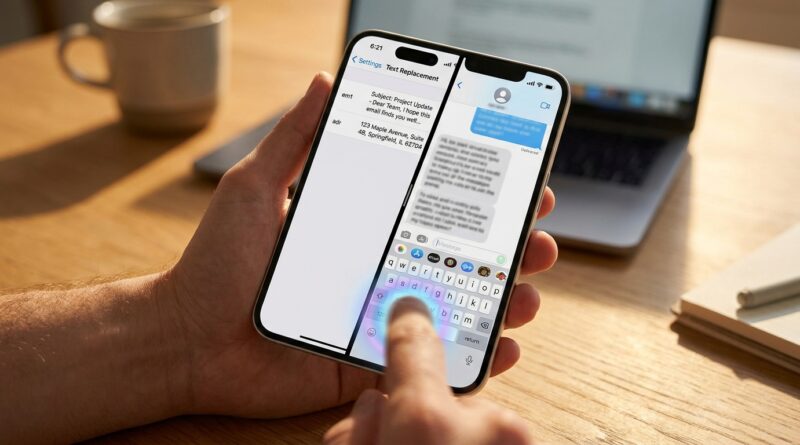
Stop Letting Your Keyboard Slow You Down: The Hidden ‘Pro Text Launchpads’ Trick iPhone Power Users Use To Type Whole Paragraphs In 2 Keystrokes
You can waste a shocking amount of time typing the same things on an iPhone. Your email sign-off. Your home address. That polite “I’m on my way.” A client intro. A shipping note. A caption template. It does not feel dramatic in the moment, but by the tenth repeat, your thumbs are doing office work they should have been spared. Worse, AutoCorrect still jumps in at the wrong time, and fixing one tiny word can turn into a little wrestling match with the cursor. The good news is that iPhone text replacement shortcuts can turn your keyboard into a fast little launcher for whole sentences, paragraphs, and personal snippets. Set them up once, then type a few letters and let your phone do the boring part. Add in the hidden trackpad cursor trick and a couple of keyboard settings, and your daily typing gets noticeably less annoying.
⚡ In a Hurry? Key Takeaways
- iPhone text replacement shortcuts let you type short codes like “;addr” or “;ty” and expand them into full phrases, addresses, replies, or even paragraphs.
- Build a small library for the phrases you repeat most, then use the spacebar trackpad trick to place the cursor quickly when you need to edit.
- This is built into iOS, works across many apps, and needs no extra keyboard app or paid tool.
What this trick actually does
Apple calls it Text Replacement. Most people use it once, maybe for an email address, then forget it exists.
That is underselling it.
If you set it up properly, it becomes a personal bank of reusable text snippets. You type a short trigger, usually a few characters you would never type by accident, and your iPhone swaps it for the full text.
For example:
- ;eml becomes your full email address
- ;addr becomes your home or work address
- ;intro becomes a polished client introduction
- ;late becomes “Running 10 minutes behind. Sorry, see you soon.”
- ;meet becomes your standard meeting reply with date options
That means two or three taps can replace 100 characters of typing.
How to set up iPhone text replacement shortcuts
Where to find it
On your iPhone, go to Settings > General > Keyboard > Text Replacement.
Tap the + button in the top-right corner.
You will see two boxes:
- Phrase, which is the full text you want inserted
- Shortcut, which is the tiny code you will type to trigger it
A simple example
In Phrase, type:
123 Green Street, Flat 4, Leeds LS1 2AB
In Shortcut, type:
;addr
Tap Save.
Now, when you type ;addr in many apps and hit space, your address appears.
The secret is not one shortcut. It is a system.
This is where power users get more value than everyone else. They do not just add one or two shortcuts. They build a small, reliable set they can remember.
The trick is to sort your shortcuts by category.
Start with these five categories
1. Contact details
- ;eml for email
- ;phone for your phone number
- ;addr for your address
2. Work replies
- ;thanks for “Thanks, I’ve received this and will review it today.”
- ;eta for “I’ll send an update by 3pm.”
- ;intro for your standard intro paragraph
3. Personal messaging
- ;omw for “On my way. See you soon.”
- ;late for “Running a bit late, sorry.”
- ;home for “Made it home safe”
4. Social and selling
- ;link for a website URL
- ;bio for your short bio
- ;tags for a common hashtag block
5. Admin and forms
- ;vat for your VAT or tax number
- ;iban for banking details if you send them often
- ;ret for your returns or booking policy text
Once you have 10 to 20 of these, the keyboard starts feeling less like a burden and more like a control panel.
How to pick shortcuts you will actually remember
The biggest mistake is choosing shortcuts that clash with normal typing.
If you use “add” for your address, your phone may try to replace it when you are just writing a normal sentence. That gets old fast.
A safer method is to start each shortcut with a symbol you rarely type in ordinary text.
Good examples:
- ;addr
- ;sig
- ;meet
- ;intro
The semicolon trick works well because it is easy to type but uncommon at the start of words.
Keep them short, but not cryptic. You should be able to guess them without thinking.
Best real-world uses for whole-paragraph shortcuts
This is the part many people miss. Text replacement is not just for tiny snippets.
You can save full paragraphs too.
Useful paragraph examples
Client welcome
;welcome could expand to a full onboarding message with next steps, response times, and links.
School or family logistics
;pickup could insert “I’ll collect them at 3:15 from the main gate. If anything changes, text me.”
Customer support
;refund could insert your standard refund explanation, written once and reused consistently.
Booking replies
;book could include opening times, pricing, and how to confirm an appointment.
Professional intro
;bio could drop in a polished mini-bio for interviews, podcasts, conference forms, or profile boxes.
If you send the same paragraph twice in one week, it probably deserves a shortcut.
Use the iPhone trackpad trick to fix text without the usual fuss
Even with smart shortcuts, you still need to edit now and then. This is where another built-in iPhone keyboard trick helps a lot.
Press and hold the spacebar. The keyboard turns into a trackpad-like surface.
Now slide your finger to move the cursor precisely through your text.
It is much easier than stabbing at the screen and hoping the cursor lands between the right two letters.
This pairs perfectly with iPhone text replacement shortcuts. Drop in your saved phrase, then use the spacebar trackpad trick to quickly tweak a name, date, or time.
Turn off some of the keyboard irritation while you are here
If your keyboard still feels like it is fighting you, take 30 seconds to check your settings.
Go to Settings > General > Keyboard.
Look at these options:
- Auto-Correction. Keep it on if it helps, off if it constantly mangles your writing.
- Predictive. Helpful for some people, distracting for others.
- Slide to Type. Great if you like swiping, annoying if you trigger it by accident.
- Enable Dictation. Worth keeping on if you sometimes speak messages instead of typing them.
If names, product terms, and industry jargon keep getting changed, it is also worth reading Stop Letting Autocorrect Wreck Names And Jargon: The Hidden ‘Personal Dictionary Shortcuts’ Trick iPhone Power Users Use To Train iOS Once And For All. It fits nicely with this shortcut setup, because both tricks help your keyboard stop acting like it knows better than you do.
A few smart rules for sensitive information
Text replacement is handy, but use common sense.
Be careful with these
- Full card numbers
- Passwords
- Private medical details
- Anything you would regret pasting into the wrong chat
Addresses, standard replies, invoice wording, email intros, and public-facing info are usually fine. Highly sensitive text deserves more caution.
Also remember that shortcuts can sync across Apple devices if you use the same Apple account, which is useful, but worth being aware of.
How to build your shortcut library in 10 minutes
If you want quick results, do this tonight:
- Open your sent messages and email.
- Find the 10 phrases you type again and again.
- Create a shortcut for each one using the semicolon method.
- Test them in Notes first.
- Rename any shortcut that feels awkward or easy to forget.
That is enough to feel the benefit by tomorrow morning.
You do not need 100 shortcuts. You need the right 10.
At a Glance: Comparison
| Feature/Aspect | Details | Verdict |
|---|---|---|
| Text Replacement shortcuts | Expands short codes into names, addresses, replies, and even full paragraphs across many apps. | Best daily time-saver for repeat typing. |
| Spacebar trackpad cursor | Press and hold the spacebar to move the cursor more precisely when editing inserted text. | Makes corrections much less fiddly. |
| Keyboard settings tweaks | Adjust Auto-Correction, Predictive text, and other options to match how you actually type. | Worth checking once, then enjoying every day. |
Conclusion
Most iPhone keyboard advice stops at “did you know this feature exists?” That is not enough. The real win comes from setting up a reusable library of iPhone text replacement shortcuts that matches your life, your work, and the messages you send every day. Once you combine that with the hidden spacebar trackpad trick and a few keyboard setting tweaks, your phone starts feeling less like a tiny typewriter and more like a command console. And that matters, because everyone is drowning in little bits of text now. Slack pings, WhatsApp groups, customer DMs, school chats, email, all of it. Save yourself the repeat effort. Build your 10 best shortcuts, use them for a week, and your thumbs will notice the difference long before you do.