Stop Letting Autocorrect Wreck Names And Jargon: The Hidden ‘Personal Dictionary Shortcuts’ Trick iPhone Power Users Use To Train iOS Once And For All
You know the feeling. You type a client’s surname, a product name, or some bit of industry jargon you use ten times a day, and your iPhone “helpfully” changes it into nonsense. You fix it. You send the message. Then tomorrow, iOS acts like it has never seen that word before. It is irritating when texting friends. It is worse when you are replying to a customer, sending an invoice, or trying to look competent in Slack at speed.
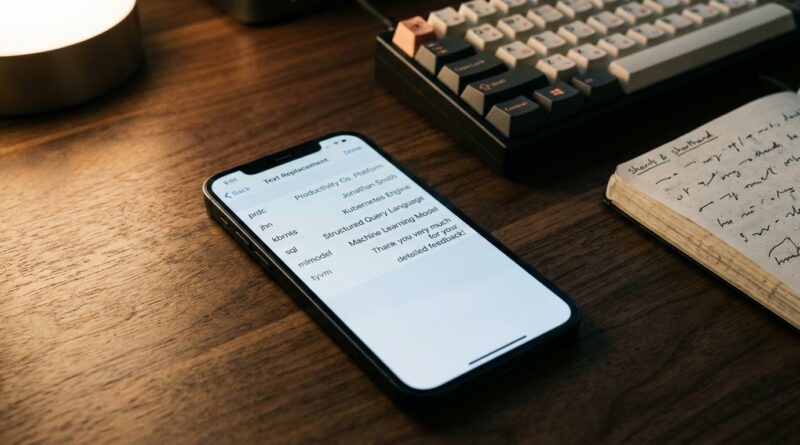
The good news is you do not have to keep fighting autocorrect one word at a time. The hidden fix is Apple’s Text Replacement feature, which doubles as a practical iPhone personal dictionary. Set it up once with the names, spellings, abbreviations and jargon you actually use, and your phone starts working with you instead of against you. It is one of the rare phone tweaks that takes five minutes and pays you back every single day.
⚡ In a Hurry? Key Takeaways
- Use Settings > General > Keyboard > Text Replacement to create your own iPhone personal dictionary and stop autocorrect from mangling names and jargon.
- Add the correct word or phrase in the “Phrase” field, then use a short trigger only if you want a shortcut. For stubborn words, you can also leave the shortcut blank.
- This is safe, built into iOS, syncs through iCloud for many users, and can save time in every email, DM, note and message you write.
The hidden autocorrect fix most people never set up
Apple does include a way to train your iPhone. It is just buried deep enough that most people never touch it.
Go to Settings, then General, then Keyboard, then Text Replacement.
This screen is usually described as a place for typing shortcuts. For example, typing “omw” and having it expand to “On my way!” That is useful, but it undersells what this tool can do.
For many people, Text Replacement is really the best iPhone personal dictionary text replacement autocorrect fix. It lets you teach iOS the exact spellings you want for names, brands, acronyms, specialist terms, and even awkward capitalisation.
How to stop iPhone from wrecking names, brands and jargon
Here is the simple version.
Method 1. Add the exact word as a replacement entry
Tap the + in the top corner of the Text Replacement screen.
In Phrase, type the word exactly how you want it written. Examples:
- McAllister
- OpenAI
- PowerPoint
- Shopify
- Neurodivergent
- B2B SaaS
Then save it.
For many tricky words, that alone is enough to stop iOS from trying to “improve” it.
Method 2. Create a shortcut you can type on purpose
If you type a long or annoying phrase all the time, add a shortcut too.
Example:
- Phrase: Alexandropoulos
- Shortcut: ;alex
Or:
- Phrase: customer success platform
- Shortcut: ;csp
That semicolon trick is handy because it reduces accidental triggers. Very few normal words begin with a semicolon, so your shortcut stays under your control.
The trick that makes this work better
Most people assume every Text Replacement entry needs a shortcut. It does not.
If your real goal is not speed but accuracy, put the proper spelling in Phrase and leave Shortcut blank if iOS allows it on your version, or use the same word in both fields.
That can help with:
- client surnames that autocorrect keeps changing
- brand names with odd capital letters
- industry terms Apple thinks are typos
- internal team language and abbreviations
For example, if your phone keeps changing “Notion” to “motion” or “Meyer” to “Mayor,” adding the correct version gives iOS a much firmer hint.
Best uses for a personal dictionary on iPhone
This is not just for nerdy edge cases. It is useful for anyone doing real work from a phone.
Client and contact names
Nothing undermines a professional message faster than misspelling someone’s name. If you regularly message clients, patients, vendors, parents, editors or recruiters, add their names once and stop risking it.
Brand names and product names
Tech, beauty, finance, medicine, law, real estate, design. Every field has odd spellings. Your phone does not know your daily vocabulary unless you teach it.
Industry shorthand
Terms like KPI, EBITDA, YAML, CRO, Substack, Figma, SQL, or Airtable can confuse autocorrect depending on context. Put them in your dictionary and move on.
Boilerplate phrases
If you send the same polite response ten times a day, turn it into a shortcut. For example:
- ;ty = Thanks so much, I’ll take a look and get back to you shortly.
- ;addr = 145 West 29th Street, Suite 4B
- ;zoom = Here’s the Zoom link for our call:
That is where this goes from “nice tip” to real time saver.
How to set it up properly in 5 minutes
If you want the biggest payoff, do a quick sweep of the words your phone gets wrong most often.
Start with your pain list
Open Notes and write down:
- names you type every day
- brands and products you mention often
- jargon your field uses
- phrases you repeat in email or messages
You only need 10 to 20 entries to notice a big difference.
Use clear shortcuts
For expansion shortcuts, avoid common letter combos like “in” or “go.” They will fire when you do not want them to.
Better options include:
- starting with a semicolon, such as ;sig or ;ty
- using initials, such as zmtg for Zoom meeting
- making the trigger short but unusual
Check capitalisation
Text Replacement preserves what you enter. So if a brand must appear as “iPad,” “YouTube,” or “Salesforce,” type it exactly that way in the Phrase field.
What to do if autocorrect still ignores you
Sometimes iPhone autocorrect is stubborn. If your first try does not fix it, do this.
1. Add the word to Text Replacement anyway
Even if it feels obvious, start here. It is still the cleanest fix.
2. Type the word manually a few times
When the correct version appears as a suggestion, tap it. iOS does learn from repetition, just not always as quickly as you would like.
3. Check keyboard settings
Go to Settings > General > Keyboard.
Review these options:
- Auto-Correction
- Predictive
- Check Spelling
- Show Predictions Inline
You do not have to turn everything off. But if autocorrect is repeatedly breaking your work, some people prefer leaving Predictive on while reducing the more aggressive corrections.
4. Try “same word” entries for stubborn terms
If “OpenAI” keeps getting changed, enter:
- Phrase: OpenAI
- Shortcut: OpenAI
It looks strange, but it can reinforce the preferred spelling.
5. Restart after major edits
Not glamorous, but it can help. If you add a bunch of replacements and they do not seem active yet, restart the phone.
Does this sync across your Apple devices?
Often, yes.
If you use iCloud and the same Apple Account across iPhone, iPad and Mac, your text replacements may sync automatically. That means one setup session can clean up typing across multiple devices.
This is especially handy if you jump between phone and laptop during the day. Your personal dictionary starts feeling less like a little phone trick and more like a proper writing tool.
When to use Text Replacement and when not to
Text Replacement is excellent, but it is not magic.
Use it for:
- correct spellings you want preserved
- long phrases you repeat often
- names, brands, acronyms and jargon
- common replies and sign-offs
Do not use it for:
- passwords
- private data you would hate to expand by accident
- very common shortcuts that could trigger in normal writing
Think of it as your “typing assistant,” not a vault.
Why this matters more now than it used to
More people are doing serious work from their phones now. Not just quick texts. Full client conversations. Invoices. Follow-ups. Project notes. Social posts. Support replies. Sales chats. All on a small keyboard with software that still thinks “real” words are only the ones Apple shipped in the box.
That is why this feature matters so much. It removes friction without asking you to change how you work. No new app. No subscription. No weird learning curve. Just fewer mistakes and less irritation.
At a Glance: Comparison
| Feature/Aspect | Details | Verdict |
|---|---|---|
| Fixing autocorrect errors | Add exact names, brands and jargon to Text Replacement so iPhone stops “correcting” them into the wrong word. | Best first step for accuracy. |
| Typing long phrases faster | Create custom shortcuts like ;sig, ;addr or ;zoom to expand into full phrases instantly. | Huge time saver if you message a lot. |
| Setup effort | Takes about 5 minutes to add your most-used terms, then quietly works in the background every day. | Low effort, high payoff. |
Conclusion
If your iPhone keeps butchering the same names and jargon, stop treating it like a minor annoyance you just have to live with. A tuned-up personal dictionary is one of the smartest little fixes in iOS. Right now there is a huge wave of people moving knowledge work, client communication and side hustles onto their phones, which means more specialist vocabulary than Apple’s default dictionary was ever trained for. A precise, well-tuned personal dictionary instantly removes friction from every email, DM and note you write, and unlike most productivity tricks, this one pays you back dozens of times a day without changing any visible part of your workflow. It is also the kind of power move almost no mainstream tech site explains from start to finish, yet it quietly separates people who live in Messages and Slack from people who still fight their phone on every third word.