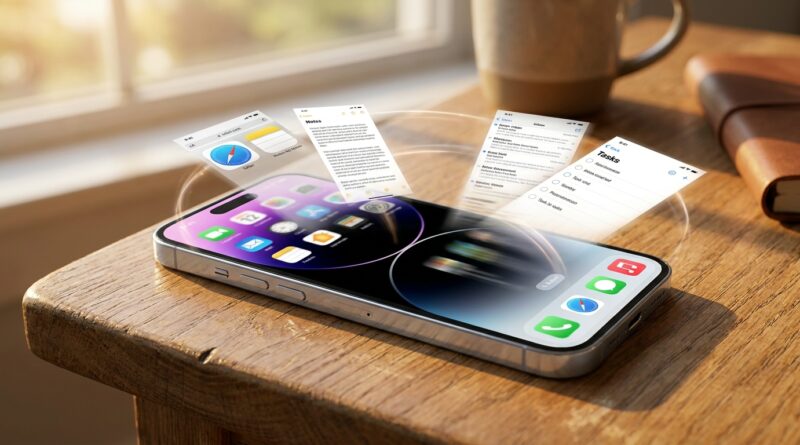
Stop Letting Crashes Kill Your Work: The Hidden ‘Instant App Recovery’ Trick iPhone Power Users Use To Reopen Everything In Seconds
You know that awful moment. You jump from Messages to Safari to Notes, maybe back into Mail for one last detail, and when you return, the app has quietly restarted. Your draft is gone. That tab reloads. The page you were reading forgets its place. iPhone power users run into this all the time because the phone is doing a lot behind the scenes, especially when memory gets tight. The annoying part is that there is no single magic switch for “iphone keep apps from restarting after crash.” But there is a very real trick experienced users rely on. They stop trusting live app state and build a fast recovery system around pinned tabs, draft-safe apps, quick notes, share sheets, and session snapshots. It sounds nerdy. It is actually simple. Once you set it up, a crash or reload stops being a disaster and becomes a 10-second detour.
⚡ In a Hurry? Key Takeaways
- There is no single iPhone setting that fully stops apps from restarting after a crash or memory purge, but you can make recovery almost instant.
- Use a simple system: save active links to Tab Groups, write long text in Notes first, keep Files or Notes as your “parking spot,” and turn on app features that autosave drafts.
- This protects your time and focus, especially if your iPhone is your main work device for school, remote work, content creation, or daily admin.
The hidden trick is not a hidden setting
Let’s clear up the first misconception. Apple does not give you a master toggle that forces every app to stay frozen exactly where you left it forever.
Apps restart for a few reasons. Sometimes the app itself crashes. Sometimes iOS clears it from memory because you opened too many heavy apps, used a demanding website, edited photos, or had low free storage. Sometimes the app developer simply did a poor job saving state.
So the real power-user move is this. Stop relying on an app to remember everything. Start using a repeatable “session resilience” system that stores your place outside the app.
That is what lets you bounce back in seconds instead of rebuilding your work from memory.
Why iPhones restart apps in the first place
Your iPhone tries to make everything feel instant, but it still has limits. If memory gets crowded, iOS may remove background apps from active memory. When you come back, the app has to reload. That can look like a crash even when it technically is not one.
This hits hardest with:
- Safari pages with lots of scripts or ads
- Long messages typed directly into web forms
- Apps that do not autosave drafts well
- Switching between camera, social apps, maps, editing apps, and browser tabs
- Older iPhones or nearly full storage
If you are the kind of person who treats the iPhone like a pocket laptop, this is not a tiny bug. It breaks your flow.
The copy-and-paste recovery system that actually works
1. Stop composing important text inside “fragile” apps
If a message matters, draft it in Notes first.
This is the single most useful habit here. Notes is usually much better at preserving text than a random browser form, a support chat window, or a social media app mid-compose screen.
Use this simple rule:
- Short reply, type it in the app
- Anything longer than a paragraph, write in Notes first
- Then copy and paste it where it needs to go
Yes, it feels like one extra step. It is much faster than rewriting 300 words because Safari refreshed a tab.
2. Create a “Now” note as your live workspace
Power users often keep one pinned note at the top called something like:
- Now
- Today Scratchpad
- Current Session
Put everything temporary there. Links. Draft replies. Meeting notes. Order numbers. Quotes you want to paste somewhere else. If an app dies, your working memory is still intact because the important bits are parked in one place.
Pin that note so it is always at the top of Notes.
3. Use Safari Tab Groups as session backup
If you are juggling research, shopping comparisons, forms, or travel plans, don’t leave everything loose in random tabs.
Put active work into a Tab Group.
That way, even if a specific tab reloads, the whole session structure is still there. You may lose scroll position on one page, but you do not lose the map of what you were doing.
A good setup is:
- Work
- Personal Admin
- Trip
- Reading Later
Think of Tab Groups as folders for your brain.
4. Save pages to Notes or Reading List before switching away
If a page is important and you know you will come back to it, do not just trust the open tab.
Tap Share, then save it to:
- Notes, if you need context or extra comments
- Reading List, if you just need the page later
- Bookmarks, if it is part of a longer project
This takes two seconds. It also means a reloaded tab is annoying, not destructive.
5. Leave Low Power Mode off when you are actively multitasking
Low Power Mode is useful for battery life, but when you are in the middle of serious multitasking, it can make the phone more aggressive about background activity.
If you are trying to bounce between several apps while keeping your place, it is often better to charge the phone and work normally than squeeze out battery at the cost of convenience.
This will not prevent every restart, but it can help keep the experience smoother.
6. Keep storage free
An overloaded iPhone tends to behave worse. Aim to keep a healthy chunk of free storage available. If your device is always almost full, apps and Safari can feel less stable.
Go to Settings > General > iPhone Storage and see if you are constantly near the limit.
A simple target is at least 10 to 15 percent free if possible.
7. Do not force-close every app
This one surprises people. Many users swipe away every app thinking it helps performance. Usually, it does not.
In fact, force-closing apps all day can make your phone work harder because it has to fully relaunch them each time. It also removes whatever state the app might have kept in memory.
Close an app only if it is frozen, clearly bugging out, or draining resources.
8. Turn on app-specific draft and sync features
This is where a lot of people miss easy wins. Many apps have their own draft protection.
Check settings in the apps you use most, especially:
- Mail apps with draft saving
- Notes apps with cloud sync
- Writing apps with version history
- Browser apps that restore tabs and sessions
- Messaging apps that save typed text locally
The iPhone cannot save state well if the app itself is bad at it.
Your 10-second “instant app recovery” routine
Here is the practical system you can copy today.
- Before starting a long task, open your pinned “Now” note.
- Paste in any key links, names, numbers, or text you cannot afford to lose.
- If you are working across websites, move those tabs into a dedicated Safari Tab Group.
- Write anything important in Notes first, then paste it into the destination app.
- Before switching away from a critical page, share it to Notes or Reading List.
- If an app crashes or reloads, reopen the app, reopen the Tab Group, reopen the pinned note, and continue.
That is the trick. It is not glamorous. It works.
Extra fixes if your iPhone restarts apps constantly
Update iOS and the apps you use most
Some app reload problems are plain old bugs. Keeping iOS and your problem apps updated is basic, but it matters.
Restart the iPhone once in a while
If your phone has been running for ages and acting weird, a restart can clear out background mess.
Watch for specific repeat offenders
If one app keeps losing state while everything else behaves, that is probably an app problem, not an iPhone problem. Try reinstalling it or switching to a better alternative.
Use Safari carefully with heavy pages
Pages with lots of ads, auto-playing media, or giant comment sections are more likely to reload. If the content matters, save it somewhere first.
What not to expect
It is worth saying this plainly. You cannot fully control iOS memory management. Apple decides a lot of this for you.
So if you are searching for “iphone keep apps from restarting after crash,” the honest answer is that no hidden universal switch exists. The realistic goal is better recovery, better draft protection, and fewer losses when reloads happen.
That may sound less exciting than a miracle fix. It is also far more useful in real life.
At a Glance: Comparison
| Feature/Aspect | Details | Verdict |
|---|---|---|
| Universal iPhone setting | No single setting can force every app to keep its exact state after crashes or memory purges. | Myth. Don’t waste time hunting for it. |
| Notes + pinned scratchpad | Keeps drafts, links, and task context in one safe place outside fragile apps. | Best everyday fix for lost work. |
| Safari Tab Groups + Share Sheet saves | Preserves your session structure even if individual tabs reload. | Great for research, forms, and multitasking. |
Conclusion
The flashy iPhone chatter is usually about AI tricks, camera effects, or some new visual feature. What people actually grumble about in forums is much more basic. They lose state. Safari tabs reload. Drafts disappear. Apps restart when memory gets tight. If you use your iPhone for real work, that is not a small annoyance. It is lost time, broken focus, and one more reason the day feels harder than it should. The good news is you do not need a secret menu or a risky tweak. A simple system with Notes, Tab Groups, share sheets, and better drafting habits gives you something close to instant recovery. Once that is in place, a crash, reboot, or aggressive app switch stops ruining your momentum. For students, remote workers, creators, and anyone whose main computer is basically an iPhone, that is practical value you will feel every single day.