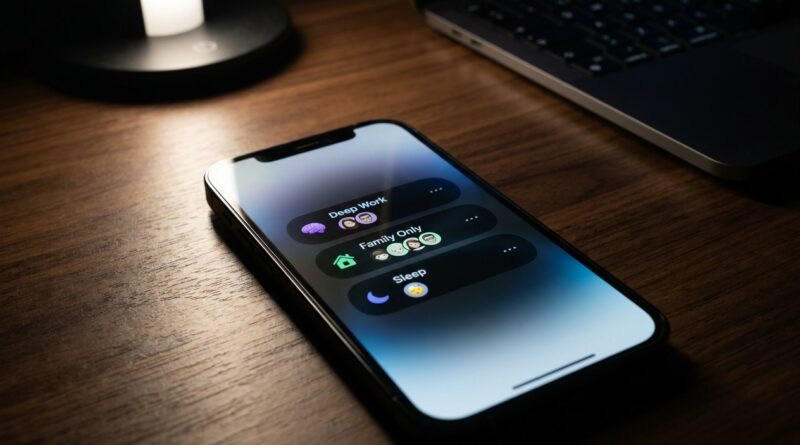
Stop Letting Notifications Rule Your Life: The Hidden ‘Per‑Contact Focus Filters’ Trick iPhone Power Users Use To Control People, Not Just Apps
Your phone is probably not too loud. It is too permissive. That is why muting a few noisy apps never fully fixes the problem. The real interruptions usually come from people. A late-night work text. A chatty family thread. That one group message that somehow wakes up and decides to post 47 replies while you are in a meeting. If your iPhone’s Do Not Disturb feels like it only works halfway, you are not imagining it. The good news is that iPhone per contact Focus notifications are much more powerful than most people realize. Instead of blocking whole apps and hoping for the best, you can tell Focus exactly which people are allowed to reach you in each part of your day. Once you set it up, your phone starts behaving more like a considerate assistant and less like a toddler yanking on your sleeve every ten minutes.
⚡ In a Hurry? Key Takeaways
- iPhone per contact Focus notifications let you allow or silence specific people, not just apps.
- Set up separate Focus modes like Work, Personal, and Sleep, then choose exactly who can message or call in each one.
- You can still allow emergency repeats and key contacts, so this cuts noise without making you unreachable.
Why muting apps is only half the fix
Most people attack notification overload the obvious way. They turn off Instagram alerts. They silence news apps. They trim back games and shopping apps.
That helps. But it does not solve the deeper problem.
Messages and calls often come through Apple’s own apps, which you usually do want to keep. You want texts from your partner. You want calls from your kids’ school. You may even want Slack or Teams during work hours. The trouble is you do not want all of those people all of the time.
That is where Focus finally gets smart. Instead of thinking in terms of apps only, think in terms of people and context.
What “per-contact Focus” really means on iPhone
Apple does not always explain this clearly, so here is the plain-English version.
A Focus mode lets you decide who can contact you and which apps can notify you during a certain situation. That means you can create rules like these:
- During Work, let your boss, spouse, and child’s school through.
- During Personal time, block work contacts but allow family and close friends.
- During Sleep, allow only favorites or repeated calls in case of something urgent.
This is the trick power users rely on. They do not just switch on Do Not Disturb. They build small, purpose-based filters that match real life.
How to set up iPhone per contact Focus notifications
Step 1: Go to Focus settings
Open Settings, then tap Focus.
You will see built-in options like Do Not Disturb, Personal, Sleep, and Work. You can also tap the + button to make your own custom Focus.
Step 2: Pick a Focus mode that matches a real situation
Do not overcomplicate this at first. Start with one mode that solves your biggest pain point.
Good starter choices:
- Work if family and social chats interrupt your day
- Personal if work contacts keep buzzing after hours
- Sleep if late-night messages are the main problem
Step 3: Set allowed or silenced people
Inside the Focus mode, tap People. This is the important part.
You will usually see two approaches:
- Allow Notifications From, which means only selected people get through
- Silence Notifications From, which means everyone gets through except selected people
For most people, Allow Notifications From is the safer and cleaner choice. It is easier to trust a short VIP list than to remember every person you meant to block.
Add the contacts you want. For example:
- Work Focus: manager, key coworkers, spouse, school
- Personal Focus: family, close friends
- Sleep Focus: partner, children, emergency contacts
Step 4: Decide who can call
Still in the People section, look for the calling option. You can often choose calls from:
- Everyone
- No One
- Favorites
- Allowed People Only
If you want peace without risk, Favorites or Allowed People Only is usually the sweet spot.
Also look for Allow Repeated Calls. If someone calls twice within a short period, that can be a sign it is urgent. Many people leave this on for Sleep but off for Work.
The best real-world Focus setups
For work hours
If personal group chats blow up while you are trying to concentrate, set a Work Focus that allows only essential family and job-related contacts.
That means your partner can still reach you, but your cousins debating dinner plans in a 14-person thread cannot.
For evenings
This is where many people win back their sanity.
Create a Personal Focus that blocks work contacts after hours. You do not need to mute Mail, Slack, Teams, and Messages one by one if the real issue is a handful of people who keep sending “quick questions” at 9:47 p.m.
For sleep
Sleep Focus should be brutally simple. Let in only the people you would genuinely want waking you up.
If that list is more than a few names, it is probably too big.
Do not forget app rules too
People filters are powerful, but app filters still matter. A clean setup usually uses both.
For example, in Work Focus you might allow calls from family and your boss, while also blocking social apps entirely. In Personal Focus you might silence work apps and let only personal contacts through.
If you like getting more control over what your iPhone does behind the scenes, this pairs nicely with Stop Letting Apps Eat Your Data: The Hidden ‘Per‑App Cellular Controls’ Trick iPhone Power Users Use To Stay Fast Without Blowing Their Plan. It is the same basic idea. Stop treating the phone like one giant on-off switch, and start controlling it piece by piece.
Automation is what makes this stick
The biggest mistake people make is setting up Focus, then forgetting to use it.
Do not rely on memory. Automate it.
Use schedules
Inside each Focus mode, you can set a time-based schedule. For example:
- Work Focus from 9 a.m. to 5 p.m.
- Personal Focus from 6 p.m. to 10 p.m.
- Sleep Focus from 11 p.m. to 7 a.m.
Use locations
You can also trigger a Focus by place. Work Focus can start when you arrive at the office. Personal can start when you get home.
Use apps as triggers
Some people tie Focus to opening certain apps. That can be useful if one app always means a shift in mode, though time and location are easier for most people.
Common mistakes that make Focus feel broken
Too many allowed contacts
If you let 25 people through, Focus will not feel very focused. Be strict.
Forgetting group chats
Group threads can still be messy because the messages come through the Messages app, but the people in the thread matter too. If those people are not on your allowed list, the thread should stay quiet during that Focus.
Using only Do Not Disturb
Do Not Disturb is the blunt tool. Custom Focus modes are the scalpel.
Not checking Favorites
If your call settings are based on Favorites, make sure your Favorites list in the Phone app is actually current. Old entries can create odd exceptions.
How to test your setup without waiting for chaos
Once you finish, test it right away.
- Turn on the Focus manually
- Ask an allowed contact to text or call you
- Ask a non-allowed contact to do the same
- Check whether repeated calls behave the way you expect
A two-minute test is much better than finding out during a meeting that your college group chat still has full access to your attention.
When to use “Silence Notifications From” instead
This option can be handy if almost everyone should be able to reach you except a few specific people or categories.
For example, maybe during family time you want nearly all personal contacts to come through, but not your work team. In that case, silencing a few work contacts may be easier than building a large allowed list.
Still, for most readers, an allowed list is simpler, safer, and less surprising.
At a Glance: Comparison
| Feature/Aspect | Details | Verdict |
|---|---|---|
| Per-contact Focus control | Lets you allow or silence specific people for calls and messages within each Focus mode. | Best way to stop the wrong people from breaking through. |
| App-only muting | Turns off notifications from noisy apps, but does not solve interruptions from messages and calls. | Helpful, but incomplete on its own. |
| Automated Focus schedules | Starts Work, Personal, or Sleep Focus by time, place, or app so you do not have to remember. | The key to making the system actually work every day. |
Conclusion
If your iPhone still feels intrusive even after you have muted half your apps, the missing piece is probably people. iOS has quietly turned Focus into a much deeper control panel than most users realize, and the smartest move is to stop using it like a simple Do Not Disturb switch. Tight per-contact Focus filters let you cut the noise, protect your time, and still keep the door open for the calls and messages that truly matter. That is why this helps right now. In a world where everyone can reach you instantly, deciding exactly who gets through is one of the most useful iPhone upgrades you can make in five minutes.