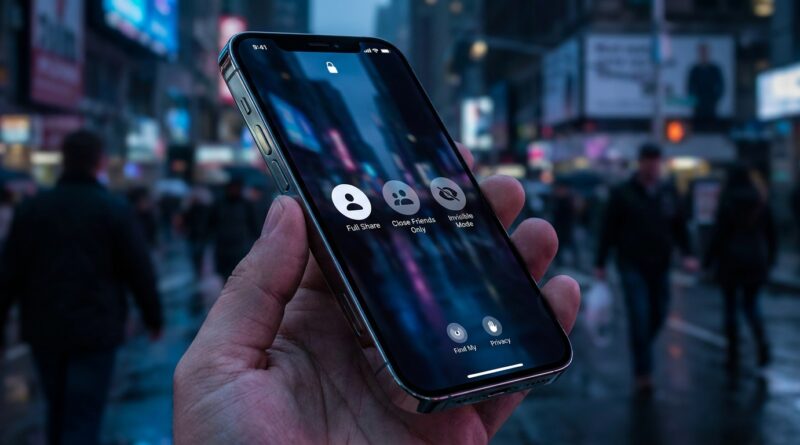
Stop Letting People Track Your Every Move: The Hidden ‘Stealth Location Profiles’ Trick iPhone Power Users Use To Disappear On Demand
If you share your location with people you care about, you already know the trap. It starts as convenience. “Text me when you get home” turns into “Why were you across town at 9:14?” Pretty soon, your iPhone feels less like a phone and more like a polite little ankle monitor. And if you simply stop sharing, Apple often makes that very obvious, which can create exactly the drama you were trying to avoid. The good news is there are smarter options. If you’ve been searching for how to hide location on iPhone without notifying them, the real answer is not one magic switch. It’s a mix of Find My settings, Safety Check controls, and a few clever automations that give you breathing room without blowing up your whole sharing setup. Once you set these up, you can go off-grid for a while, on your terms, with a lot less stress.
⚡ In a Hurry? Key Takeaways
- The least dramatic way to hide your location on iPhone is usually to change which device shares your location, instead of just turning sharing off.
- You can build simple “stealth” routines with Focus modes, Shortcuts, and location settings for date nights, after work, or solo time.
- If you’re worried about safety or controlling behavior, use Apple’s Safety Check first. Privacy should not put you at risk.
The truth about hiding your location on iPhone
Let’s clear up the big misunderstanding first. There is no perfect Hollywood-style invisibility cloak built into iPhone. Apple gives you privacy tools, but some choices are more noticeable than others.
If you open Find My and stop sharing with someone, they may notice. If they check your profile, they can see that location is no longer being shared. That is why the usual advice, “just turn it off,” is not always useful in real life.
The more subtle trick that power users rely on is changing what device shares your location. Apple lets your location come from one Apple device tied to your account. If you have an iPad, another iPhone, or even an older device left in a safe place, you can make that device the one that reports your location instead of the phone in your pocket.
That is the closest thing to a stealth location profile most people can use.
How to hide location on iPhone without notifying them
Method 1: Change the device that shares your location
This is the trick most people never think to use.
- On the spare Apple device you want to use, sign in to the same Apple Account.
- Open Settings.
- Tap your name at the top.
- Tap Find My.
- Tap Use This [device] as My Location.
Now Find My will report that device’s location, not the iPhone you’re carrying.
Why this matters: your contacts still see a location. Sharing does not suddenly disappear. It just points to the chosen Apple device.
Best use case: leaving an iPad at home, at the office, or somewhere you normally are, while your actual phone goes with you.
Important note: this only works if you own another Apple device. Also, use this responsibly. If someone depends on your real-time location for safety, think twice.
Method 2: Turn off “Share My Location” completely
This is the blunt option.
- Open Settings.
- Tap your name.
- Tap Find My.
- Turn off Share My Location.
You can also do it in the Find My app:
- Open Find My.
- Tap the Me tab.
- Turn off Share My Location.
This works, but it is the most noticeable option. Good for a clean break. Not great if your goal is low drama.
Method 3: Stop sharing with one person
If the issue is one specific person, be surgical.
- Open Find My.
- Tap the People tab.
- Select the person.
- Tap Stop Sharing My Location.
Again, they may notice if they look. But this is better than shutting off everyone at once.
Method 4: Airplane Mode or turning off location services
Yes, these can interrupt location updates. No, they are not elegant.
Airplane Mode cuts off connections. Turning off Location Services can break maps, weather, camera tagging, ride-share apps, and more. It also tends to look suspicious if someone expects your phone to behave normally.
I’d treat these as backup moves, not your main strategy.
Build your own “stealth location profiles”
Here’s where this gets useful. Instead of thinking about one setting, think in profiles. A profile is just a repeatable setup for a situation.
You are not changing your entire digital life. You are creating modes for specific moments.
Profile 1: “Leaving work” privacy mode
Let’s say you want two quiet hours after work without questions about every stop you make.
Your setup could look like this:
- Your iPad at home is set as your shared location device.
- A Personal Focus mode called Off Grid turns on at 5:30 PM.
- That Focus hides notification previews and silences non-urgent contacts.
- An auto-reply can be enabled for certain people if you want a softer boundary.
To build the Focus mode:
- Open Settings.
- Tap Focus.
- Tap the + button.
- Create a custom Focus, like Off Grid.
- Choose which people and apps can still reach you.
- Add a schedule based on time or location.
This does not hide location by itself. It supports the bigger plan by making your phone feel quieter and less reactive.
Profile 2: Date night mode
This one is simple and smart.
- Set a second Apple device as your location source before you leave.
- Create a Focus mode for a few hours.
- Turn off message previews on the Lock Screen.
- Optional: disable “Share ETA” habits in Maps if you use them a lot.
The point is not secrecy for the sake of secrecy. It is getting a little room to exist without your whereabouts becoming a live group project.
Profile 3: Solo errand mode
Maybe you just want to run errands, clear your head, or shop for a surprise gift without a trail.
Use a location-based automation in the Shortcuts app to turn on a Focus mode when you leave a certain place, or during a set block of time every weekend.
- Open Shortcuts.
- Tap Automation.
- Tap New Automation.
- Choose Time of Day or Arrive/Leave.
- Select Set Focus.
- Choose your custom Focus.
Think of this as a privacy routine, not a spy trick.
Use Safety Check if this is bigger than privacy
This part matters.
If someone is using location sharing to monitor, pressure, or control you, this is no longer just about convenience. Apple built Safety Check for exactly these situations.
- Open Settings.
- Tap Privacy & Security.
- Tap Safety Check.
You’ll see tools like:
- Emergency Reset, which quickly stops sharing with all people and apps.
- Manage Sharing & Access, which lets you review who can see what.
If you are in a difficult relationship, plan carefully before changing settings. Privacy moves can be noticed. Your safety comes first.
What changed in recent iPhone updates
Apple has been quietly making location and safety settings easier to review, but also more layered. That is why many people feel confused. The controls are there. They are just spread across Find My, Privacy & Security, Focus, and Shortcuts.
That’s also why basic tips from bigger tech sites often feel incomplete. They usually stop at “turn off location sharing.” Real life is messier than that.
The better approach is to mix tools. One controls what others see. Another controls who can reach you. Another helps it happen automatically so you do not have to remember every single time.
What not to do
Don’t rely on one dramatic switch
If you only flip off location sharing in the heat of the moment, you may get the result you want, but not the conversation that follows.
Don’t forget other apps
Find My is only part of the story. Google Maps, Life360, Snapchat, and even tagged photos can give away more than you intended.
Check app permissions in:
- Settings
- Privacy & Security
- Location Services
Review which apps have Always access. Many do not need it.
Don’t confuse privacy with total invisibility
Your phone can still leave clues. Shared calendars, photo metadata, Bluetooth devices, car systems, and smart home routines all add little breadcrumbs.
Privacy is about reducing the trail, not pretending the trail never exists.
A simple setup most people can do tonight
If you want the practical version, here’s the easiest strong setup:
- Choose a spare Apple device and set it as your shared location source.
- Create a custom Focus mode called Private Time.
- Set that Focus to turn on automatically when you leave work or at a certain evening hour.
- Review Find My and Safety Check so you know exactly who has access.
- Check other location-hungry apps and cut back their permissions.
That gives you a profile you can trust and repeat.
At a Glance: Comparison
| Feature/Aspect | Details | Verdict |
|---|---|---|
| Change shared location device | Uses another Apple device on your account as the location source, while your main iPhone goes with you | Best low-drama option if you own a second Apple device |
| Turn off Share My Location | Stops Find My location sharing entirely for everyone or selected people | Effective, but easiest for others to notice |
| Focus and Shortcuts automations | Creates repeatable privacy routines based on time or place, but does not hide location by itself | Great support tool for one-tap privacy profiles |
Conclusion
You do not have to choose between total surveillance and setting off alarms by turning everything off. That middle ground is where the smart iPhone setup lives. Location privacy is having a moment right now because Apple quietly changed how these controls work, and most people still are not using them like a pro. Once you combine Find My’s device-based sharing trick, Safety Check, and a few time or place-based automations, your iPhone starts working for you again, not for everyone watching the map. The win here is simple. More control. Less friction. And a little breathing room tonight, whether you’re leaving work, heading out on a date, or just taking a few hours for yourself. That is the kind of feature most people already own, but only a few are actually using.