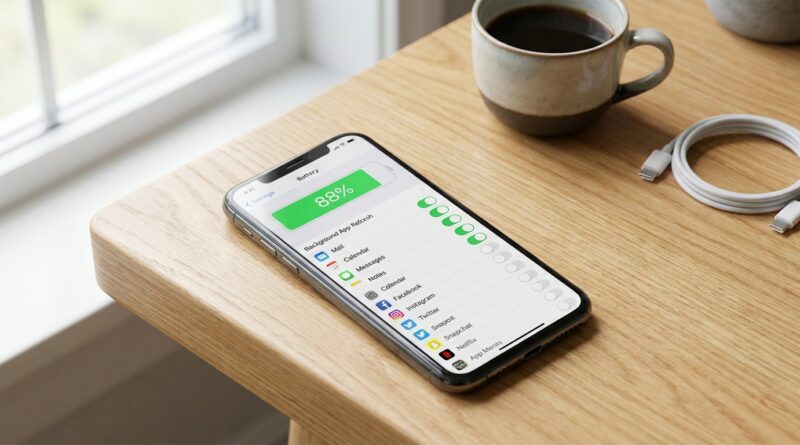
Stop Letting Background Apps Steal Your Battery: The Hidden ‘Smart Refresh Zones’ Trick iPhone Power Users Use To Run All Day On One Charge
You are not crazy if your iPhone drops from 100 percent to something depressing before lunch. It happens all the time, and the annoying part is that the battery hog is often not the app you are using. It is the app you are not using. Quietly, in the background, some apps keep checking for updates, syncing photos, fetching messages, refreshing feeds, and using mobile data when you did not ask them to. That is where the “smart refresh zones” trick comes in. Instead of turning everything off and making your phone feel broken, you sort apps into groups. Keep background refresh on for the few that truly matter, limit it for the ones you use sometimes, and shut it off for the rest. Once you know where to look in Battery and Cellular settings, the mystery goes away fast, and your iPhone usually lasts a lot longer on one charge.
⚡ In a Hurry? Key Takeaways
- Background App Refresh can absolutely contribute to iPhone background app refresh battery drain, especially for social, shopping, news, and cloud-heavy apps.
- Use a simple three-zone system. Keep refresh on only for essential apps, limit it for occasional apps, and turn it off for everything else.
- You are not deleting anything. These changes are safe, easy to reverse, and can also cut surprise cellular data usage.
What “Smart Refresh Zones” Actually Means
This is just a simple way to stop treating every app the same.
Most people open Settings, see “Background App Refresh,” and either leave everything on or switch everything off. Neither approach is ideal. If you shut it all off, some apps become less convenient. If you leave it all on, your phone keeps doing chores for apps you barely open.
A better approach is to create three mental zones.
Zone 1: Keep On
These are apps that genuinely help when they stay up to date in the background. Think messaging apps, navigation, calendar, rideshare, or a work app you rely on daily.
Zone 2: Maybe
These are apps you use often enough to care about, but not enough to let them nibble at battery all day. News apps, note apps, cloud storage, and some retailer apps often land here.
Zone 3: Turn Off
This is the big one. Social media apps you open manually anyway. Shopping apps you use twice a month. Travel apps from your last trip. Food delivery apps you forgot were installed. Games. Most of these do not need to refresh behind the scenes.
First, Find the Real Battery Culprits
Before changing anything, spend two minutes checking what your iPhone is already telling you.
How to check battery usage
Go to Settings > Battery.
Scroll down to the app list. You will see which apps used the most battery over the last 24 hours and the last 10 days. Tap Show Activity if available. This is where the clue often appears. If an app shows a lot of Background Activity, that app deserves a closer look.
You are looking for patterns like these:
- An app you barely use sitting near the top of the battery list
- Heavy “Background Activity” for social, shopping, or media apps
- Battery drain right after an iOS update, especially in the first day or two
That last one matters. Right after a major iOS update, your iPhone may do extra indexing, photo analysis, search cleanup, and other housekeeping. Battery life can look worse for a little while. If the drain continues after a couple of days, then it is time to start trimming background refresh.
How to check mobile data use too
Go to Settings > Cellular, or Mobile Service on some models.
Scroll down and look at the per-app cellular data list. This is the second half of the puzzle. A background-happy app often uses both battery and data. If an app is quietly eating gigabytes and you do not remember opening it much, that is a strong sign it belongs in Zone 3.
How to Set Up Your Refresh Zones
Now go to Settings > General > Background App Refresh.
At the top, you will see three choices:
- Off
- Wi-Fi
- Wi-Fi & Cellular Data
For most people, Wi-Fi is the sweet spot. It lets apps refresh when you are on home or office Wi-Fi but avoids extra cellular drain when you are out and about.
Then go app by app.
Best bets for Zone 1
Keep Background App Refresh on for:
- Messaging apps you use all day
- Calendar or reminders apps tied to work or family
- Navigation or transit apps if you depend on them often
- Essential smart home or security apps
Best bets for Zone 2
Use your judgment for:
- News apps
- Cloud note apps
- Some email apps if you do not need instant updates
- Podcast or music apps that can refresh later when opened
Best bets for Zone 3
Turn it off for:
- Most social media apps
- Shopping apps
- Food delivery apps
- Airline, hotel, and event apps you use occasionally
- Games
- Apps you forgot you even had
This is the hidden trick power users rely on. Not a single giant switch. A deliberate app-by-app plan.
What Changes After You Turn It Off?
Usually, not much.
The app still works. It still opens. It still updates when you launch it. It just stops doing as much work while sitting in the background.
That means:
- Social feeds may load when you open them instead of being preloaded
- Shopping apps may not push fresh recommendations as often
- Some apps may feel one second slower to catch up
For most people, that tiny delay is worth it. You trade a barely noticeable pause for noticeably better battery life.
Do This Too if Overnight Drain Is Bad
If your battery seems to fall hardest while you are asleep, background refresh may only be part of the problem.
That is where this related guide can help: Stop Letting Background Apps Eat Your Battery: The Hidden ‘Smart Background Freeze’ Trick iPhone Power Users Use To Kill Overnight Drain. It pairs nicely with the refresh zone method because one tackles daytime background churn, while the other helps with those weird overnight battery drops.
Extra Checks That Can Save Even More Battery
If you want to go one step further, these settings are worth checking too.
Mail fetch settings
Go to Settings > Apps > Mail > Mail Accounts > Fetch New Data.
If your email is set to fetch constantly for accounts that do not need it, changing to less frequent fetches can help.
Location access
Go to Settings > Privacy & Security > Location Services.
Apps that are set to Always track location can quietly drain battery. Many can be changed to While Using the App.
Photos and cloud sync
If you just updated iOS or restored your phone, Photos may be doing heavy background work for a while. That can settle on its own. If it does not, check whether iCloud Photos or another backup app is constantly syncing large files over cellular.
Low Power Mode
When you really need to stretch your battery, Settings > Battery > Low Power Mode can temporarily reduce background activity even more. Think of it as a short-term rescue, not your everyday fix.
When Battery Drain Is Normal, and When It Is Not
A few situations can make your iPhone seem worse than it really is.
- The first 24 to 72 hours after an iOS update
- The first day after restoring from backup
- Heavy setup days with lots of app installs and photo syncing
- Poor signal areas, where your phone works harder to stay connected
But if the battery graph still looks like a ski slope after that, background activity is a very likely suspect.
A Simple 5-Minute Fix Plan
If you do not want to overthink this, start here:
- Open Settings > Battery and note your top five battery users.
- Open Settings > Cellular and spot any apps using surprising amounts of data.
- Set Background App Refresh to Wi-Fi.
- Turn off refresh for social, shopping, travel, food delivery, and game apps.
- Leave it on only for apps that truly save you time by staying current.
Then use your phone normally for a day or two. Most people see a difference pretty quickly.
At a Glance: Comparison
| Feature/Aspect | Details | Verdict |
|---|---|---|
| Background App Refresh set to Wi-Fi | Apps can still refresh on Wi-Fi, but not as freely over cellular data. | Best default choice for most people |
| App-by-app refresh control | Lets you keep essential apps current while shutting off battery hogs you barely use. | Most effective long-term fix |
| Turning everything off | Saves power, but can make some apps slower or less useful until opened manually. | Good for extreme battery saving, but not ideal for everyone |
Conclusion
If your iPhone battery keeps disappearing for no obvious reason, do not guess. Check the Battery screen, check the Cellular screen, and build your own smart refresh zones. Battery drain and random data spikes are two of the biggest complaints hitting iPhone forums right now, especially with newer iOS builds doing heavier background indexing and AI tasks in the first few days after an update. The good news is that you do not need to live with it. Once you turn that hidden app-by-app breakdown into a deliberate refresh strategy, you can get longer battery life today, avoid surprise data overages this month, and make your phone feel faster simply because it is no longer wasting power on apps you barely use.