Stop Letting Copy‑Paste Slow You Down: The Hidden ‘On‑Screen Smart Actions’ Trick Power Users Use To Turn Anything You See Into Instant Output
You know the drill. You see a useful quote in Safari, a tracking number in Messages, or a list of ingredients in a photo. Then the app-switching starts. Screenshot, Photos, copy text, open Notes, paste, clean it up, jump again. It sounds tiny, but those little moves pile up fast, and they break your focus every single time. The good news is that iPhone has a much smarter shortcut hiding in plain sight. On newer iOS versions, the screenshot flow can become a universal action button for whatever is on your screen. With the right Shortcut, you can grab text from almost any app, have Apple Intelligence summarize it, turn it into tasks, translate it, or send it to the app you actually need. Once set up, it feels less like copy-paste and more like your phone finally understands what you were trying to do in the first place.
⚡ In a Hurry? Key Takeaways
- You can use the iPhone screenshot interface plus a Shortcut as a universal on-screen smart action tool for text extraction, summaries, translations, and task creation.
- Build one Shortcut that asks what you want to do with the text on screen, then routes it to Notes, Reminders, ChatGPT or Apple Intelligence features, or your app of choice.
- This works best with text-heavy screens and can save real time, but you should still avoid sending sensitive information into third-party AI tools unless you trust where that data goes.
Why this matters more than it sounds
Most people still treat screenshots like frozen pictures. That is the old way.
On newer iPhones, a screenshot can be the front door to text recognition, visual lookup, sharing, markup, and now much smarter Shortcut-based actions. That means the screenshot buttons are no longer just for saving what you saw. They can be your fastest way to act on what you saw.
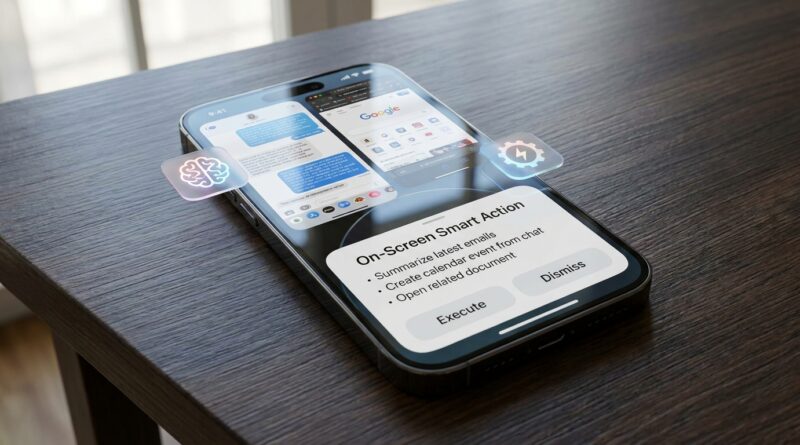
This is the real trick behind the idea of an iOS on screen smart actions Apple Intelligence shortcut setup. You are not building ten separate automations. You are building one reliable path that starts from almost any screen.
What an “On-Screen Smart Action” actually is
Think of it as a universal funnel.
You take a screenshot, extract the text from that screen, then let a Shortcut decide what should happen next. Maybe you want:
- a clean summary of an article
- a to-do list from a chat thread
- a translated version of a menu or email
- phone numbers or tracking codes pulled into Notes
- a quick save to Reminders
Instead of manually copying, pasting, and cleaning everything yourself, the Shortcut does the routing.
Why the screenshot interface is the hidden power move
The screenshot preview in the bottom-left corner is easy to ignore. Most people tap it only to crop something, then forget about it.
But that mini preview gives you a fast way to capture exactly what is on screen, even in apps that make selecting text awkward or impossible. Once the image exists, iPhone can pull text out of it using Live Text or text recognition inside Shortcuts.
That is the whole game. You stop fighting each app’s weird limitations and use the same workflow everywhere.
How to set up one universal Shortcut
What you need
You need an iPhone running a newer version of iOS, the Shortcuts app, and ideally Apple Intelligence features if your device supports them. If not, you can still do a lot with standard Shortcuts actions and third-party apps.
Your goal is simple. Build one Shortcut that does these steps:
- Accept an image from the Share Sheet or screenshot workflow
- Extract text from the image
- Ask what you want to do with that text
- Send it to the right destination
The basic Shortcut flow
Inside Shortcuts, create a new shortcut and use actions along these lines:
- Receive input: Images and screenshots from the Share Sheet
- Extract text from image: Use “Extract Text from Image” or the equivalent OCR action
- Choose from Menu: Summary, Task List, Translate, Save to Notes, Save to Reminders, Copy Clean Text
- Run selected branch: Based on your choice
That menu is what makes this feel smart instead of fiddly.
Useful menu options to add
Start with these. They cover most real-world needs.
- Copy Clean Text: Extract text, remove weird line breaks, copy to clipboard
- Summarize: Send text to Apple Intelligence writing tools or your preferred AI app
- Make Tasks: Ask AI to turn the text into simple action items, then create reminders
- Translate: Send the extracted text into Translate
- Save to Notes: Append the text to a running note called Inbox
- Extract Numbers: Pull out tracking numbers, prices, dates, or phone numbers with a regex or simple formatting step
Three workflows that feel instantly useful
1. Turn a messy chat into a to-do list
This is one of the best examples because group texts are chaos.
Take a screenshot of the conversation. Run your smart action. Choose “Make Tasks.” Your Shortcut extracts the text, sends it to your AI prompt, and returns something like:
- Call the plumber Tuesday
- Send budget draft to Sarah
- Book restaurant for six people
Then push those into Reminders. Done.
If you want a screenshot-specific version of this idea, our guide on Stop Letting Screenshots Be Dumb Pictures: The Hidden ‘Instant Smart Actions’ Trick Power Users Use To Turn Any Screenshot Into A To‑Do List In 5 Seconds goes deeper on that single use case.
2. Turn a dense article into a clean summary
You are reading something long on the web and only need the main points.
Screenshot the key section, run your on-screen smart action, then choose “Summarize.” You can have the Shortcut ask for:
- a 3-bullet summary
- a plain-English explanation
- important dates and names only
This is especially handy when websites make text selection annoying with pop-ups or weird formatting.
3. Turn a foreign-language screen into usable text
Menus, signs, product labels, PDFs, screenshots from travel apps. Same process.
Capture the screen. Extract the text. Choose “Translate.” The result can go straight to the clipboard, Notes, or a share sheet.
That is much faster than bouncing between the original app, Photos, and a translation app one by one.
How to make the Shortcut feel smart, not clunky
Use a menu instead of separate shortcuts
This is the biggest quality-of-life tip.
If you make six different shortcuts, you will forget which one to run. If you make one shortcut with a simple menu, your brain only has to remember one thing.
Clean the text before you do anything else
OCR text often comes in with awkward line breaks. Add a “Replace Text” step or two to tidy it up. Even basic cleanup makes summaries and task extraction much better.
Use an Inbox note
Not every capture needs a perfect home right away. A running note called “Inbox” is enough. You can sort it later.
Add a “Copy and Close” option
Sometimes you just want the text. No AI. No save. No ceremony. That quick exit keeps the Shortcut useful on busy days.
Where Apple Intelligence fits in
Apple is clearly pushing more AI-assisted writing, summarizing, and app actions. The mistake many people make is waiting for some giant all-in-one feature to appear.
You do not need to wait.
The practical move is to connect what already exists. Screenshot capture. Text recognition. Shortcuts. Writing tools. Share Sheet. That mix is enough to build something genuinely useful today.
If your iPhone supports Apple Intelligence, great. Use it for summaries, rewrites, and task extraction. If not, the Shortcut can still pass text into Notes, Reminders, Translate, or a third-party AI tool.
Privacy and common-sense limits
This part matters.
If your Shortcut sends extracted text to a third-party AI app or web service, do not feed it bank details, passwords, medical information, or private work material unless you trust that service and understand its privacy policy.
Also, OCR is not magic. It can misread low-quality screenshots, tiny fonts, or stylized text. Always double-check anything important like dates, addresses, or payment amounts.
Who will get the most out of this
This setup is especially good for:
- students pulling quotes and notes from PDFs or lecture slides
- busy parents turning messages into task lists
- travellers translating signs and booking details
- office workers grabbing data from apps that do not play nicely with copy-paste
- anyone who feels their phone is making simple tasks take too many steps
At a Glance: Comparison
| Feature/Aspect | Details | Verdict |
|---|---|---|
| Speed vs manual copy-paste | One screenshot plus one Shortcut can replace several app switches, text selections, and paste steps. | A real time-saver once the Shortcut is set up. |
| Flexibility | The same Shortcut can summarize, translate, save, extract tasks, or just copy text from nearly any app screen. | Much better than making a separate workflow for every app. |
| Accuracy and privacy | OCR can make mistakes, and third-party AI tools may not be ideal for sensitive content. | Excellent for everyday text, but use judgment for private or critical info. |
Conclusion
The smart part of newer iPhones is not just Apple Intelligence by itself. It is the way Apple quietly turned the screenshot buttons into a front door for smarter actions, and most people still have not noticed. If you set up one universal on-screen smart action Shortcut, your phone stops being a place where you constantly copy and paste between apps and starts acting more like an assistant that can understand what is on the display and move it where it belongs. A messy chat can become a task list. A dense article can become a short summary. A foreign-language screen can become readable text in seconds. That is useful right now, not someday. And in a week when Apple is talking up the next wave of AI-assisted Shortcuts, this is the practical, non-gimmicky way to benefit today without waiting for the usual shallow tip lists to catch up.