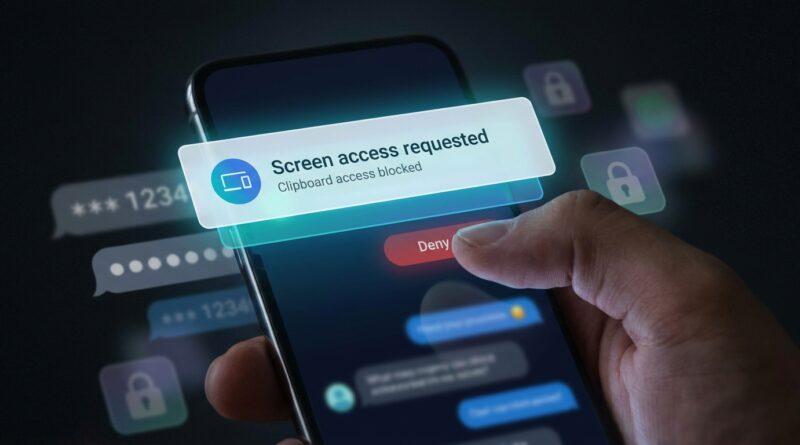
Stop Letting Apps Spy On Your Screen: The Hidden ‘Screen Access Alerts’ Trick iPhone Power Users Use To Catch Data Leaks In Real Time
You can be careful with app permissions and still miss one of the creepiest privacy gaps on your iPhone. That is the moment after something sensitive is already on your screen or copied to your clipboard. Maybe it is a one-time password, your bank balance, a private message, or a search you would rather keep to yourself. If an app or one of its built-in tracking tools peeks at that data, you usually do not get a big warning. That is what makes this so frustrating. Most people think turning off location, camera, and microphone covers the basics. It does not. The good news is Apple has quietly added a few hidden iPhone privacy settings screen and clipboard access alerts that can act like an early warning system. They are not perfect, and Apple buries them deep in Settings, but once you know where to look, you can spot some of the sneakiest behavior in real time and make smarter choices about which apps deserve your trust.
⚡ In a Hurry? Key Takeaways
- iPhone already shows clipboard access alerts, and you can also tighten screen-sharing and app permission settings to catch or limit sneaky data grabs.
- Check Settings for App Privacy Report, clipboard paste permissions, Screen Recording access, and per-app photo and local network permissions.
- These alerts will not stop every kind of tracking, but they give you a practical heads-up when an app starts acting nosy.
The blind spot most iPhone owners never check
When people talk about phone privacy, they usually mean the obvious stuff. Is an app tracking your location? Is it using your microphone? Did you allow camera access six months ago and forget about it?
Those matter. But there is another layer that gets much less attention. It is what happens when sensitive info is already visible on your phone.
Think about the order of events. You open your banking app. You copy an address from a private message. You paste a password from a manager. You read an email with a login code. At that point, the data is right there on the device. If another app checks the clipboard, abuses paste access, or uses aggressive analytics code, your privacy problem starts after the original permission screen is long gone.
That is why hidden iPhone privacy settings screen and clipboard access alerts are worth your time. They are not flashy. They are just useful.
What iPhone can actually alert you about
1. Clipboard access and paste prompts
This is the big one most people have seen without fully realizing what it means.
On modern versions of iOS, your iPhone can show a banner when an app pastes from another app. You might see something like “App X pasted from Messages” or “App Y pasted from Safari.” That is your clue that the app just reached into the clipboard.
Sometimes that is harmless. A note app pasting text you just copied is normal. A shopping app or game checking your clipboard the second it opens is a lot harder to explain away.
Apple also lets you control this more directly now:
- Open Settings
- Scroll down to the app you want to check
- Tap it
- Look for Paste from Other Apps
- Choose Ask, Deny, or Allow
If you set suspicious apps to Ask, you will get a real-time prompt instead of silent access. That is one of the most useful privacy checks on the whole phone.
2. App Privacy Report
This feature is not exactly a pop-up alert, but it is still one of the best buried tools Apple offers.
To turn it on:
- Open Settings
- Tap Privacy & Security
- Scroll down to App Privacy Report
- Turn it on
Once enabled, it logs how often apps access sensitive permissions and which domains they contact in the background.
This matters because a lot of “screen snooping” is tied to analytics and ad tech. The app itself may look innocent, while the real data collection is being done by third-party services it talks to behind the scenes. App Privacy Report will not spell out “this app watched your bank balance,” but it can reveal patterns that deserve a closer look.
3. Screen Recording access
This one is easy to overlook because people think of it as a feature for Zoom calls, tutorials, or tech support.
But screen capture permissions can be powerful. If an app has a reason to record or share your screen, you want to know about it.
Check these areas:
- Settings > Control Center to see whether Screen Recording is easy to trigger
- Settings > Privacy & Security and per-app settings for anything tied to capture, photos, or media access
- Any apps used for meetings, remote help, live streaming, or gameplay broadcasting
If you ever see the red recording indicator at the top of the screen and you did not expect it, stop and check what is running.
4. Photo and local network permissions
These are not “screen alerts” in the strict sense, but they are part of the same bigger problem. Apps often gather context from whatever they can reach.
For example, limited photo access is much safer than full library access. Local network access can also expose more about your devices and behavior than most people realize.
Review them here:
- Settings > Privacy & Security > Photos
- Settings > Privacy & Security > Local Network
If an app does not need broad access, do not give it broad access.
How to turn these into a real early-warning system
The trick power users use is not one magic switch. It is combining a few small controls so suspicious behavior becomes easier to spot.
Step 1. Set unknown apps to “Ask” for paste access
This is the fastest win. Social apps, shopping apps, games, keyboards, and AI tools are all worth checking first. If they need clipboard access, they can ask.
Step 2. Turn on App Privacy Report and leave it running
You do not need to stare at it every day. Just let it collect data. Then, if something feels off, you have a trail to check.
Step 3. Watch for weird timing
Did a clipboard banner appear the moment you opened an app? Did a paste prompt show up when you were not trying to paste anything? That is often the giveaway.
Step 4. Audit apps after installing updates
Apps change. A clean app can become more aggressive after an update, a new ad partner, or an AI feature rollout.
Step 5. Delete first, ask questions later
If an app repeatedly asks for data that makes no sense, remove it. You can always reinstall it later. Most privacy problems are easiest to solve by cutting off the app entirely.
What these alerts can and cannot do
It helps to be realistic here.
These settings are useful because they create friction and visibility. That is a big improvement over silent access. But they are not a perfect anti-spy shield.
What they can do
- Show when an app pastes from the clipboard
- Let you require permission before pasting
- Reveal patterns of permission use and network activity
- Help you catch apps that behave oddly right after opening
What they cannot fully do
- Prove exactly what a third-party SDK did with every piece of visible data
- Stop every kind of fingerprinting or analytics collection
- Explain every technical detail in plain English
Still, partial visibility is much better than none. That is the whole point.
Red flags that should make you suspicious
Not every alert means an app is malicious. But some patterns should absolutely raise an eyebrow.
- An app checks your clipboard every time it opens
- A game or wallpaper app wants paste access for no clear reason
- A shopping app triggers a paste prompt when you are not filling out a form
- An AI app wants broad access to photos, clipboard, and local network all at once
- An app’s privacy report shows lots of background connections to tracking domains
When you see that kind of behavior, trust your gut. If the app’s need is not obvious, the safest move is to restrict access or remove it.
A few smart privacy habits that make these alerts even more useful
The best defense is a mix of settings and habits.
- Use a password manager that auto-fills instead of copying and pasting when possible
- Clear copied sensitive info by copying something harmless afterward
- Limit app permissions to only what is needed
- Review your most-used apps once a month
- Be extra cautious with free apps that depend heavily on ads
That last one matters more than ever. Free apps often make money through data, and on-device behavior is becoming a richer source of clues about you.
Why this matters more now than it did a few years ago
The privacy conversation has shifted. People finally know to ask about location tracking and cross-app tracking. That is good progress.
But ad tech, analytics kits, and AI features are moving fast. More tools now try to be “helpful” by reading context, predicting what you want, or pulling in whatever they can access. Sometimes that convenience is real. Sometimes it is just a polite label for collecting more data.
That is why hidden iPhone privacy settings screen and clipboard access alerts deserve more attention. They give ordinary users a way to notice what used to happen quietly.
At a Glance: Comparison
| Feature/Aspect | Details | Verdict |
|---|---|---|
| Clipboard paste alerts | Shows when an app pastes from another app, and many apps can be set to Ask, Deny, or Allow. | Best first setting to check. Fast, simple, and surprisingly revealing. |
| App Privacy Report | Logs permission access and network contacts over time. | Great for spotting patterns, though it takes a little patience to interpret. |
| Screen and related access controls | Includes screen recording awareness plus tighter control over photos and nearby network access. | Helpful backup protection. Not as direct as clipboard alerts, but still worth reviewing. |
Conclusion
If you want one easy privacy upgrade today, start with paste permissions and App Privacy Report. They will not catch every trick, but they shine a light on a part of iPhone privacy most people never even knew existed. That is what makes them so valuable. Tracking and carrier privacy are finally getting mainstream coverage, but almost nobody is talking about the new wave of on-device snooping that happens after data is already on your screen or clipboard. Right now ad tech, AI features, and analytics kits are racing to scoop up anything they can see, and most users have zero visibility into when it happens. These buried iPhone settings give you that visibility back. Flip them on, watch for strange behavior, and treat them like an early warning system. It is one of those rare cases where the useful feature is already on your phone. You just have to go three menus deep and actually use it.