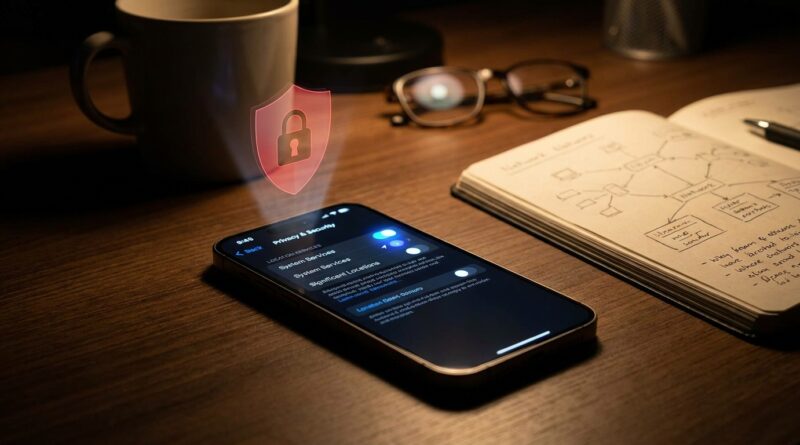
Stop Letting Your iPhone Leak Clues About You: The Hidden ‘Network Location Fence’ Trick Power Users Use To Block Carrier Tracking
You can lock down app location permissions all day and still leave a big privacy hole open. That is the annoying part. Your iPhone does not just share clues through Maps, Instagram, or weather apps. It also talks to your carrier all the time so it can stay connected, and that background chatter can reveal a lot about where you live, work, and travel. No, there is not a magic switch that makes you invisible to your carrier. If your phone uses the mobile network, the carrier will always know some location data. But there is a useful “network location fence” setup that power users use to cut down extra tracking without wrecking everyday stuff like navigation, banking, or ride-sharing. The trick is not one setting. It is a small group of iPhone toggles that limits when your phone reaches for cellular data, precise location, Wi-Fi discovery, and analytics in ways that create a cleaner privacy boundary.
⚡ In a Hurry? Key Takeaways
- Your carrier cannot be fully blocked from seeing basic location while cellular service is on, but you can sharply reduce extra clues your iPhone gives off.
- The best setup is to limit Precise Location, lock down system location services, reduce cellular background use, and use Wi-Fi Calling when possible.
- This does not break normal life if you do it carefully. Maps, banking, and ride apps can still work with a few exceptions you choose on purpose.
What “carrier tracking” actually means on an iPhone
Let’s clear up the biggest misunderstanding first.
If your iPhone is connected to a mobile network, your carrier knows the phone is in range of certain cell towers. That is how the network works. So if someone promises a hidden iOS setting that fully stops carrier tracking, that is not real.
What you can do is reduce the number of extra signals that help build a more detailed movement profile. Think of it like this. Your carrier already sees the highway. You are trying to stop handing over the side streets, driveway, and parking spot too.
That is what I mean by a network location fence. You create a tighter boundary around when your iPhone uses precise location, background cellular traffic, Wi-Fi scanning, Bluetooth discovery, and unnecessary analytics.
The hidden iOS settings that actually move the needle
1. Turn off Precise Location for apps that do not need your exact spot
Go to Settings > Privacy & Security > Location Services.
Tap through your apps one by one. For each app, ask a simple question. Does this app truly need my exact location, or just a rough area?
For many apps, turn Precise Location off. Good candidates include:
- Shopping apps
- Food delivery apps you do not use often
- Store loyalty apps
- Social media apps
- Travel apps when not traveling
Keep Precise Location on only for apps where it genuinely matters, such as:
- Maps
- Ride-sharing
- Find My
- Emergency-related tools
This does not directly stop the carrier from seeing tower-level location. It does stop a lot of app activity from adding much sharper coordinates to the overall picture.
2. Clean up System Services, this is where many people forget to look
Still in Location Services, scroll to the bottom and tap System Services.
This screen is packed with little toggles most people never touch. Some are useful. Some are just not worth the privacy tradeoff.
For a practical privacy-first setup, consider turning off these items unless you know you need them:
- Location-Based Apple Ads
- Location-Based Suggestions
- iPhone Analytics
- Routing & Traffic, if you do not rely on Apple Maps traffic features often
- Improve Maps
- Significant Locations, more on this in a second
Usually keep on these items:
- Emergency Calls & SOS
- Find My iPhone
- Network & Wireless, unless you are willing to accept possible connectivity quirks
- Setting Time Zone, if you travel
This is where the phrase stop iphone carrier tracking hidden ios setting gets a little misleading. It is not one magic switch. It is this cluster of lesser-known controls that together cuts down your device’s location exhaust.
3. Turn off Significant Locations if you do not want your iPhone building a history
Go to Settings > Privacy & Security > Location Services > System Services > Significant Locations.
This feature helps your iPhone learn places that matter to you. Home. Work. Places you visit often. Apple says this data is end-to-end encrypted, which is good. But a lot of people simply do not want their phone maintaining that kind of pattern history.
If that bothers you, switch it off and clear the history already stored.
Will this stop your carrier from knowing what tower you hit? No. But it removes one more layer of detailed behavior mapping from your personal device.
4. Limit background cellular use, this is the real “fence” move
Go to Settings > Cellular.
Scroll through the long list of apps using cellular data. Be ruthless here.
Turn off cellular access for apps that do not need to talk when you are away from Wi-Fi, especially:
- Retail apps
- Streaming apps you only use at home
- Smart home companion apps you rarely open on the go
- Games
- Random utilities and coupon apps
Then go to Settings > General > Background App Refresh. Set it to Wi-Fi or turn it off for non-essential apps.
This matters more than many people realize. A lot of passive data profiling comes from background check-ins over cellular. Less chatter means fewer opportunities to correlate your movement, habits, and timing.
5. Use Wi-Fi Calling when you can
If your carrier supports it, turn on Wi-Fi Calling under Settings > Phone > Wi-Fi Calling.
At home or work, where you are already on trusted Wi-Fi, this can reduce how much voice traffic depends on the cellular network. It is not a total location shield. Your carrier is still your carrier. But it can reduce reliance on mobile network activity in places where you spend a lot of time.
That is part of the fence idea. At regular locations, use stable Wi-Fi for more of your communication, and save cellular for when you really need it.
6. Turn off Wi-Fi and Bluetooth auto-scanning when you are not using them
This one surprises people.
Even when you are not actively joining a network or pairing headphones, Wi-Fi and Bluetooth behavior can help devices figure out what is nearby. That is not just about carriers. It is part of the broader location puzzle.
Check these settings:
- Settings > Privacy & Security > Location Services > System Services > Networking & Wireless
- Settings > Wi-Fi
- Settings > Bluetooth
If you do not need Bluetooth on, turn it off. If you are out and not using Wi-Fi, you can also switch Wi-Fi off from Settings. Not just Control Center, since Control Center often only disconnects temporarily.
This is less about the carrier directly and more about stopping your phone from constantly helping other systems infer where you are.
The practical “power configuration” I recommend
If you want a balanced setup that protects privacy without making your phone miserable to use, start here:
- Leave Location Services on globally
- Set most apps to While Using the App
- Turn Precise Location off for everything except Maps, ride-sharing, Find My, and a few essentials
- Turn off Location-Based Apple Ads, Location-Based Suggestions, Improve Maps, and iPhone Analytics
- Turn off Significant Locations if you do not want location history patterns stored
- Set Background App Refresh to Wi-Fi
- Disable cellular data for apps that do not need it
- Turn on Wi-Fi Calling
- Use Low Data Mode on cellular if you want an extra reduction in background traffic
To use Low Data Mode, go to Settings > Cellular > Cellular Data Options.
This is one of the most underrated privacy moves because it quietly discourages background network behavior.
What not to turn off unless you enjoy headaches
There is always that temptation to go full scorched earth. I get it. But some settings create more trouble than privacy benefit.
Be careful before disabling:
- Emergency Calls & SOS
- Find My iPhone
- Network & Wireless if you depend on smooth connectivity
- Precise Location for Maps or ride-sharing
- Cellular data for banking apps that use fraud checks based on network context
The goal is not to make your iPhone dumb. The goal is to make it stop oversharing.
What this setup can and cannot do
What it can do
- Reduce extra location clues from apps and system features
- Cut back unnecessary background cellular traffic
- Limit the amount of fine-grained behavior your phone creates
- Make your privacy settings feel intentional instead of random
What it cannot do
- Hide your phone from your carrier while cellular service is active
- Stop emergency network requirements
- Make you anonymous if you still use location-heavy apps carelessly
If you want stronger protection beyond tracking concerns, it is also worth reading Stop Thinking Your iPhone Is ‘Unhackable’: The Hidden Lockdown Mode Tweaks Power Users Turn On Before It’s Too Late. Privacy and security overlap a lot more than people think.
A quick test after you change the settings
Once you finish, do a real-world check:
- Open Maps and start a route
- Open your bank app on cellular
- Request a ride if you use Uber or Lyft
- Place a call on Wi-Fi at home
- Check if important notifications still arrive on time
If something breaks, do not undo everything. Just restore access for that specific app or feature. That is the beauty of this setup. It is adjustable.
At a Glance: Comparison
| Feature/Aspect | Details | Verdict |
|---|---|---|
| Precise Location controls | Lets you keep app location working while withholding exact coordinates from non-essential apps. | High impact, low hassle |
| System Services cleanup | Turns off Apple ad, suggestion, analytics, and history features that add more location context than most people need. | Best hidden privacy win |
| Cellular background limits | Cuts down passive app check-ins over mobile data without hurting core apps if done selectively. | Most effective “network fence” step |
Conclusion
Privacy is about to become the new battery life problem. Everybody suddenly cares, but very few people know which settings actually make a difference. The usual advice to just turn off Location Services is too blunt, and honestly, not very helpful if you still need your iPhone to function like an iPhone. A better move is to build a smart boundary. Limit precise location. Trim back System Services. Stop non-essential apps from using cellular in the background. Use Wi-Fi Calling where it makes sense. That is the recipe. It takes one sitting, not a weekend of paranoia, and it gives you a much cleaner setup without breaking maps, banking, or ride apps. That is the kind of practical privacy fix worth caring about, because vague fear is useless. A precise settings plan is not.