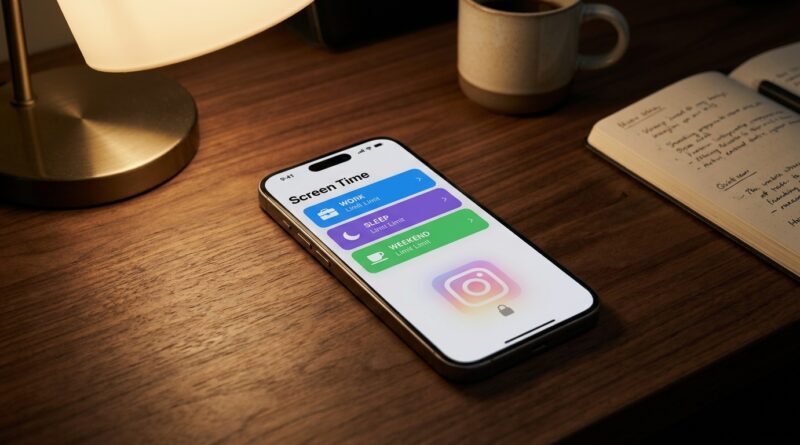
Stop Letting Screen Time Be A Lie: The Hidden ‘Per‑App Time Limits By Context’ Trick iPhone Power Users Use To Actually Change Habits
You are not lazy. Screen Time just defaults to a setup that is easy to ignore. That is why so many people set a daily limit for Instagram, TikTok or YouTube, hit it before lunch, tap “Ignore for Today,” and go right back to scrolling. The tool is not useless, but the basic version is too blunt. Real life is messier than “one app, one limit, every day.” Maybe you need social apps open a little on your iPad at night, barely at all on your work phone, and not one bit after midnight when your brain is already fried. The trick power users use is to stop treating Screen Time like a simple timer and start treating it like a set of rules. Once you combine App Limits, Focus modes, downtime windows and device-specific settings, the same app can behave very differently depending on where you are, what time it is and what you are trying to do.
⚡ In a Hurry? Key Takeaways
- To use iPhone Screen Time app limits like a power user, mix App Limits with Focus modes, Downtime and per-device settings instead of relying on one daily cap.
- Turn off “Share Across Devices” if you want stricter rules on one iPhone but looser ones on your iPad or another Apple device.
- The goal is not perfect self-control. It is adding enough friction that you stop opening apps on autopilot.
Why the normal App Limit setup fails so often
The usual advice sounds good. Pick Instagram. Set one hour. Done.
But that setup assumes every minute on that app is equally bad. It is not. Checking one message at 9 a.m. is different from falling into Reels at 11:45 p.m. when you should be asleep.
It also assumes you use every Apple device the same way. Most people do not. A work iPhone, personal iPhone and iPad often play very different roles.
So when people say Screen Time “doesn’t work,” what they usually mean is this: it tracks behavior, but it does not shape behavior in a way that matches real life.
The hidden trick: build rules by context, not just by app
If you want to know how to use iPhone Screen Time app limits like a power user, this is the big mindset shift. Stop asking, “How many minutes should I allow?” Start asking these questions instead:
- What app causes the most accidental overuse?
- At what time of day am I most likely to lose control?
- Which device should be strict, and which one can be flexible?
- Do I need to block the full app, or just make it annoying enough to stop reflex tapping?
That is what “by context” really means. Time, device and situation.
Your 10-minute setup
Step 1: Decide which device should be strict
Go to Settings > Screen Time.
Scroll down and check whether Share Across Devices is on.
If it is on, your app usage and many limits can affect your other Apple devices signed into the same Apple Account. That sounds neat, but it is often what makes Screen Time feel clumsy.
If you want Instagram to be heavily restricted on your iPhone but more relaxed on your iPad, turn Share Across Devices off.
This is the first real power-user move. It gives each device its own job.
- Work iPhone: strict
- Personal iPhone: moderate
- iPad: flexible, maybe evening-only
Step 2: Set App Limits for the problem apps
In Settings > Screen Time > App Limits, tap Add Limit.
Pick individual apps, not just broad categories, whenever possible. Categories are easy to set, but they can be too broad. If your problem is Instagram, limit Instagram. If it is Reddit and YouTube, target those specifically.
Now choose a limit that is realistic.
This matters. If you give yourself 15 minutes for an app you use for messaging, content and occasional work, you are setting up a daily argument with your phone.
Better examples:
- Instagram on work phone: 20 minutes
- YouTube on work phone: 30 minutes
- TikTok on any device: 15 minutes
Then turn on Block at End of Limit. Do not skip this. Without it, the limit is more of a polite suggestion.
Step 3: Use Focus modes to change what gets through
This is where the magic starts.
Open Settings > Focus. Create or edit a Focus such as:
- Work
- Personal
- Sleep
Focus does not directly create separate Screen Time timers for the same app, but it does something just as useful. It changes the environment around that app. It can hide distractions, reduce notifications, filter Home Screen pages and make certain apps much harder to reach at certain times.
For a Work Focus
- Allow only important people and apps
- Hide your social media Home Screen page
- Silence non-essential app notifications
Now Instagram is not only limited by Screen Time. It is also no longer sitting there begging to be tapped.
For a Sleep Focus
- Start it automatically at night
- Allow only emergency contacts or truly essential apps
- Pair it with Screen Time Downtime
This is how you get close to “completely blocked after midnight” behavior without constant manual effort.
Use Downtime for the hours when your willpower is worst
Go to Settings > Screen Time > Downtime.
Set it for the part of the day when you most often lose track of time. For many people, that is late night.
Example:
- Downtime: 12:00 a.m. to 7:00 a.m.
- Always Allowed: Phone, Messages, Maps, Calendar, maybe Music or a meditation app
- Not allowed: Instagram, TikTok, Reddit, YouTube
This setup does something a plain App Limit cannot. It creates a hard “the store is closed” window.
That matters, because late-night scrolling usually is not about needing more minutes. It is about removing the option entirely when your brain is tired.
The best setup for most people
If you want a copy-and-paste system, start here.
Work phone setup
- Share Across Devices: Off
- Instagram limit: 20 minutes, Block at End of Limit on
- YouTube limit: 30 minutes
- Work Focus: active during office hours
- Social notifications: silenced during Work Focus
- Downtime: midnight to 7 a.m.
iPad setup
- Share Across Devices: Off
- Instagram limit: 45 to 60 minutes
- YouTube: maybe no limit if it is your intentional watching device
- Sleep Focus: active late at night
- Downtime: optional, depending on your habits
Why this works
Your strictest device becomes the one you carry all day. Your more relaxed device becomes the one you use on purpose, not by reflex.
That one change can dramatically cut “accidental” screen time.
Make the app harder to reach, not just harder to use
One of the biggest mistakes people make is leaving the problem app front and center on page one of the Home Screen.
If your thumb can find it without your brain joining the conversation, the habit will keep winning.
Do this instead:
- Remove the app from the dock
- Move it off the first Home Screen page
- Hide the page entirely during Work Focus
- Turn off badges for apps that bait you back in
If you often unlock your iPhone just to check one thing and then fall into another app, it also helps to make your Lock Screen more useful so you need fewer “quick checks.” Our guide on Stop Letting Your Lock Screen Be Useless: The Hidden ‘Live Activity Dashboard’ Trick Power Users Use To Run Their Day Without Unlocking fits nicely here. The less often you unlock out of habit, the fewer chances social apps get to grab you.
What to do about the “Ignore for Today” button
Let’s be honest. The weak point in the whole system is you.
And me. And everyone else.
Apple gives you a way around the limit because there are legitimate reasons to use it. But if you hit Ignore for Today all the time, your setup is either too strict or too easy to override.
Fix 1: Raise the daytime limit a little
If you need Instagram for messaging friends or work contacts, a limit that is too tiny will just train you to ignore the warning.
Fix 2: Let Downtime do the real blocking
Many people fail with all-day limits but succeed with time-based lockouts. That is because “not after midnight” is clearer than “only 37 minutes total.”
Fix 3: Use a Screen Time passcode
In Settings > Screen Time, you can set a passcode.
If you really want friction, have a partner or trusted friend create the passcode, or write it down and put it somewhere inconvenient. This is not for everyone, but it can help if you are serious about breaking a habit.
Just be careful. Do not use a setup that could lock you out of things you genuinely need in an emergency.
Common mistakes that make Screen Time feel broken
Using categories when only one app is the issue
If Instagram is the trap, do not punish every Social app unless you mean to.
Keeping Share Across Devices on without thinking about it
This is the big one. You hit your limit on one device, then feel confused when another device behaves differently than expected or counts toward the same bucket.
Setting limits that are too aggressive
A limit should interrupt a bad pattern, not create a constant fight.
Ignoring notification cleanup
If the app pings you all day, your limit is trying to stop a habit that the phone keeps restarting.
Not turning on Block at End of Limit
Without that switch, Screen Time loses most of its teeth.
A simple example: one app, three contexts
Let’s say Instagram is the problem.
On your work iPhone
- 20-minute App Limit
- Block at End of Limit on
- Work Focus hides social apps from 9 to 5
- Notifications mostly off
On your iPad
- 60-minute App Limit
- No Work Focus restrictions
- Okay for evening use
At night on all devices you care about
- Sleep Focus starts automatically
- Downtime from midnight to 7 a.m.
- Instagram not in Always Allowed
Same app. Different rules. Different context. Much better results.
At a Glance: Comparison
| Feature/Aspect | Details | Verdict |
|---|---|---|
| Basic App Limit | One daily cap for one app or category, often easy to override if it is your only rule | Good start, but too blunt for habit change |
| App Limits plus Focus modes | Limits app time while also hiding apps, muting notifications and reducing temptation during work or sleep | Best setup for most people |
| Per-device restrictions | Turning off Share Across Devices lets your iPhone be strict while your iPad stays more relaxed | The real power-user move |
Conclusion
If Screen Time has felt like a lie, the problem probably is not that you lack discipline. It is that you were given a stopwatch when what you really needed was a rulebook. Right now everyone is talking about focus, burnout and doom-scrolling, but almost every tutorial repeats the same basic “set a 1-hour limit” advice and stops there. A better approach is to mix App Limits, Focus modes and per-device restrictions so the same app can be strict on your work phone, relaxed on your iPad and fully shut down after midnight, without you babysitting it all day. That kind of setup takes about ten minutes, and it actually changes behavior instead of just measuring it. As apps get better and better at pulling you back in, even small bits of friction matter. You do not need a perfect digital detox. You just need your iPhone to stop making the bad habit so easy.