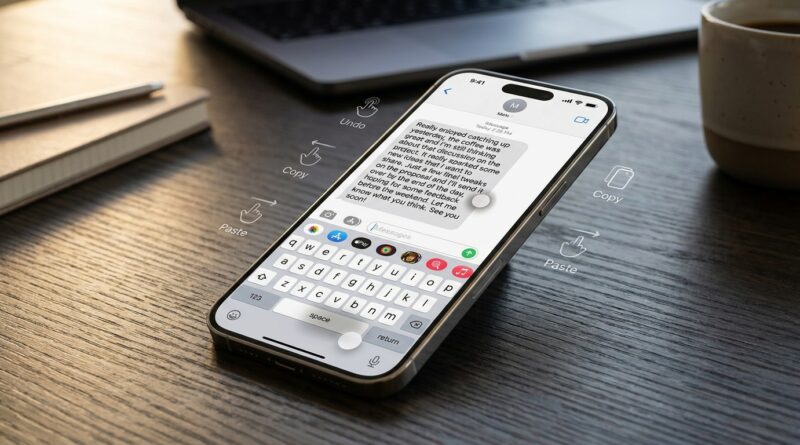
Stop Letting Your Keyboard Slow You Down: The Hidden ‘One‑Hand Command Bar’ Trick iPhone Power Users Use To Type At Warp Speed
You know this annoyance exactly. You spot a typo halfway through a long text, try to tap the cursor into the right spot, and your iPhone drops it two words too far. Then you press and hold, wait for the little magnifier behavior, drag again, miss again, and suddenly a simple correction feels like a tiny fight. If you type a lot on your phone, for work, school, group chats, or even notes to yourself, this adds up fast. The good news is that iOS has quietly become much better at text editing than most people realize. Buried in the keyboard are a few hidden iPhone text editing tricks that can make you much faster with one hand. Once you learn three of them, space-bar trackpad mode, three-finger edit gestures, and the quick AutoFill code shortcut, your keyboard stops feeling like a cramped typing box and starts acting more like a real editing tool.
⚡ In a Hurry? Key Takeaways
- The fastest hidden iPhone text editing trick is holding the space bar to turn the keyboard into a trackpad for precise cursor moves.
- Use three fingers to copy, paste, undo, and redo so you spend less time hunting through menus.
- These tools are built into recent iOS versions, so you do not need a new app, and they work in Mail, Notes, Messages, docs, and most text boxes.
The one-hand command bar most people never notice
The iPhone keyboard looks simple, but it is hiding several editing controls in plain sight. Apple did not put a big tutorial on your home screen for them, so lots of people keep typing the slow way for years.
The trick is not one setting. It is a small chain of moves that work together. First, use the space bar like a trackpad. Then use three-finger gestures for common edit commands. Finally, use the one-tap shortcut above the keyboard when iOS offers a fix, like a pasted code or suggested correction.
If this sounds a bit like a secret menu, that is because it kind of is.
Trick 1: Turn the space bar into a trackpad
This is the big one. If you only remember one tip from this article, make it this one.
How to do it
Open any app where you can type. Press and hold the space bar. After a moment, the letters on the keyboard fade, and the keyboard turns into a trackpad. Without lifting your finger, slide left, right, up, or down to move the cursor exactly where you want it.
That is it.
Why it feels so much better
Instead of stabbing at a tiny cursor between letters, you are gliding it into place. It is smoother, more accurate, and much easier on bigger iPhones where reaching across the screen with one thumb feels awkward.
This is especially helpful when you are editing:
- Long emails
- Notes with bullet points
- Captions and social posts
- School essays in Google Docs or Pages
- Code snippets or passwords where one character matters
A small tip that makes it even better
Move slowly when you get close to the spot you want. The cursor becomes much easier to place if you treat the last few letters like fine steering, not a race.
Trick 2: Use three fingers for copy, paste, undo, and redo
This is the part many iPhone owners never discover. iOS supports text editing gestures that save you from digging through pop-up menus.
The gestures worth learning
- Pinch in with three fingers: Copy selected text
- Pinch out with three fingers: Paste
- Swipe left with three fingers: Undo
- Swipe right with three fingers: Redo
There is also a small edit toolbar that can appear when you tap with three fingers in some apps. It gives you on-screen buttons for cut, copy, paste, undo, and redo.
When these actually help
These gestures are best when you are moving chunks of text around, not just fixing one letter. Say you typed a paragraph in Notes and want to move one sentence to the top. Or you copied an address from Safari and want to paste it into Messages without fiddling with long-press menus.
At first, the gestures can feel a little odd. Give them a day or two. Once your hands learn them, they are faster than menu hunting.
Trick 3: Use the one-tap “fix this” shortcut when it appears
Apple has added more little one-tap helpers above the keyboard over time, and they are easy to miss.
The most useful example is verification codes. If a text message sends you a login code, iPhone often shows it right above the keyboard as an AutoFill suggestion. Tap it once, and the code drops into the box. No memorizing. No app switching.
The same idea appears with some password fills, contact info, and suggested corrections. It is not always labeled the same way, but the habit is simple: before you start manually fixing something, glance above the keyboard. iOS may already be offering the shortcut.
That same “check the tool Apple hid in plain sight” mindset also helps in other parts of the phone. A good example is Stop Letting Bad Photos Be Permanent: The Hidden ‘One‑Tap Photo Rescue Presets’ Trick iPhone Power Users Use To Fix Shots In 5 Seconds, which shows how many people miss built-in shortcuts in the Photos app too.
How to chain these tricks together for real speed
On their own, each tip is useful. Together, they are where the speed boost really kicks in.
A real-world example
Imagine you are replying to a long work email on your phone.
- You spot a typo in the second paragraph. Hold the space bar and slide the cursor right to it.
- You accidentally delete the wrong word. Swipe left with three fingers to undo.
- You want to move a sentence from the bottom to the top. Select it, pinch in with three fingers to copy, place the cursor with the space-bar trackpad, then pinch out to paste.
- You need to enter a login code from a text. Tap the one-tap code suggestion above the keyboard.
That whole process sounds fancy written out, but after a few tries it becomes second nature.
Where these tricks work best
Most of the time, these hidden iPhone text editing tricks work anywhere the standard iOS keyboard appears. That includes:
- Messages
- Notes
- Safari search and text fields
- Pages
- Google Docs
- Third-party apps like Slack and many social apps
Some apps handle text selection a bit differently, so your results can vary. But the space-bar trackpad trick is very widely supported, and it is the one most people end up using every day.
If it is not working on your iPhone
If you try these and nothing happens, check a few simple things first.
Make sure you are using Apple’s keyboard
If you installed a third-party keyboard, some gestures may behave differently or not work at all.
Update iOS if you are far behind
These features have been around for a while, but newer iOS versions tend to make them more consistent.
Practice in Notes first
Notes is a great test bed because it usually works well with Apple’s text tools. Once you get the feel there, move to Mail or your favorite apps.
Do not rush the gesture
If the three-finger commands are not triggering, slow down and make the motion clearly. They are easy once learned, but not always forgiving on the first attempt.
Who gets the biggest benefit from this
Honestly, almost anyone who types more than a few short texts.
But these tricks are especially useful for:
- People using larger Pro Max or Plus iPhones one-handed
- Students writing long notes or essays
- Remote workers answering lots of email
- Anyone copying links, addresses, or snippets all day
- People who use their iPhone as a light productivity device instead of just a phone
If your phone has slowly become your mini office, this matters more than it used to.
At a Glance: Comparison
| Feature/Aspect | Details | Verdict |
|---|---|---|
| Space-bar trackpad mode | Press and hold the space bar to move the cursor with much better precision. | Best everyday speed boost. Learn this first. |
| Three-finger edit gestures | Pinch to copy or paste, swipe to undo or redo, and access quick edit controls in supported apps. | Very useful once memorized, especially for longer writing. |
| One-tap keyboard shortcuts | Suggestions above the keyboard can autofill verification codes, corrections, and other handy text items. | Small change, big time saver. Always glance above the keyboard first. |
Conclusion
If your iPhone still feels clumsy whenever you need to fix text, the problem probably is not your thumbs. It is that Apple tucked some of its best keyboard controls out of sight. The latest iOS versions quietly turned the keyboard into a real editing tool, and once you start combining space-bar trackpad mode, three-finger edit gestures, and those one-tap shortcut suggestions above the keyboard, typing on your phone gets much less frustrating. You write faster, fix mistakes with less fuss, and stop wasting time wrestling with a cursor that never seems to land where you want. For email, work docs, school essays, social posts, and even coding on the go, these hidden iPhone text editing tricks are one of the simplest upgrades you can make today.