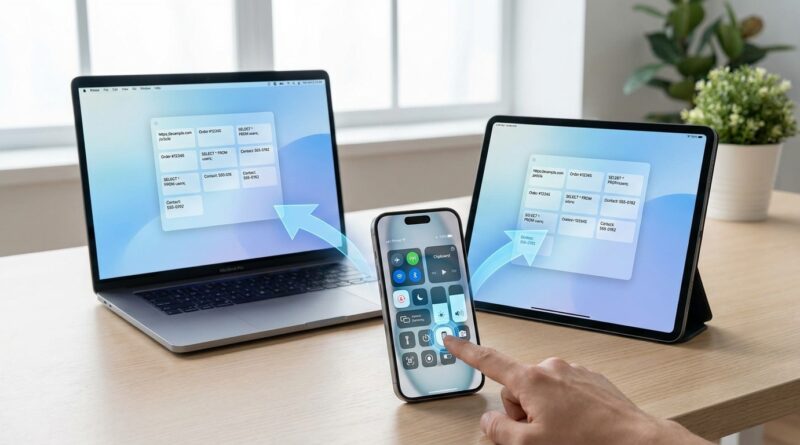
Stop Letting Your Clipboard Get Messy: The Hidden ‘Multi-Device Clipboard History’ Trick Power Users Use To Pass Anything Between iPhone, Mac, And iPad In Seconds
You copy a link on your iPhone, sit down at your Mac, hit paste, and nothing happens. Or worse, something old appears and now you’re wondering if you imagined the whole thing. It’s one of those tiny Apple ecosystem annoyances that can make you feel silly fast. You end up AirDropping text to yourself, sending your own phone number a message, or stuffing random bits into Notes just so they don’t vanish. The problem is not you. Apple’s Universal Clipboard is handy, but it only keeps the last thing you copied, and it can feel a little mysterious when it doesn’t sync right away. The fix is to build your own simple clipboard history with Shortcuts and iCloud, so your last several copied items can follow you between iPhone, iPad, and Mac without relying on a third-party clipboard app that sees everything.
⚡ In a Hurry? Key Takeaways
- Apple’s built-in Universal Clipboard only remembers one item, but you can make an iPhone universal clipboard history with Shortcuts and iCloud Notes.
- Create one shortcut to save copied text, links, and codes into a hidden note, then another to show your last 10 items and paste or copy them again.
- This keeps your data inside Apple’s own system, which is usually a better privacy choice than installing a clipboard manager that reads everything you copy.
Why Apple’s Clipboard Feels So Smart, Until It Doesn’t
Universal Clipboard is one of those features Apple barely explains because, when it works, it feels like magic. Copy on iPhone. Paste on Mac. Done.
But there’s a catch. It is not really a clipboard history. It is a clipboard handoff. One item goes across. Then it gets replaced by the next thing.
So if you copied a shipping address, then a 2FA code, then a Zoom link, the address is gone unless you saved it somewhere else. That is why people end up treating Messages, Notes, and Reminders like emergency scrap paper.
If this sounds familiar, you might also like Stop Letting Random Text Slip Away: The Hidden ‘Universal Clipboard History’ Stack Power Users Use To Recall Anything You Copied All Day, which tackles the same problem from the text-recall angle.
The Better Trick: Make Your Own Synced Clipboard History
Here’s the idea in plain English.
Every time you want to keep something you copied, you run a shortcut. That shortcut grabs the clipboard contents, stamps it with the date and device name, and appends it to one hidden note in iCloud.
Then you create a second shortcut that reads that note, pulls out your most recent entries, and shows them in a clean menu. Tap one, and you can copy it back to the clipboard instantly on whatever device you’re using.
That gives you three things Apple’s default setup does not:
- A history, not just the last copied item
- Sync across iPhone, iPad, and Mac
- More privacy than many third-party clipboard tools
What You Need Before You Start
You do not need to be a Shortcuts wizard for this. You just need a few basics in place:
- iCloud enabled on your Apple devices
- The Shortcuts app installed and signed into the same Apple Account
- Notes syncing through iCloud
- Bluetooth and Wi-Fi on, if you still want normal Universal Clipboard as backup
This trick works best for text, links, addresses, codes, and short notes. Images and files are possible with more advanced setups, but text is where this really shines.
Step 1: Create a Hidden Clipboard Note
Make one note that acts like your database
Open Apple Notes and create a new note called something obvious to you but boring to everyone else. Something like “Sync Log” or “Reference Snippets” works well.
If you want extra privacy, tuck it inside a folder you rarely open. You can also lock the note, but keep in mind that locked notes can make automation less smooth.
This note is where your copied items will be stored line by line.
Step 2: Build a “Save Clipboard” Shortcut
The shortcut’s job
This shortcut should do four things:
- Get the current clipboard
- Check that it is not blank
- Add a timestamp and device name
- Append it to your hidden note
What the shortcut should include
Inside Shortcuts, create a new shortcut and add actions along these lines:
- Get Clipboard
- If Clipboard has any value
- Current Date
- Get Device Details for device name
- Text to format the entry, such as:
2026-09-01 9:42 AM | iPhone
[clipboard content]
—– - Append to Note and choose your hidden note
Name it something easy like “Save Clip.”
Now add it to your Home Screen, Control Center if available on your setup, Action Button if your iPhone supports it, or Back Tap if you like hidden gestures.
Step 3: Build a “Show Clipboard History” Shortcut
This is the fun one
Your second shortcut reads that note and pulls out recent entries so you can reuse them fast.
At a basic level, it should:
- Find your hidden note
- Split the note into entries using your separator line
- Sort or reverse them so newest is first
- Take the last 10
- Show them in a menu
- When you tap one, copy just the content back to the clipboard
Why this feels so good in daily use
This is where the “power user smugness” comes in. You tap one shortcut on your Mac or iPad, and there are the last few copied things from your iPhone, ready to go. No texting yourself. No hunting through Notes. No trying to remember if you copied the code before or after the password reset link.
Step 4: Add Smart Triggers So You Barely Have to Think About It
Use automation carefully
Apple does not let every clipboard action run fully in the background on every device and version of iOS, so the cleanest setup is usually semi-automatic. You still tap once to save a clip, but you can make that tap very easy.
Good trigger ideas include:
- Action Button runs “Save Clip”
- Back Tap runs “Save Clip”
- A Home Screen widget with both shortcuts
- A Focus mode that changes your Lock Screen to show clipboard shortcuts during work hours
Focus-aware setup is the secret sauce
This part is easy to miss, but it matters. If you switch between Work, Personal, and Side Project Focus modes, you can surface different clipboard tools depending on what you’re doing.
For example, in Work Focus you might show “Save Clip” and “Recent Work Clips.” In Personal Focus, maybe it only shows “Recent Clips” so your screen stays cleaner.
That turns Shortcuts from a neat trick into something that feels built into your routine.
Privacy: Why This Is Better Than Many Clipboard Apps
A lot of clipboard manager apps are useful. I am not knocking them across the board. But clipboard apps are, by definition, asking for access to the exact stuff you copy all day. That can include addresses, one-time codes, package numbers, bank details, snippets of emails, and occasionally passwords if you are not careful.
Using Shortcuts plus iCloud Notes keeps the whole system much closer to home. Your data stays in Apple’s apps and your Apple account, instead of passing through a separate app’s tracking, sync, or storage setup.
That does not make it magic or risk-free. It just means fewer moving parts and fewer companies involved.
Important Limits You Should Know About
This is clever, not perfect
There are a few catches.
- It works best with text. Images and files need a more advanced build.
- Clipboard access on iPhone is more locked down than many people expect.
- You may need to tap a shortcut instead of having every copy action saved automatically.
- If you save everything forever, your note will get messy unless you trim it now and then.
Still, even a basic version is miles better than relying on one invisible clipboard item floating between devices.
Real-World Ways People Use This
This setup is especially handy if you regularly bounce between devices during the day.
- Copy a two-factor code on iPhone, then pull it up on your Mac if it gets replaced too quickly
- Grab an address while walking out the door, then paste it into Maps on your iPad later
- Save snippets for side projects without mixing them into your regular Notes clutter
- Keep recent invoice numbers, tracking links, and support ticket IDs ready across devices
Once you start using it, the old habit of texting yourself random fragments feels absurd.
Troubleshooting If It Seems Flaky
If clips are not showing up everywhere
Check these first:
- Make sure Notes is syncing through iCloud on all devices
- Open the Notes app once on each device to force a sync
- Confirm your shortcut is appending to the correct note, not creating a new one
- Test with plain text before trying special formatting
If Universal Clipboard itself is acting weird
Remember that this shortcut system is separate from Apple’s native copy-paste handoff. If normal Universal Clipboard is failing too, make sure:
- Both devices use the same Apple Account
- Bluetooth and Wi-Fi are on
- Handoff is enabled
- The devices are physically near each other
Your custom clipboard history can still save the day even when Apple’s built-in handoff is being moody.
At a Glance: Comparison
| Feature/Aspect | Details | Verdict |
|---|---|---|
| Apple Universal Clipboard | Works between nearby Apple devices, but only keeps the latest copied item and can feel inconsistent over time. | Great for quick one-off paste jobs, weak for history. |
| Shortcuts + iCloud Note History | Stores multiple recent clips, syncs through your Apple account, and can be surfaced with widgets, Focus modes, or quick actions. | Best balance of speed, control, and privacy for most people. |
| Third-Party Clipboard Apps | Often more polished and automatic, but they may need broad clipboard access and have their own sync rules or subscriptions. | Useful, but think carefully before trusting them with sensitive copied data. |
Conclusion
If you are tired of losing copied text between your iPhone, Mac, and iPad, the answer is not to work harder. It is to stop pretending Apple’s default clipboard is a real history tool. It is not. A simple Shortcuts setup tied to a hidden iCloud note gives you a practical iphone universal clipboard history shortcuts system that actually fits real life. You move faster, you keep more control over private data, and you stop wasting energy on tiny annoyances like retyping codes, resending links, and digging through old notes for “that thing I just copied.” For people juggling work, personal, and side-project devices, this is one of those little fixes that pays off almost immediately. And once you see your last ten copied items appear with one tap, it honestly does feel a bit like cheating.