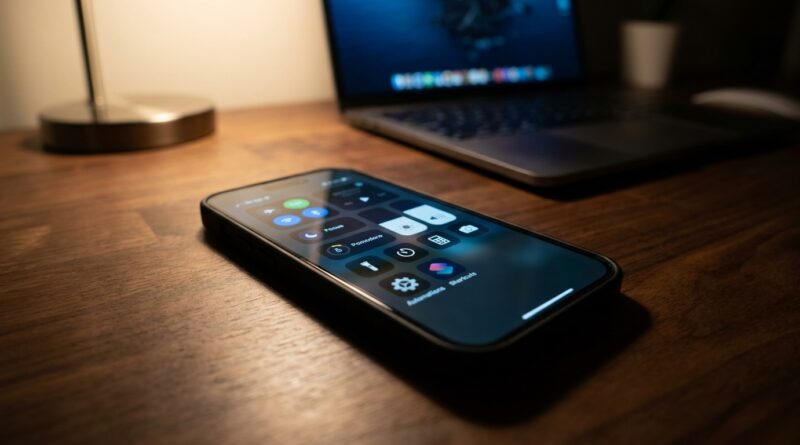
Stop Letting Control Center Be Random: The Hidden ‘Pro Control Grid’ Trick iPhone Power Users Use To Run Everything In Two Swipes
Your iPhone’s Control Center is supposed to save time, but for a lot of people it does the opposite. You swipe down, see a weird mix of buttons you barely touch, and when you actually need something fast, like Low Power Mode at 8 percent, Personal Hotspot in a hurry, or a quick way into Focus, you still end up wandering through Settings. That is frustrating because the tool is right there. It just is not set up with any logic. The good news is that recent iOS versions made Control Center much more flexible than most people realize. The trick is to stop thinking of it as a place to dump extra icons and start treating it like a two-level dashboard. One swipe should cover your daily basics. A second swipe and a few long-press options should handle your deeper controls. Once you set it up that way, your iPhone feels much less random.
⚡ In a Hurry? Key Takeaways
- Yes, you can customize iPhone Control Center hidden features into a simple two-swipe system that is much faster than the default setup.
- Put your most-used tools on the first screen, move “sometimes” controls like Focus, Hotspot, and Low Power to the next layer, and use long-press options for deeper actions.
- This is safe, takes about five minutes, and can cut down a lot of pointless trips into Settings every day.
Why most Control Centers feel messy
Apple gives you a lot of controls. That sounds nice until the layout starts feeling like a junk drawer.
A junk drawer is not useless. It is just stressful. You know the thing you want is probably in there somewhere, but you still have to hunt for it.
That is exactly how many people use Control Center. They add a few tiles because an update suggested them. They keep old ones because removing them feels risky. They never step back and ask one simple question.
What do I need in the first two seconds?
If you answer that first, the rest gets easier.
The hidden trick: Build a “Pro Control Grid”
The real power move is not adding more buttons. It is assigning jobs to positions.
Think of Control Center in layers.
Layer 1: Your default tools
This is what should appear on your first pull. These are the things your brain reaches for without thinking. Brightness. Volume. Flashlight. Camera. Timer. Maybe Dark Mode if you switch it often.
If a control is something you use almost every day, it belongs here.
Layer 2: Your “situation” tools
This is for controls you need quickly, but not constantly. Focus. Low Power Mode. Personal Hotspot. Screen Recording. Text Size. Shazam. Sound Recognition. Wallet, if that helps your routine.
These are not random extras. They are your “something came up” tools.
Layer 3: Long-press shortcuts
This is the part many people miss. Several Control Center buttons do more when you press and hold them. That means one tile can act like a mini menu.
For example, press and hold the connectivity box and you can get to AirDrop, Hotspot, and more without opening full Settings. Press and hold Focus to jump between modes. Press and hold brightness for Night Shift and True Tone.
That is where the hidden features really start to pay off.
How to customize iPhone Control Center hidden features the smart way
On newer versions of iOS, open Control Center, then look for the option to add or edit controls. On some versions, you can also go through Settings and find Control Center there. Apple has changed the exact path a bit across iOS releases, but the goal is the same: edit, remove, resize, and reorder with intention.
Do not start by adding everything that looks useful. Start by removing what is not.
Step 1: Keep only true first-line tools up top
Ask yourself, “What do I need when I am distracted, low on battery, in bad lighting, or in a hurry?”
For most people, that list is short:
- Brightness
- Volume
- Flashlight
- Camera
- Timer
- Wi-Fi and connectivity block
That is your first line. Clean and boring is good here.
Step 2: Put stress-saving controls on the next layer
Now add the controls that rescue you from common annoyances:
- Low Power Mode when the battery drops fast
- Focus when you need quiet right now
- Personal Hotspot when Wi-Fi fails
- Screen Recording for saving a bug or showing someone how to do something
- Text Size if apps keep feeling too small
- Shazam if you are always asking, “What song is this?”
This is where the dashboard starts feeling personal instead of generic.
Step 3: Group by urgency, not by category
This is the part most guides skip.
Do not organize Control Center like a filing cabinet. Organize it like a panic-proof cockpit.
In other words, place controls based on how fast you need them, not what type they are. Flashlight and Camera may have nothing in common on paper, but both belong in the “I need this now” zone.
Focus and Low Power Mode also belong near each other because both are “help me manage this moment” tools.
The best sample “Pro Control Grid” for most people
If you want a starting point, this one works well for a lot of iPhone owners.
First pull
- Connectivity block
- Brightness slider
- Volume slider
- Flashlight
- Camera
- Timer
Second pull or lower section
- Low Power Mode
- Focus
- Personal Hotspot
- Screen Recording
- Dark Mode
- Text Size
- Shazam
Long-press habits to learn
- Long-press connectivity for AirDrop and Hotspot options
- Long-press Focus to switch modes fast
- Long-press brightness for Night Shift and True Tone
- Long-press timer for quick preset lengths on supported versions
You do not need this exact setup. The point is the logic. First pull for daily reflexes. Second pull for situational tools. Long-press for advanced actions.
Controls worth adding that people often overlook
Some of the best Control Center buttons are not flashy. They are simply useful.
Low Power Mode
This one should be much more common than it is. If you are the kind of person who notices battery panic at the worst possible moment, put this where you can reach it instantly.
Focus
Focus is far more helpful when it is easy to trigger. If it is buried in Settings, you will not use it. If it is one swipe away, you might actually turn on Work, Personal, Sleep, or Do Not Disturb when it matters.
If you are trying to make your evenings calmer too, this pairs nicely with Stop Letting Screens Steal Your Sleep: The Hidden ‘Bedtime Scene Automations’ Trick iPhone Power Users Use To Wind Down Without Willpower. Control Center handles the quick tap. Automation handles the routine.
Screen Recording
This is one of those controls you think you do not need until you really do. It is perfect for saving a glitch, showing tech support a problem, or sending a family member a quick how-to.
Text Size
If one app suddenly feels tiny and annoying, this can save you from a full trip into Accessibility menus.
Hearing or Sound Recognition tools
These are especially useful in busy homes, for accessibility needs, or if you do not want to miss key alerts.
What to remove without guilt
If you never use a control, it is not “nice to have.” It is clutter.
That sounds harsh, but it is true. Every extra tile makes the important ones slightly harder to find. If you have not touched a control in a month, ask whether it deserves the space.
Common clutter includes:
- Remote controls you forgot about
- Utilities you tested once
- Duplicate ways to do the same thing
- Nice ideas that are not part of your real life
Your Control Center should reflect your habits, not your aspirations.
Hidden behavior that makes Control Center faster
There are a few small habits that make a big difference.
Use long-press before opening Settings
Any time you are about to open Settings, pause and try a long-press in Control Center first. You will be surprised how often it gets you close enough.
Think in “rescue scenarios”
Build around moments like these:
- Battery is suddenly low
- Wi-Fi is bad and you need Hotspot
- You need a photo before the moment passes
- You need quiet for a meeting or bedtime
- You need more light, less light, or bigger text right now
That approach beats the usual “what features exist?” mindset.
Review it once after a week
Do not expect to nail the perfect layout instantly. Use it for a few days. Notice what you keep reaching for. Then make one more pass.
Usually the second edit is where it clicks.
What this does better than digging through Settings
Settings is great for deep configuration. It is terrible for urgency.
Control Center is the opposite. It is not for everything. It is for now.
That is why the right layout matters so much. It reduces friction at exactly the moments when friction is most annoying.
And because iOS keeps adding more options, having a simple front-door system matters more every year, not less.
At a Glance: Comparison
| Feature/Aspect | Details | Verdict |
|---|---|---|
| Default random layout | Mixed controls with no priority, often leading back into Settings during urgent moments | Fine at first. Frustrating long term |
| Pro Control Grid | First swipe for daily basics, second layer for situational tools, long-press for deeper actions | Best setup for speed and sanity |
| Long-press hidden features | Mini menus for connectivity, Focus, brightness, timers, and more depending on iOS version | Easy win. Most people underuse it |
Conclusion
Control Center quietly got a lot better, but most advice still treats it like a checklist of tiles instead of a dashboard you can actually design. That is the missed opportunity. A clear, opinionated layout saves time every single day. One pull for your default tools. A second pull for advanced controls like Focus, Low Power Mode, and Hotspot. Then a few long-press habits to replace those annoying trips through Settings. If your iPhone has started to feel more complicated over the years, this is one of the simplest ways to make it feel lighter again. Spend five minutes setting up your own Pro Control Grid tonight, and you will probably notice the difference before bedtime.